
Widgets
Every widget has its own options, fonts, sizes and looks. Put any of them on your desktop, or on the XENEON EDGE.
104 of 104 widgets
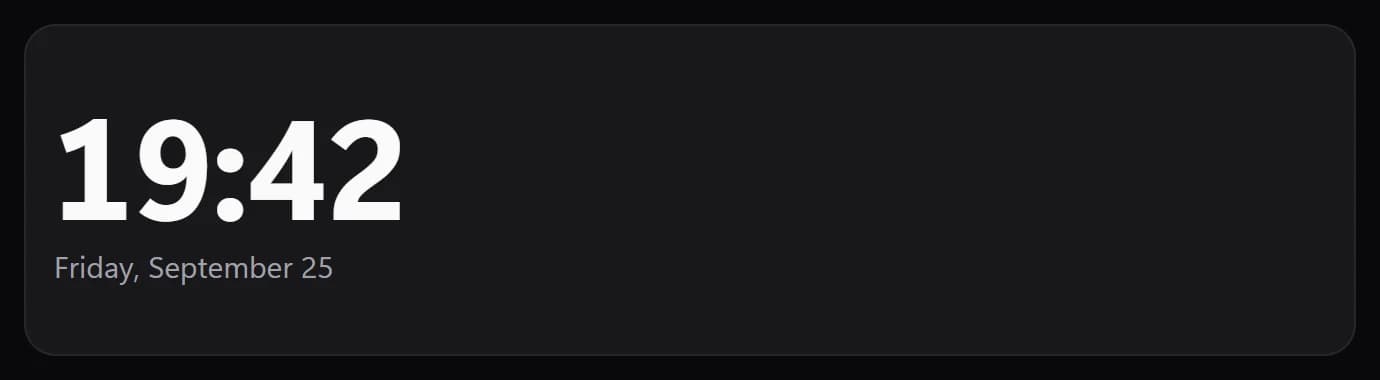
Clock
FreeTime and date: classic, dot matrix, seven-segment, flip or analog, in any time zone.
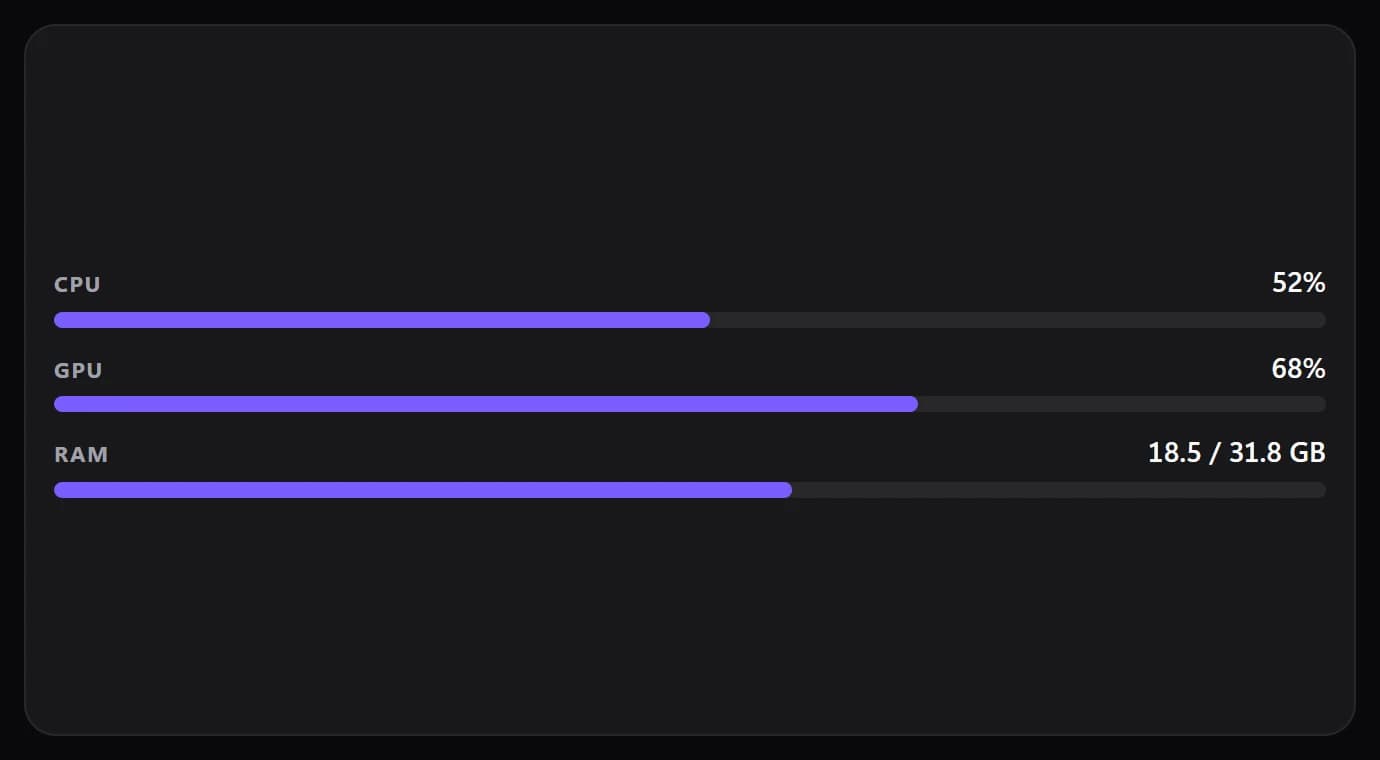
System
FreeCPU, GPU and memory load, live.
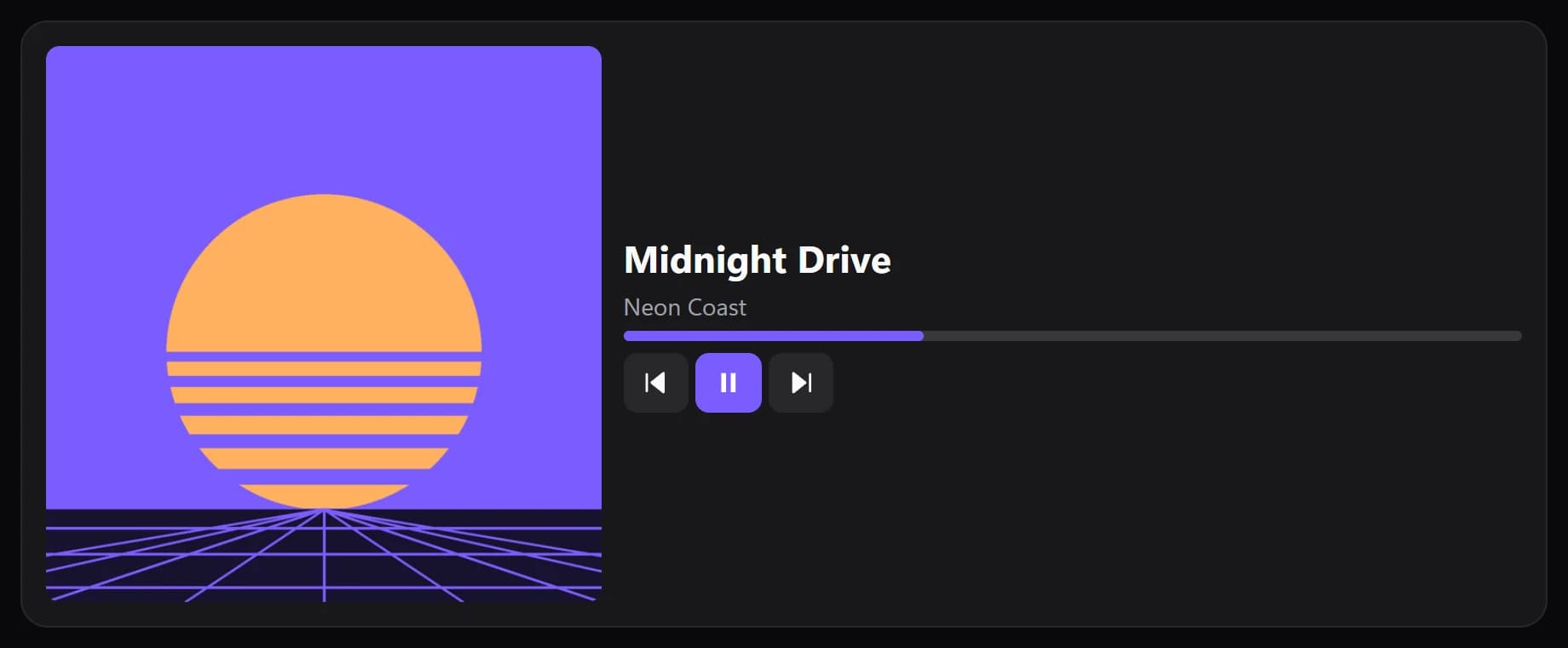
Now Playing
FreeWhat's playing, with the controls you choose, where you want them.
 Album art
PremiumJust the artwork of what's playing, whole and uncropped.
- Media controls
Media controls
FreePlay, pause, skip and more. Just the buttons.
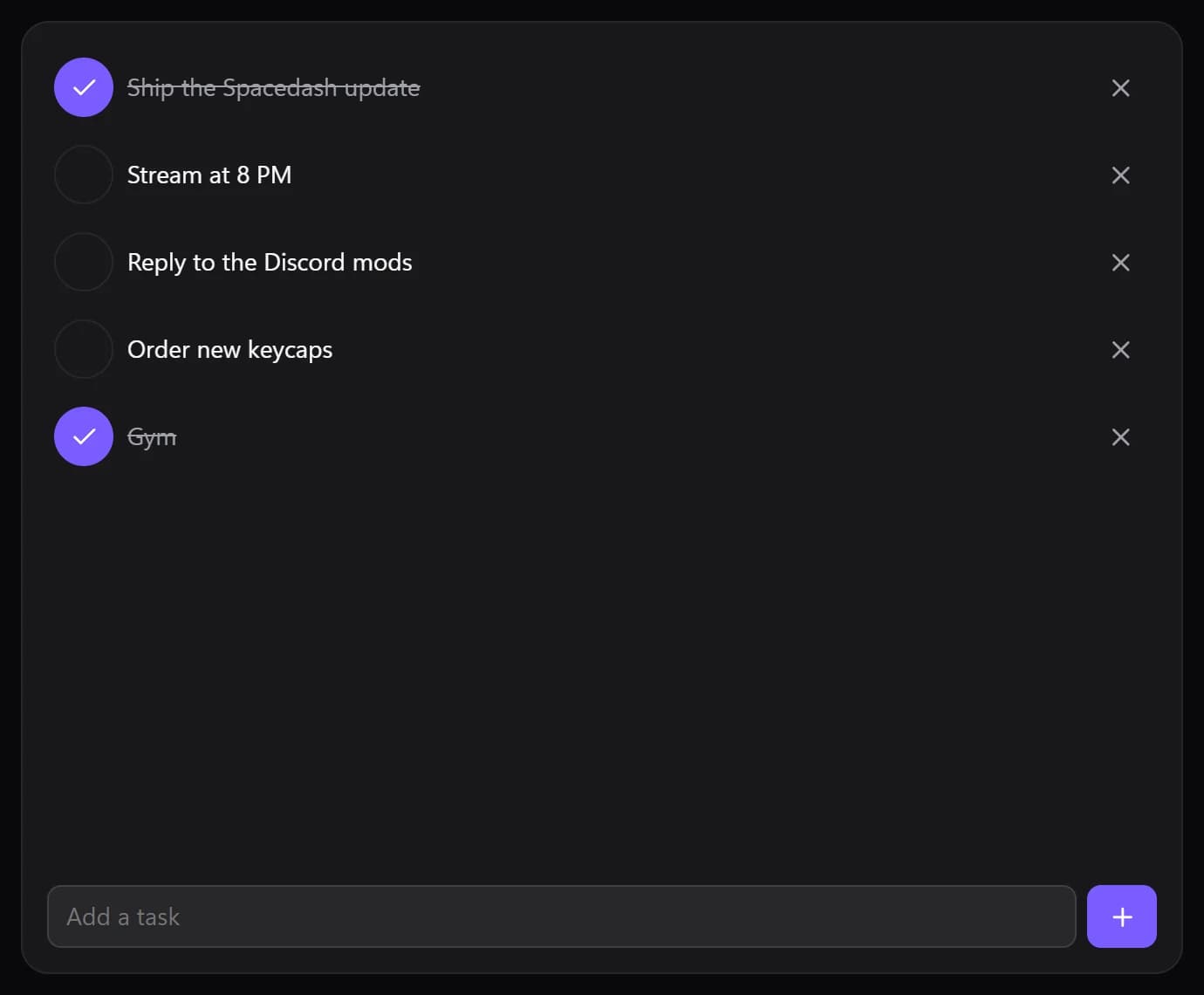
Tasks
FreeA quick checklist that lives on the Edge.
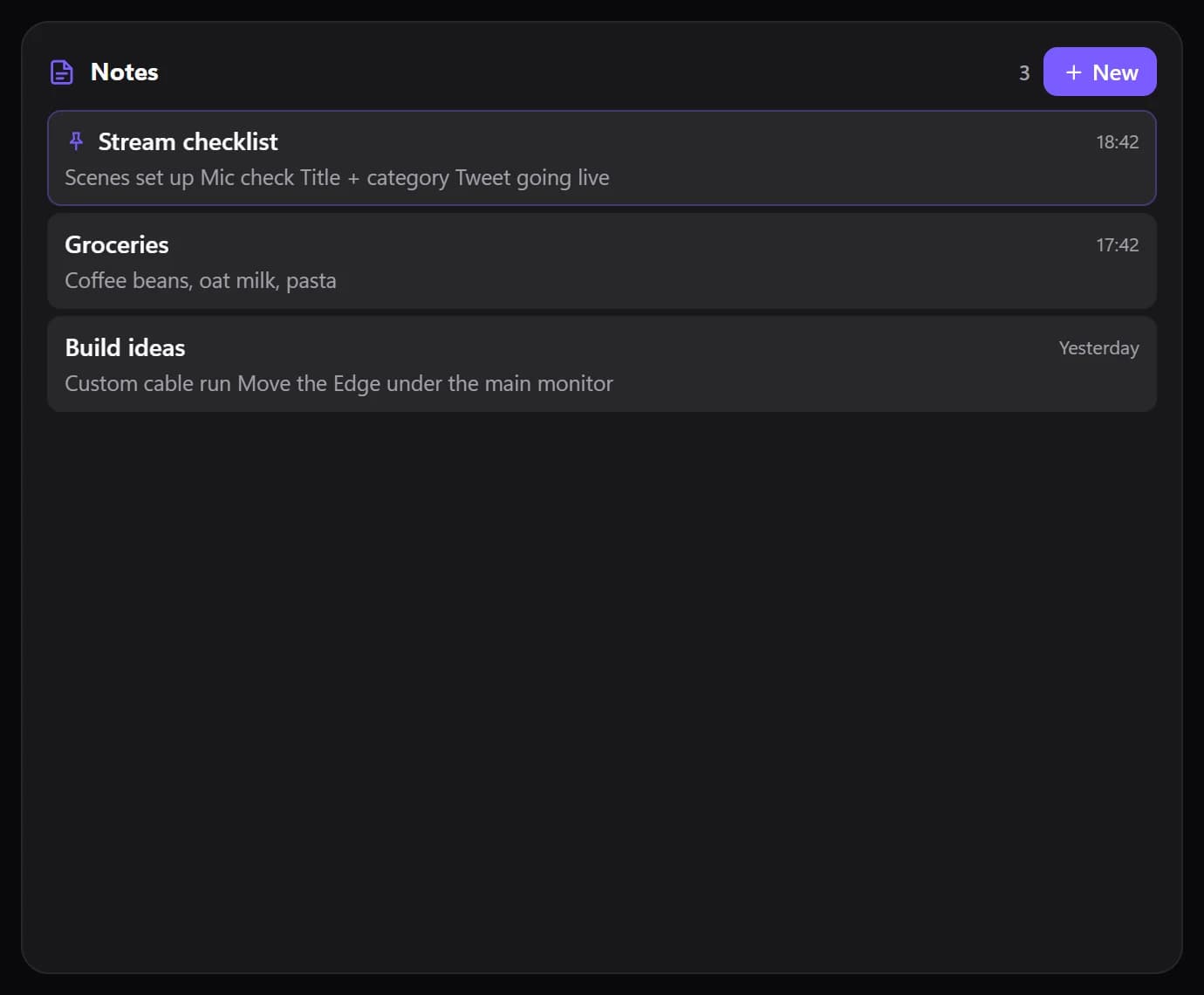
Notes
FreeJot things down; your notes on every screen.
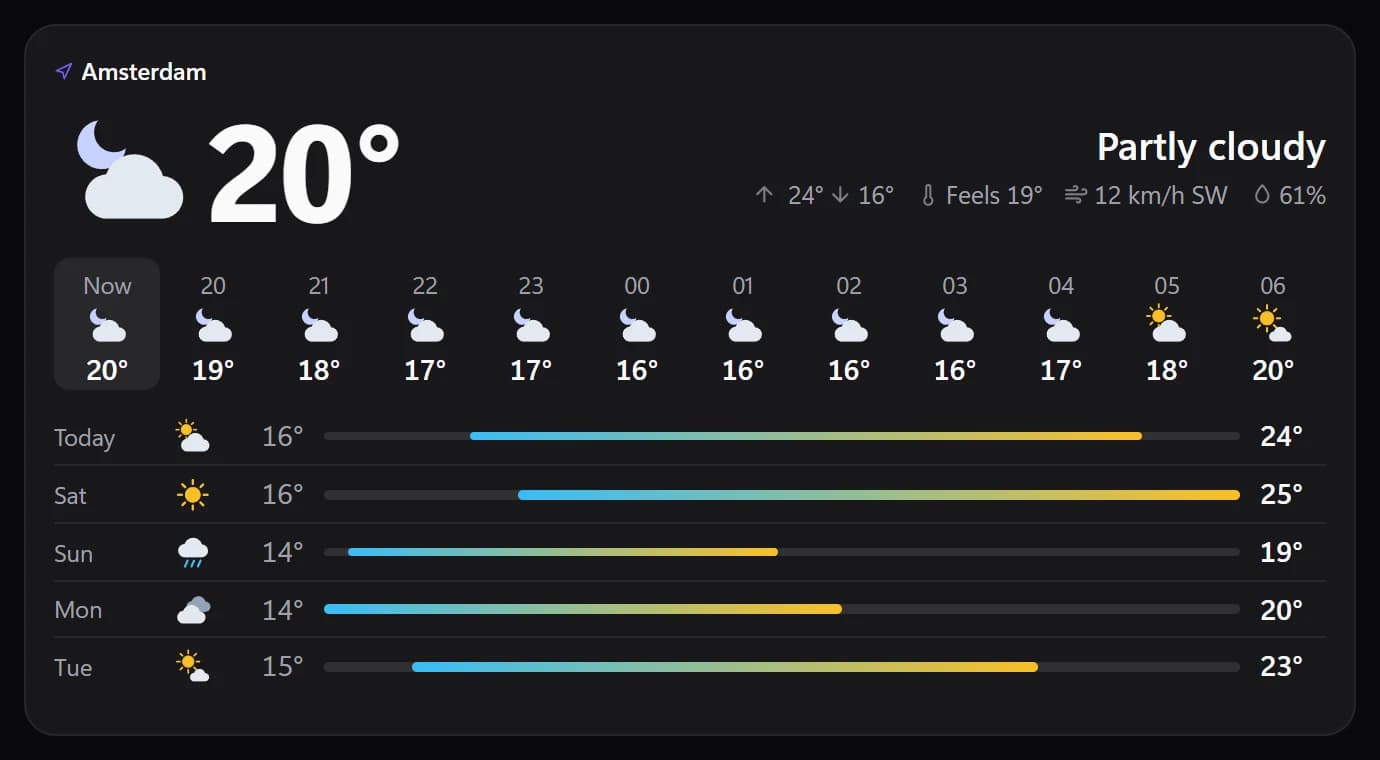
Weather
FreeThe weather where you are: now, the next hours and the days ahead. Forecast from MET Norway.
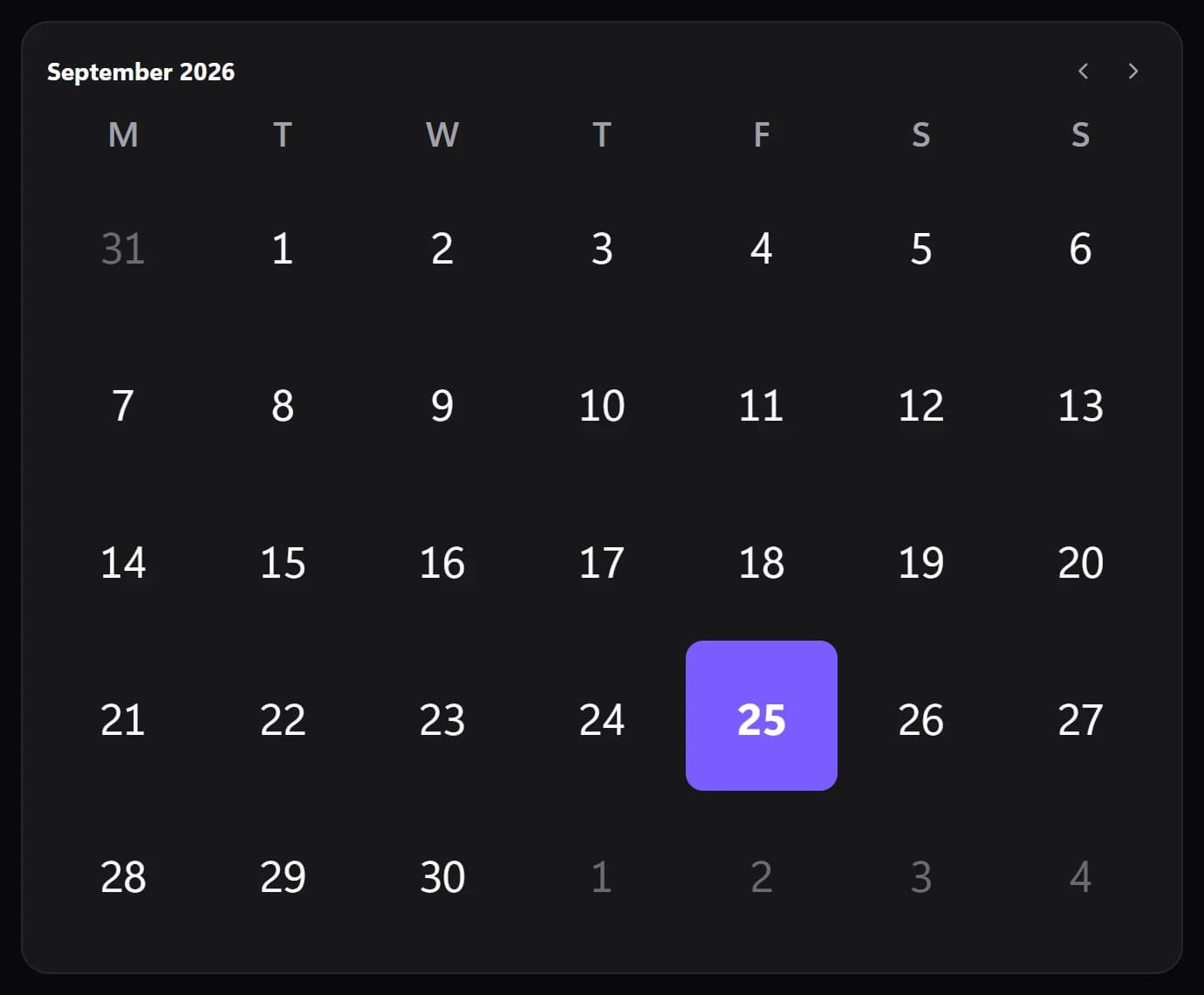
Calendar
FreeThe month, the week or today at a glance, with your Google, Outlook or iCloud events and the dates you mark.

Quick Actions
FreeButtons for shortcuts, apps, links and media.
- Image
Image
FreeA picture, logo or GIF.
- Video
Video
PremiumA looping video or GIF.
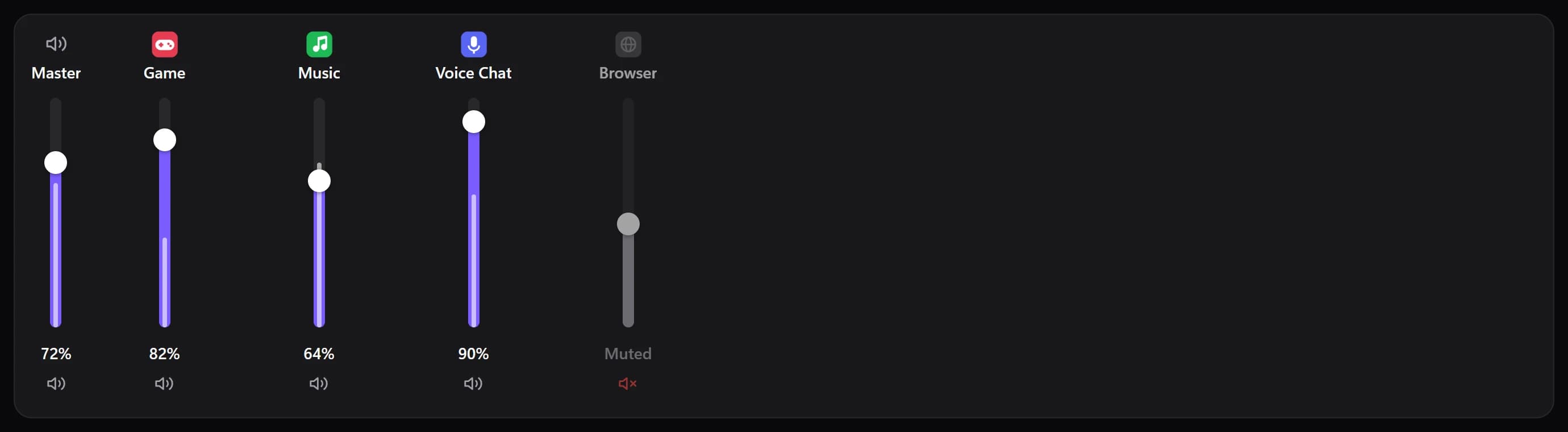
Volume Mixer
FreeVolume for every app, plus master and mic.
- Virtual Stream Deck
Virtual Stream Deck
PremiumYour Stream Deck keys, live on the Edge.
- Browser
Browser
FreeAny website, live on the Edge.
- YouTube
YouTube
FreeYouTube, signed in.
- Twitch
Twitch
FreeTwitch streams and chat.
- X
X
FreeYour X timeline.
- iFrame
iFrame
FreeEmbed a web page or widget: paste an iframe code or an address, as in iCUE.
- OBS Studio
OBS Studio
PremiumLive preview, scenes, audio and stream controls.
- OBS Preview
OBS Preview
PremiumOBS's live picture, edge to edge.
- OBS Scenes
OBS Scenes
PremiumSwitch OBS scenes with a tap.
- OBS Buttons
OBS Buttons
PremiumStream, record, mute, and buttons of your own.
- OBS Mixer
OBS Mixer
PremiumOBS's audio: mute, volume and levels.
- OBS Status
OBS Status
PremiumLive and recording timers, bitrate and dropped frames.
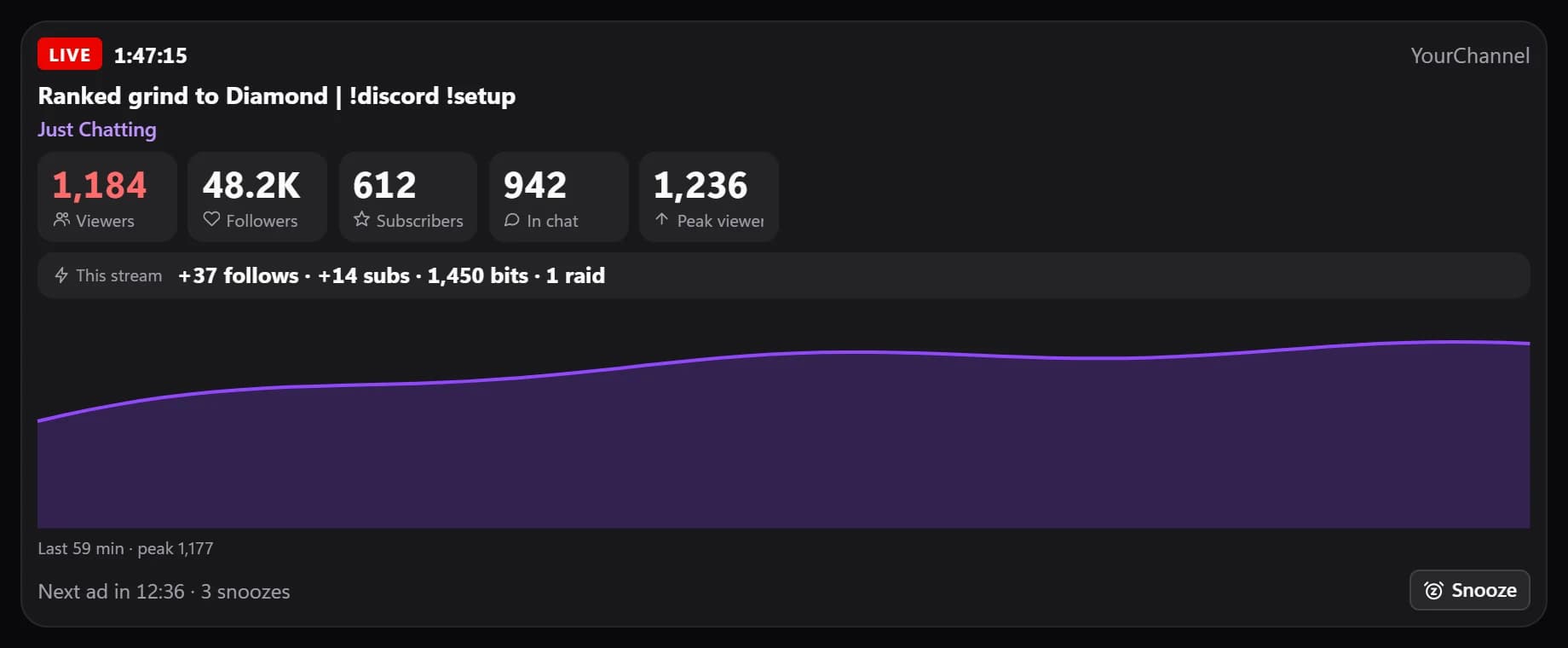
Twitch Live
PremiumLive or not, uptime, viewers, followers, subs and the next ad.
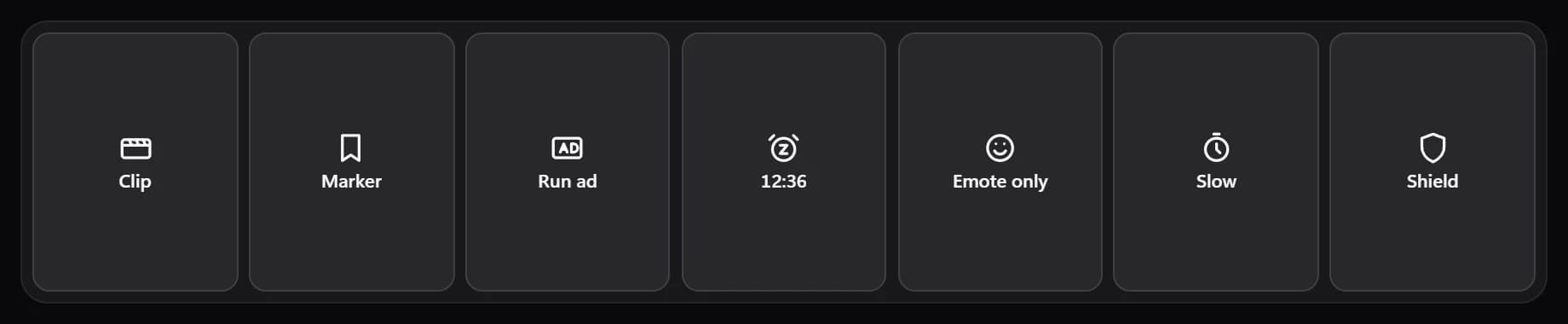
Twitch Actions
PremiumOne-tap clip, marker, ads, chat modes, Shield Mode, raids and more.
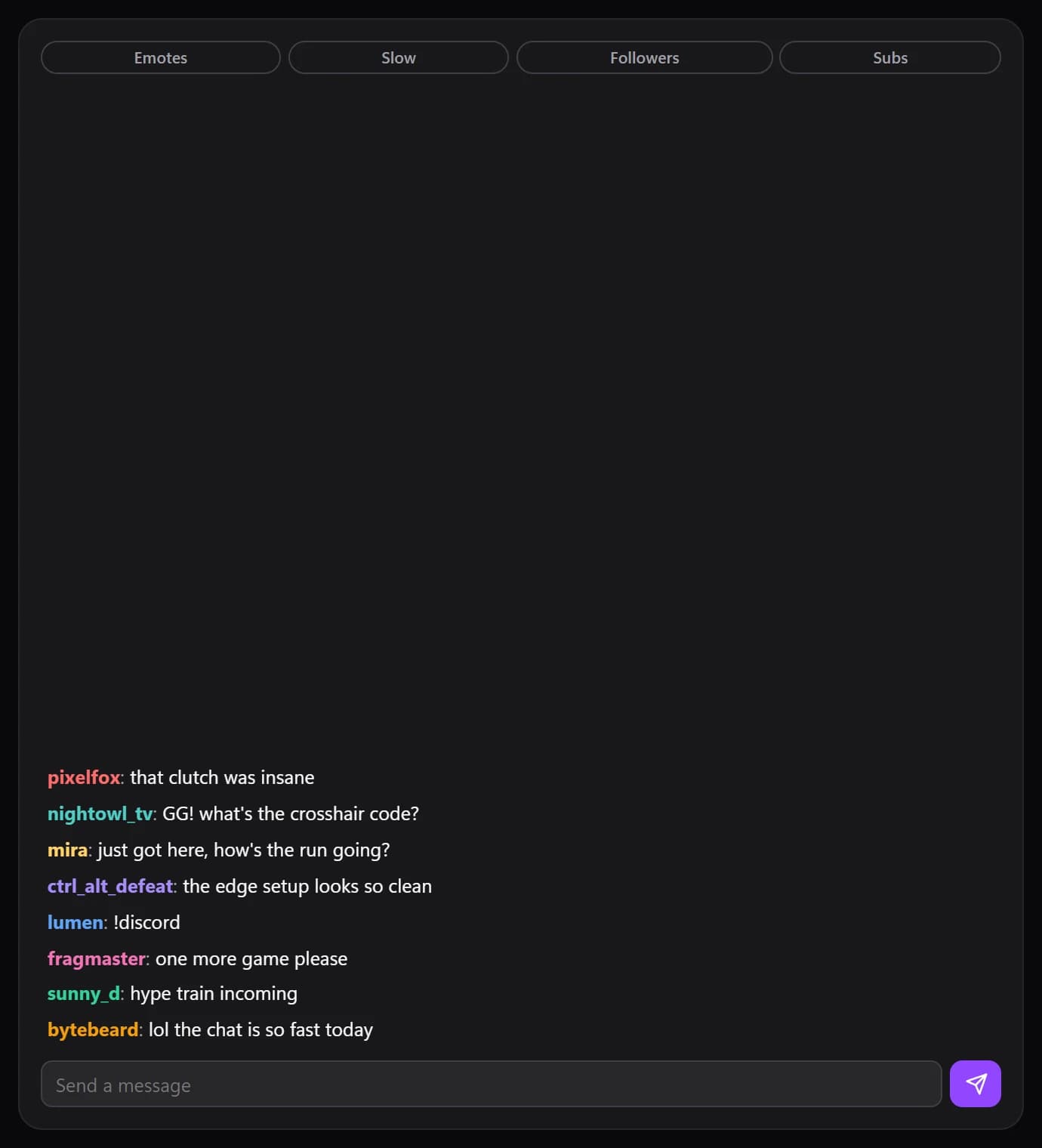
Twitch Chat
PremiumYour channel's chat, with emotes, badges and quick moderation.
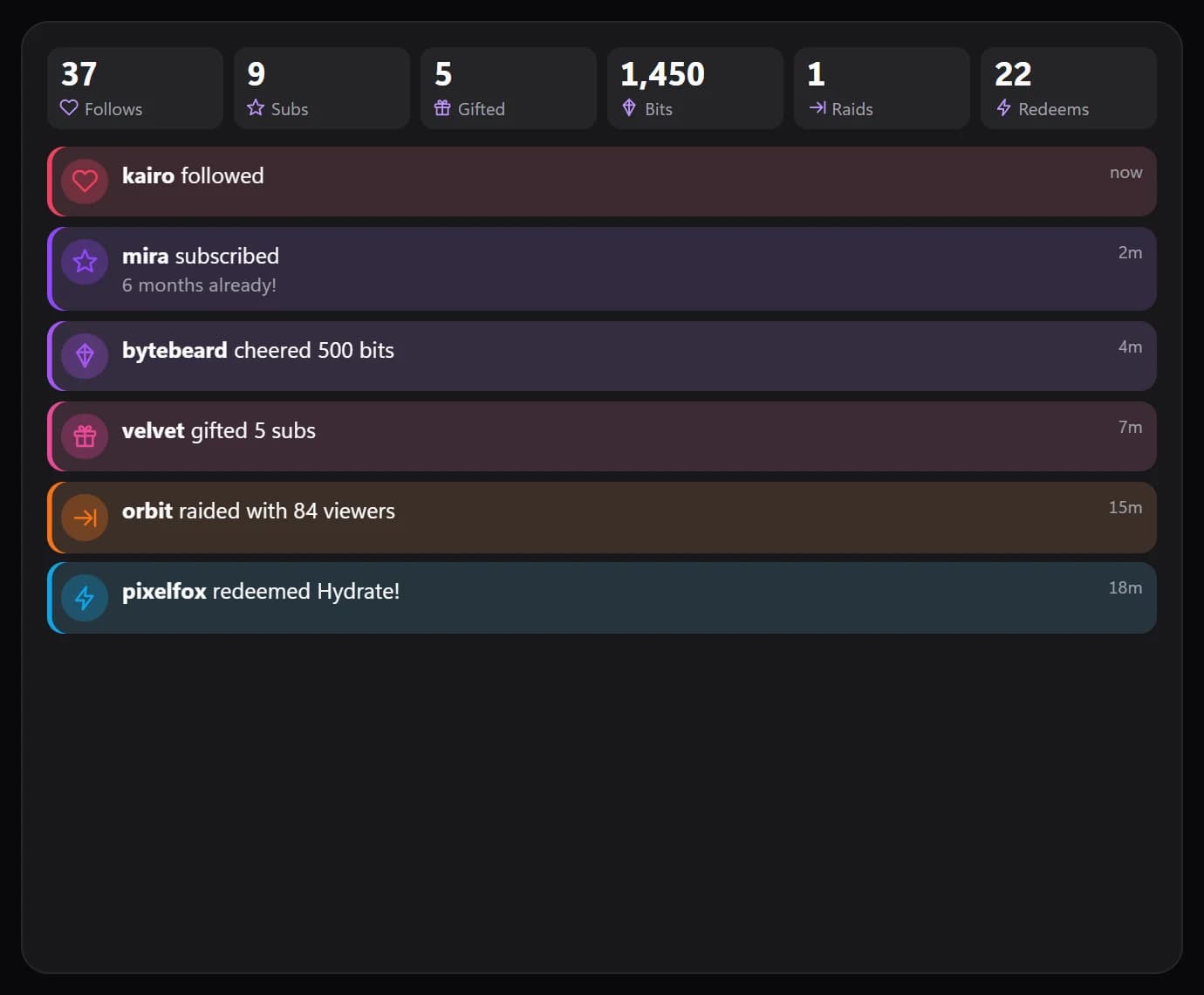
Twitch Activity
PremiumFollows, subs, gifts, bits, raids and redemptions as they happen.
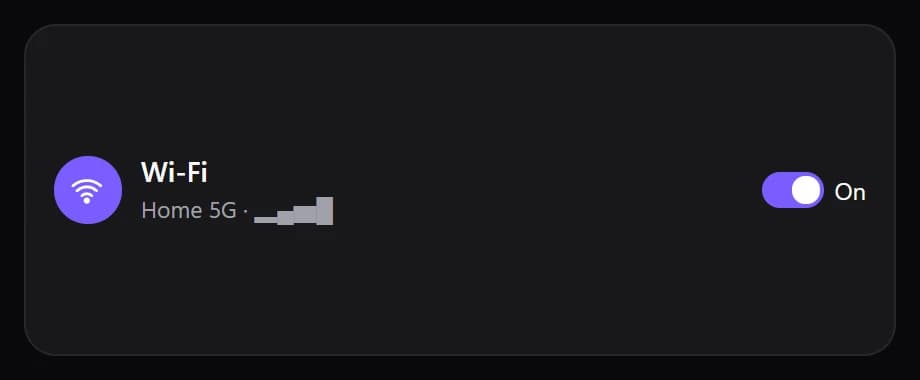
Wi-Fi
FreeWi-Fi on or off, and the network you are on.
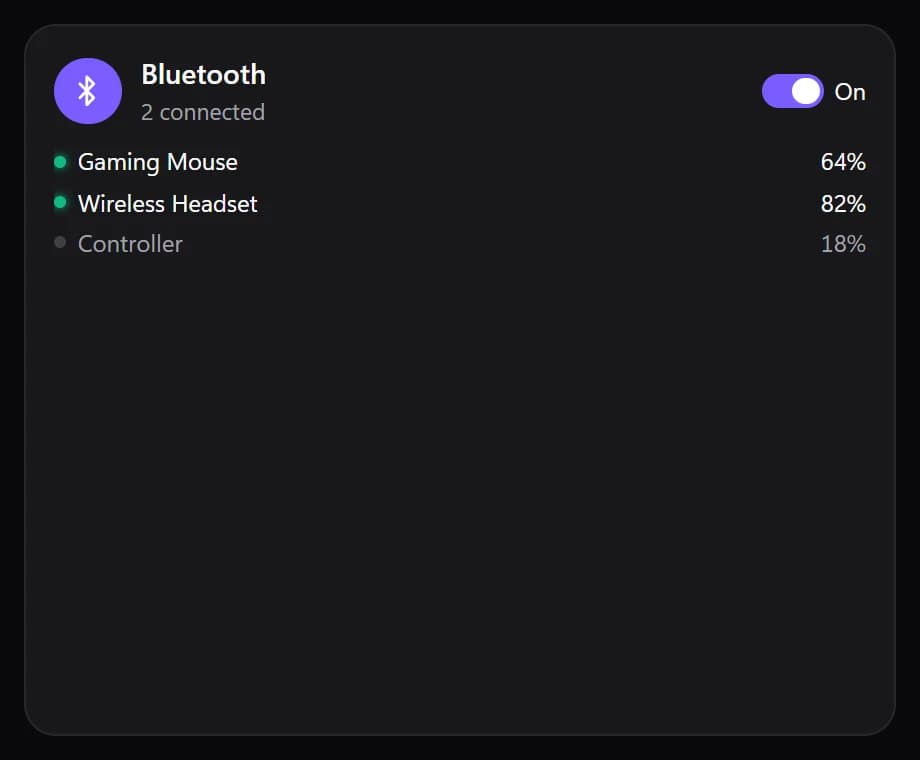
Bluetooth
FreeBluetooth on or off, and your paired devices.
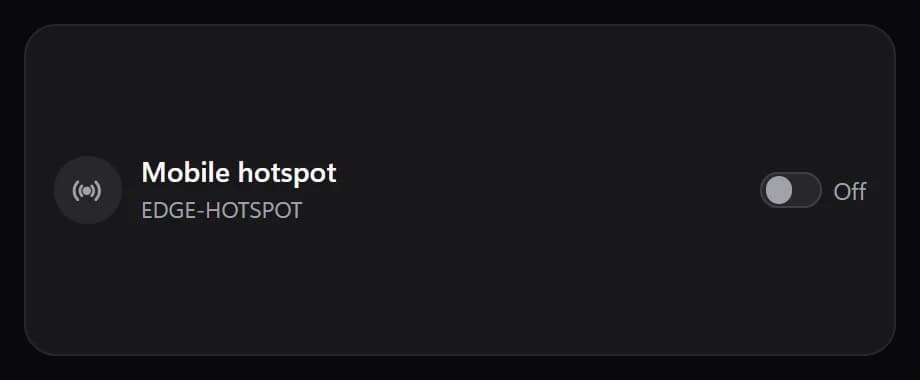
Mobile hotspot
FreeShare this PC's internet over Wi-Fi.
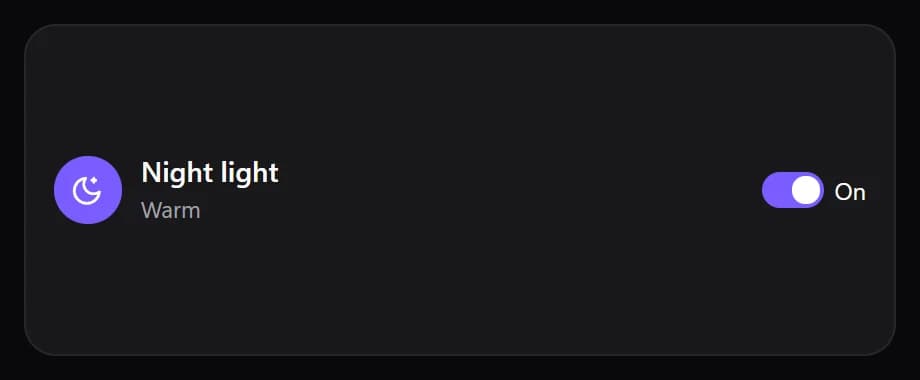
Night light
FreeWarmer colours on your displays.
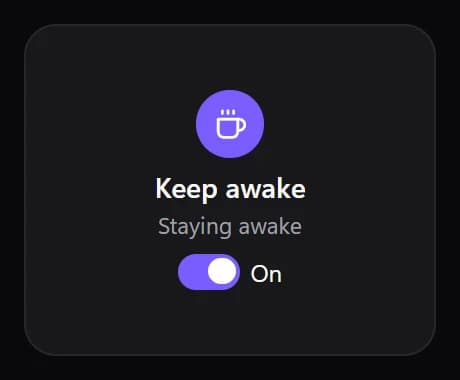
Keep awake
FreeStop the PC and displays from sleeping.
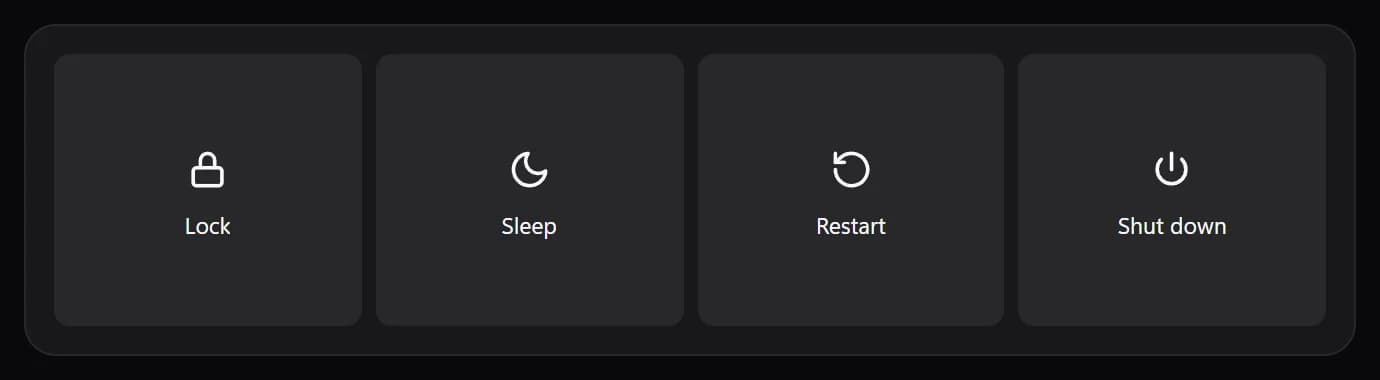
Power
FreeLock, sleep, restart or shut down.
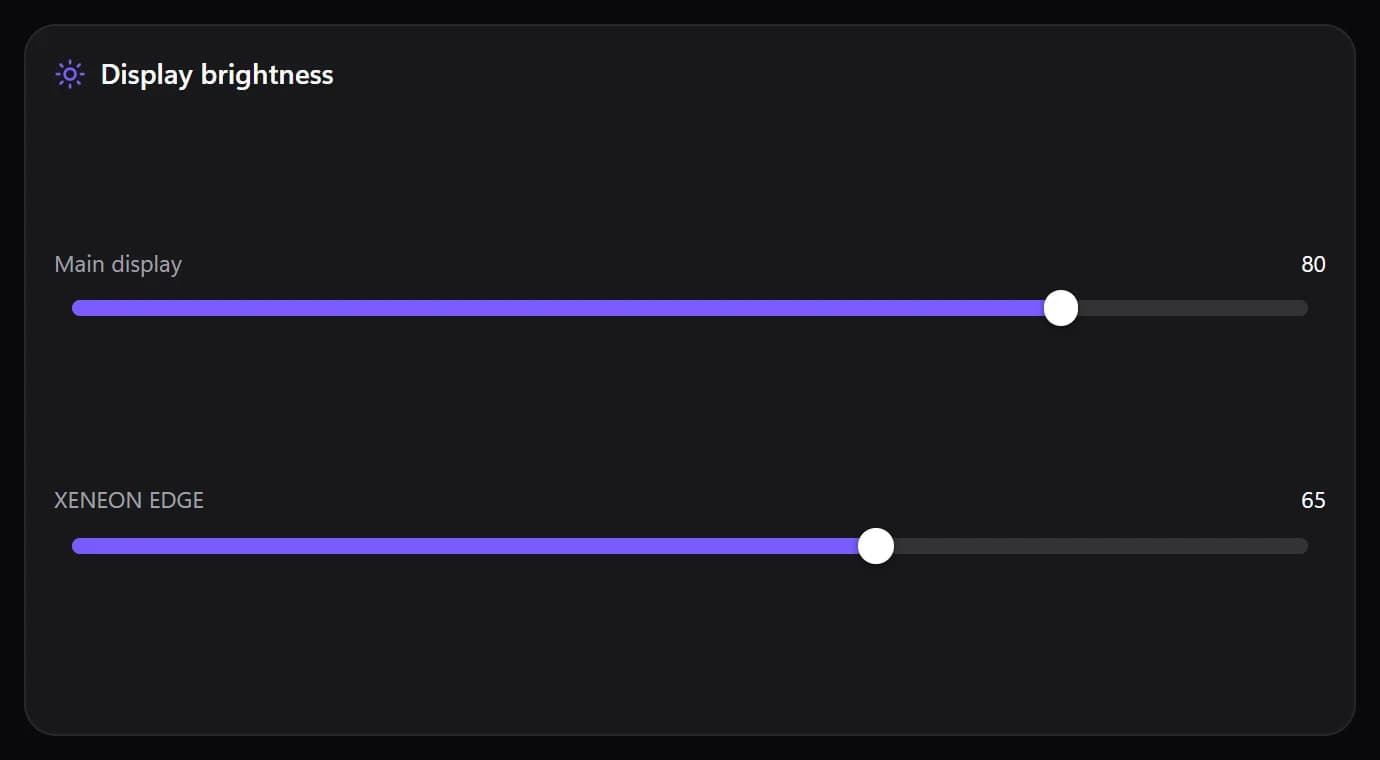
Display brightness
FreeA brightness control for each display.
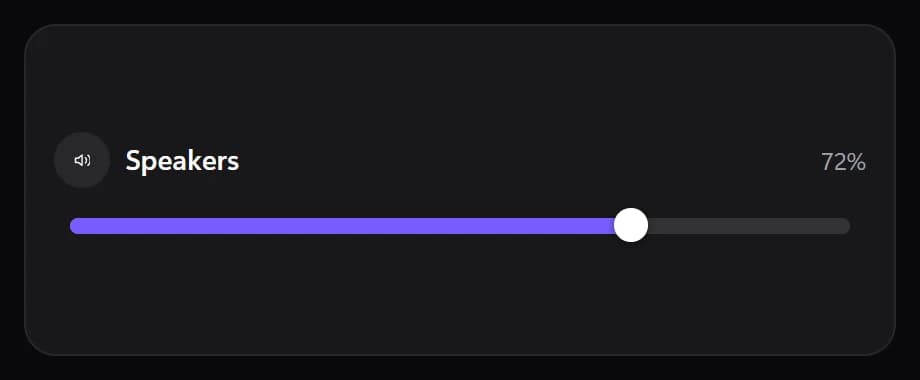
Speakers
FreeYour speakers' volume, with mute.
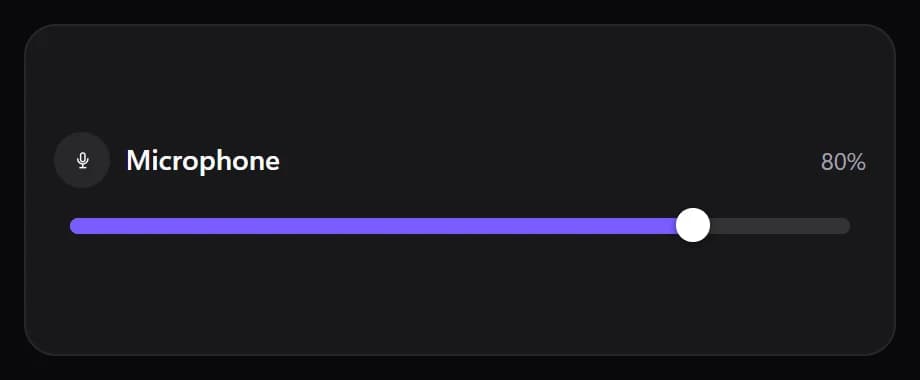
Microphone
FreeYour microphone's level, with mute.
- Audio output
Audio output
FreeSwitch between your headset, speakers and monitor with one tap.
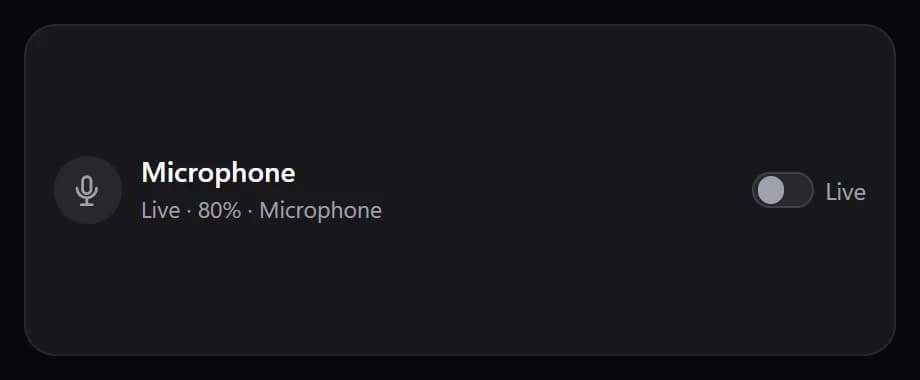
Toggle Mute
FreeMute or unmute a microphone or speaker with one tap.
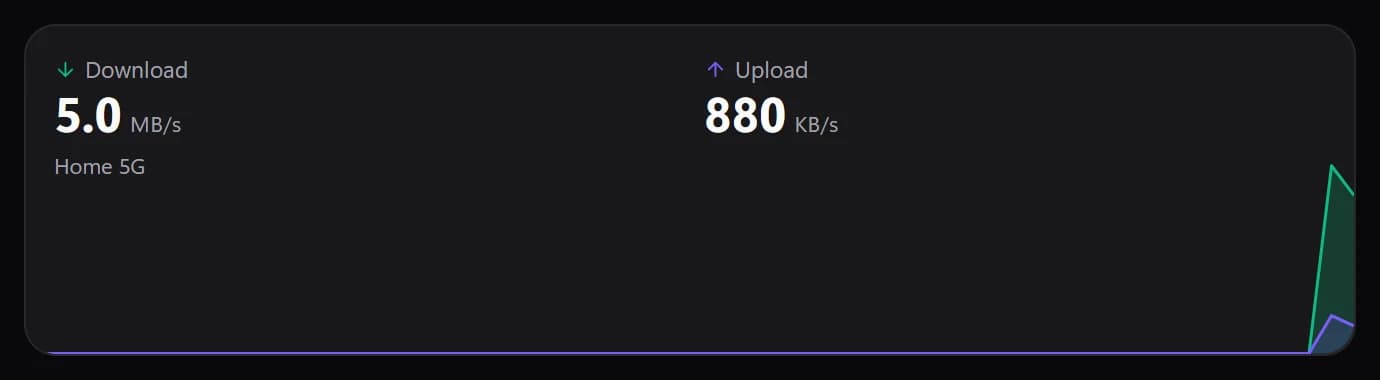
Network
FreeDownload and upload speed right now.
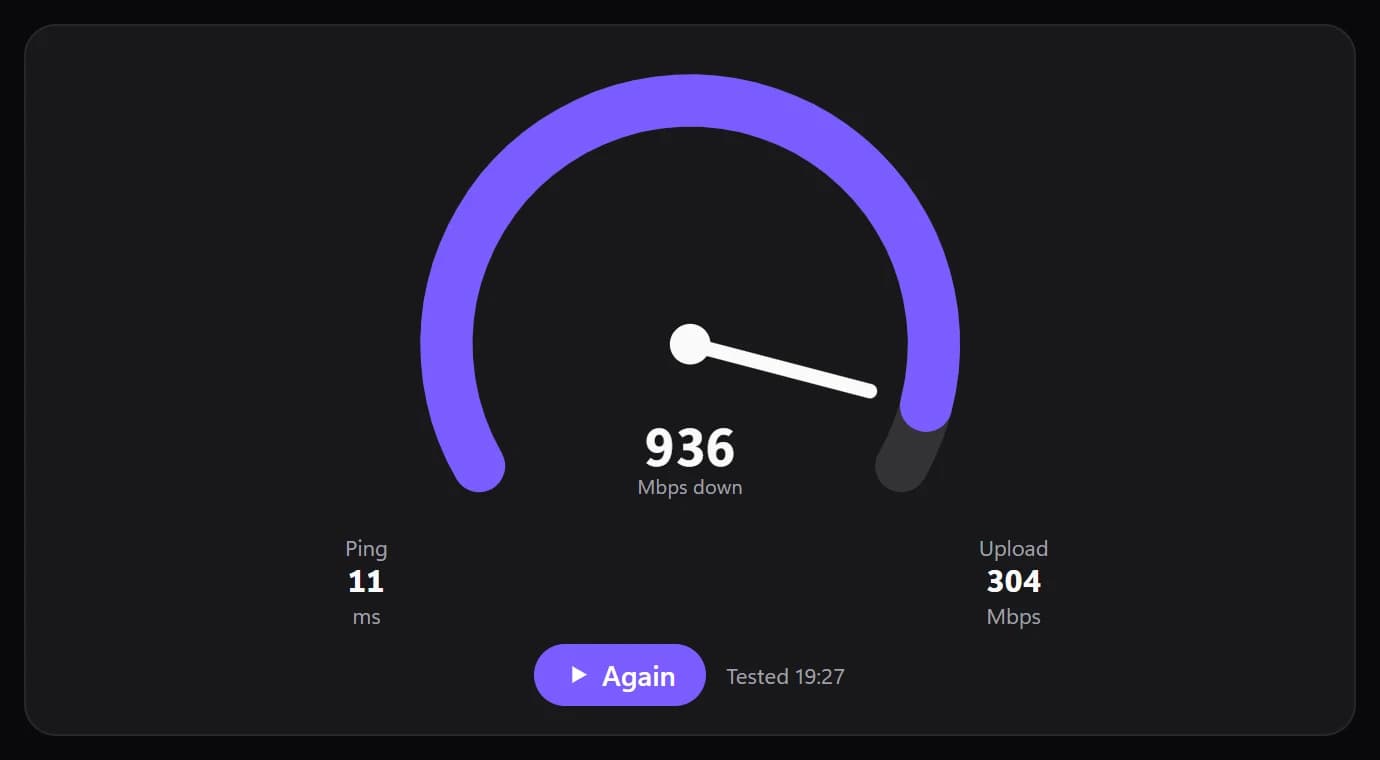
Speed test
FreeTest your internet: ping, download and upload.
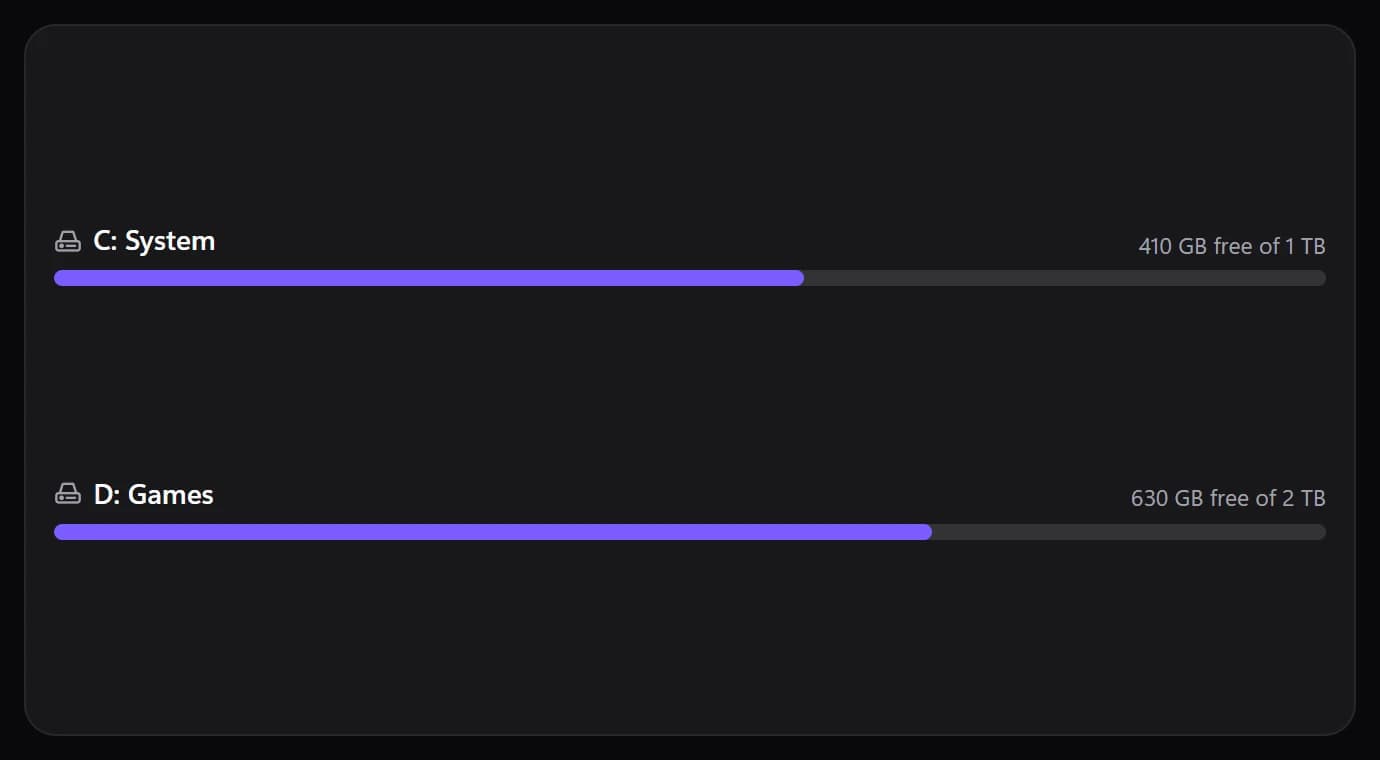
Storage
FreeFree space on your drives.
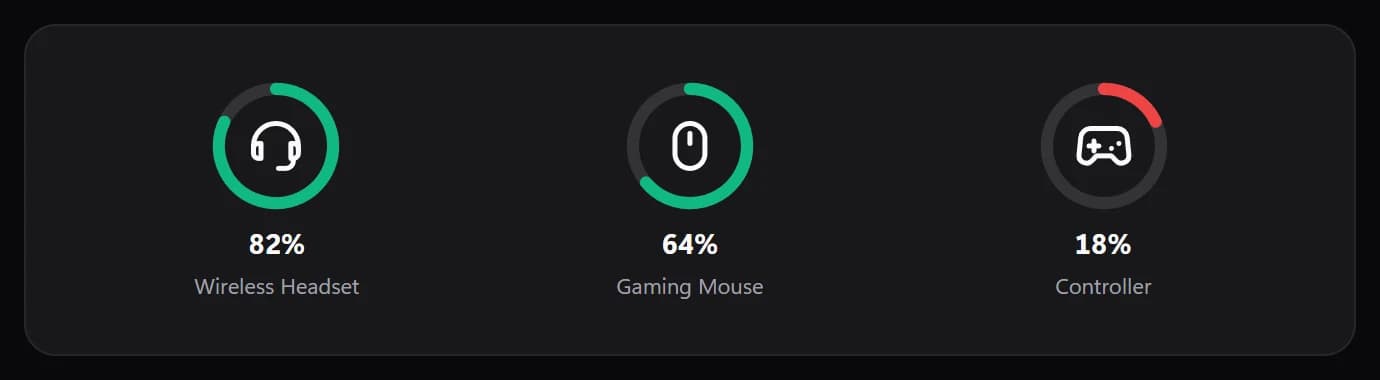
Battery
FreeBattery levels of this PC and your wireless devices.
- Sensors
Sensors
FreeTemperatures, fans, clocks and power, from your GPU driver and HWiNFO.
- App shortcut
App shortcut
FreeOpen an app, a file, a folder or a website with one tap.
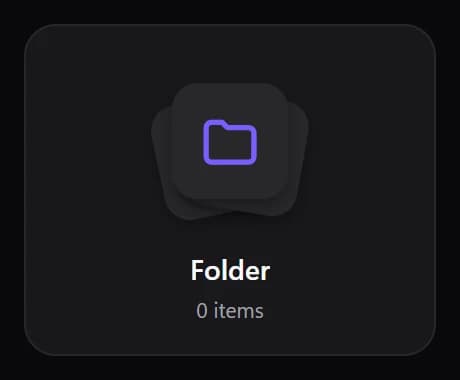
Folder
PremiumA tile that opens a panel of apps, links and controls.
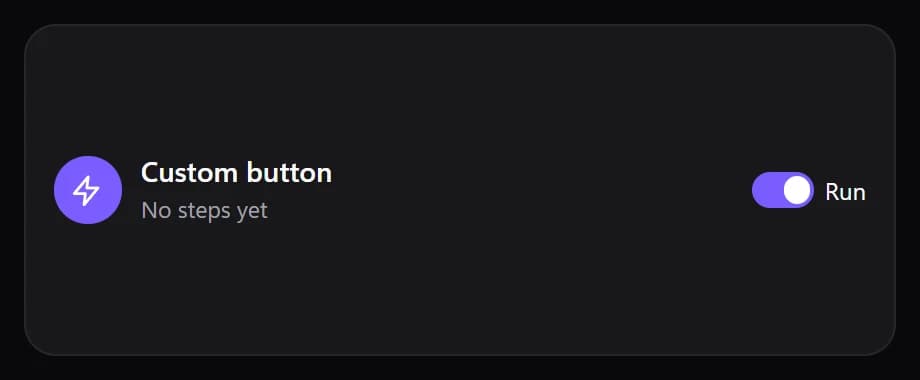
Custom button
PremiumOne button, many steps: HTTP requests, apps, keys, PC controls.
- Steam Launcher
Steam Launcher
PremiumYour Steam games with their art, playtime and one-tap launch.
- Window mirror
Window mirror
PremiumAny app window, live on your Edge.
- Taskbar
Taskbar
PremiumYour open windows and pinned apps. Tap to switch, hold for more.
- Photo frame
Photo frame
FreeA slideshow of the photos in a folder.
- Audio visualizer
Audio visualizer
PremiumA live spectrum of whatever your PC is playing.

World clocks
FreeUp to six time zones side by side, with how far ahead each is and whether it is day or night there.
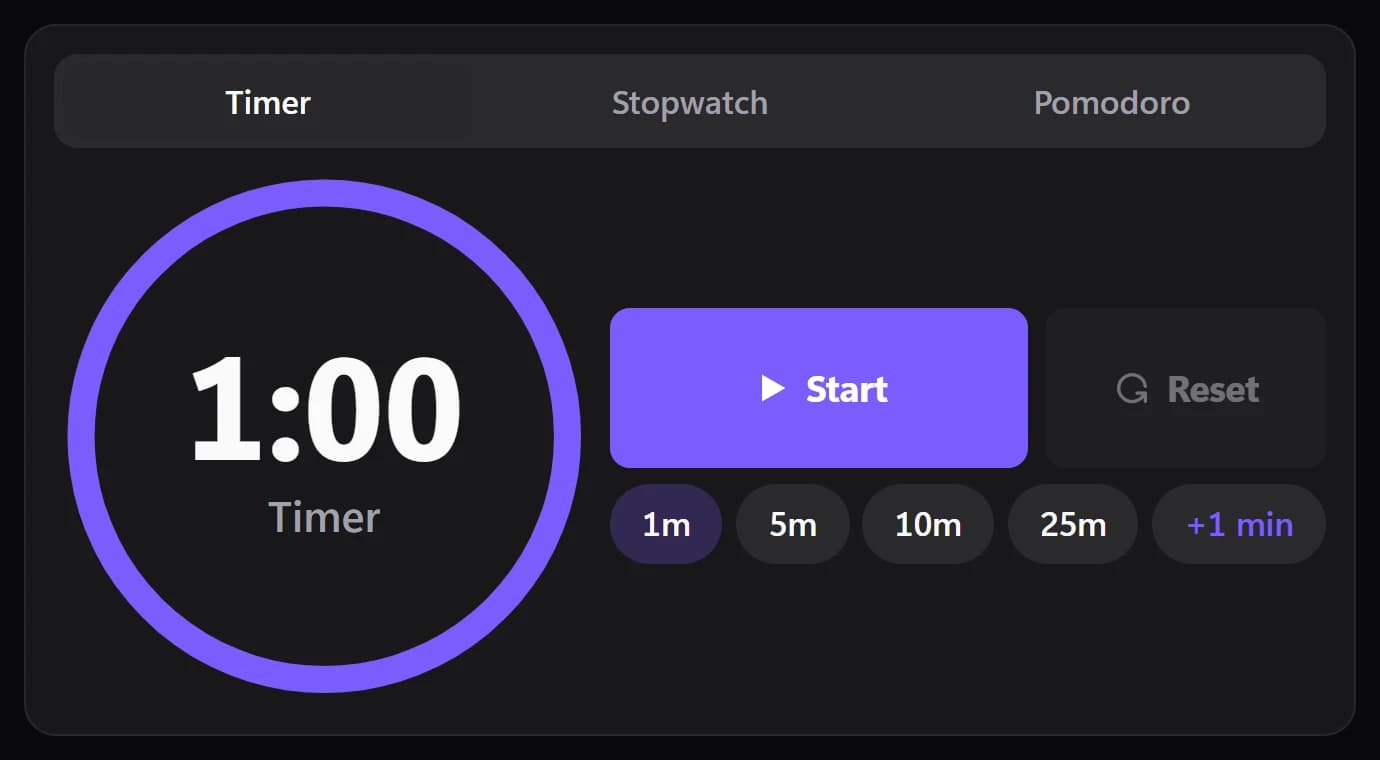
Timer
FreeCountdown with presets, stopwatch with laps, and Pomodoro. Pulses and chimes when time is up.
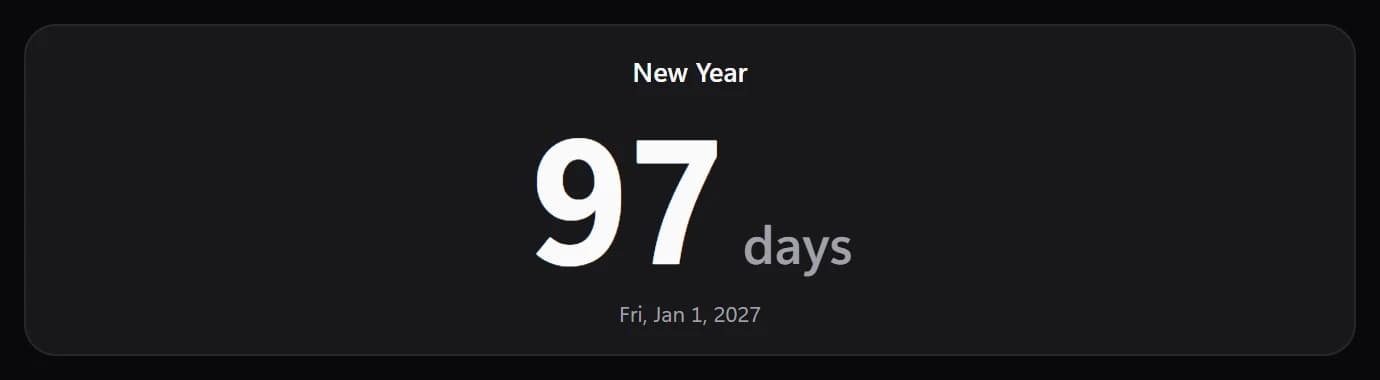
Countdown
FreeThe time left to a date you pick, with a title. Totals in years to seconds, several dates, repeats every year for birthdays and holidays.
- Game mode
Game mode
PremiumThe game you are playing, with live FPS, 1% lows, a frame-time graph, and CPU and GPU load and temperatures.
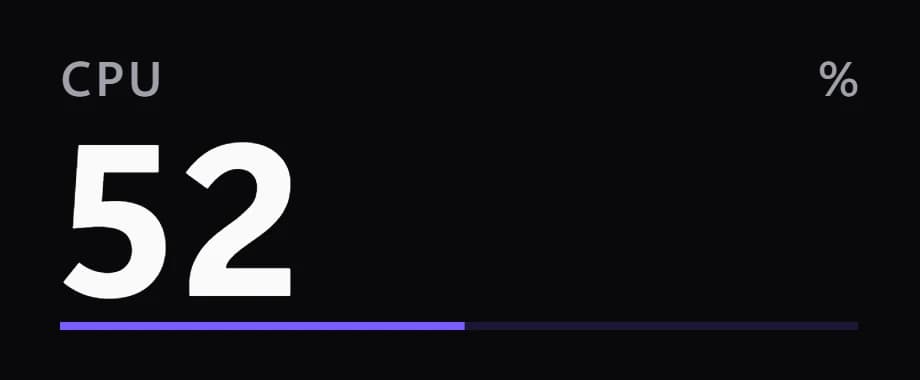
Readout
FreeOne number from your PC, as a big figure, a ring, a bar or a graph.
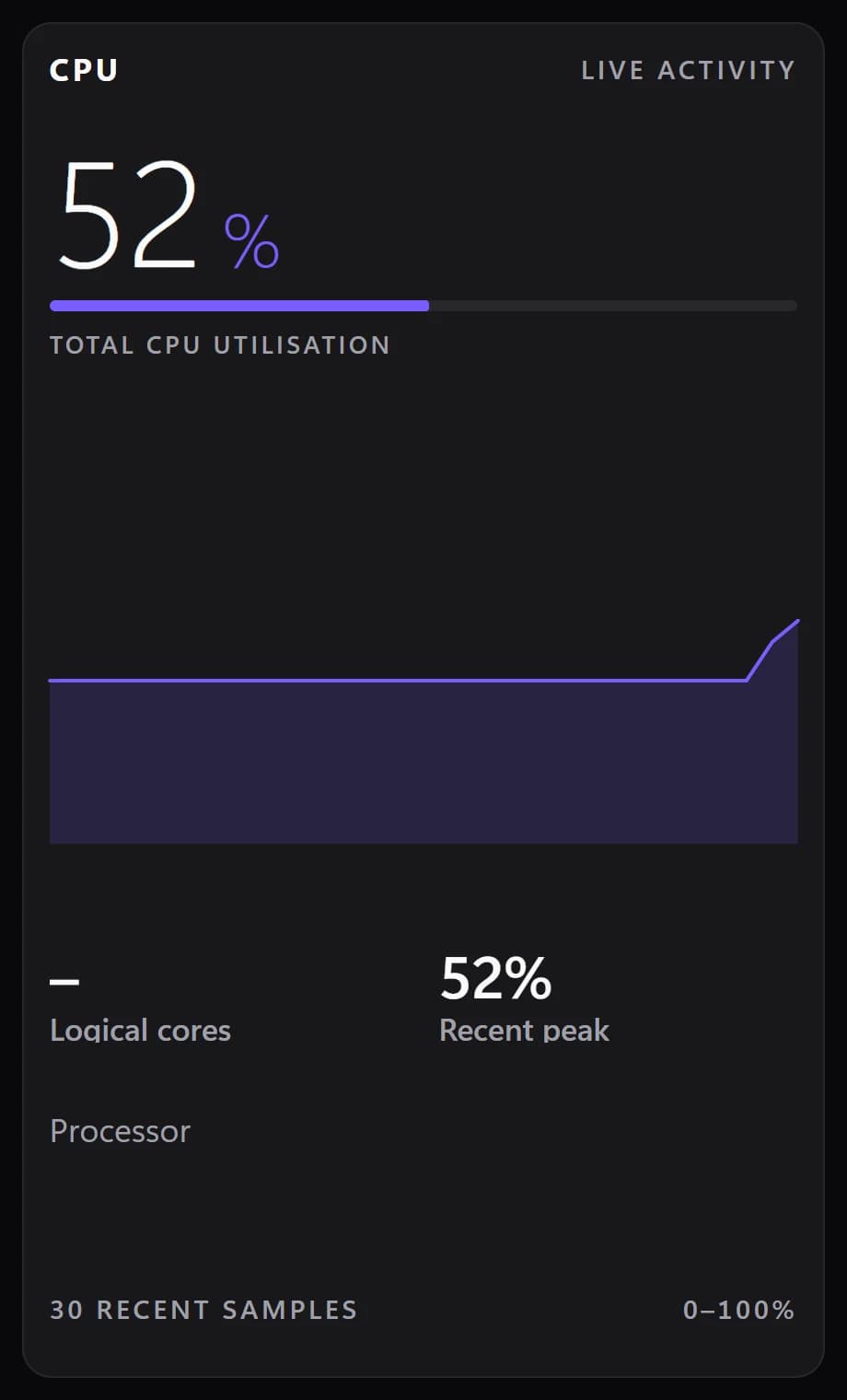
CPU
FreeProcessor load as a card: the figure, a live graph, recent peak and cores.
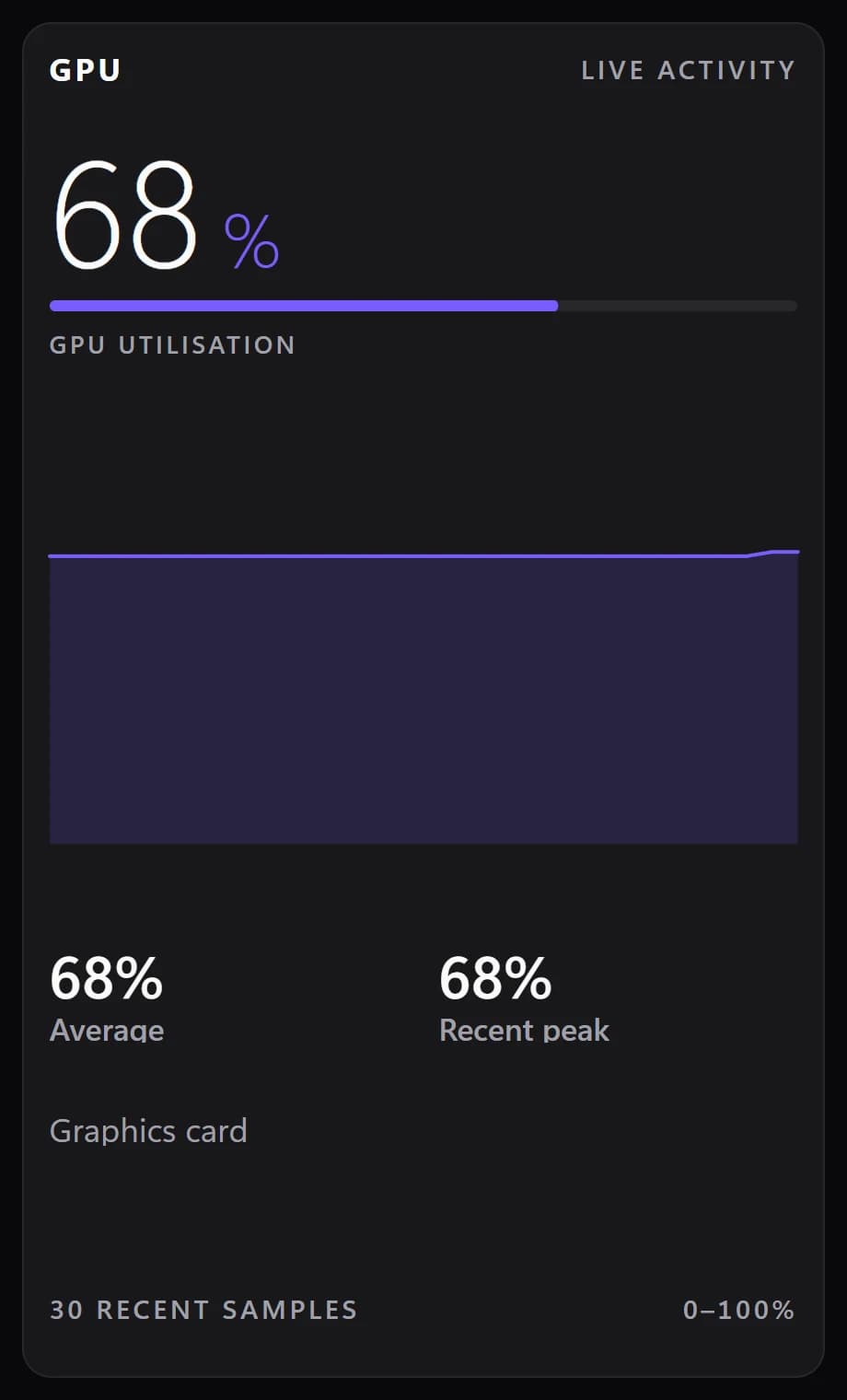
GPU
FreeGraphics load as a card: the figure, a live graph, recent peak and your graphics card.
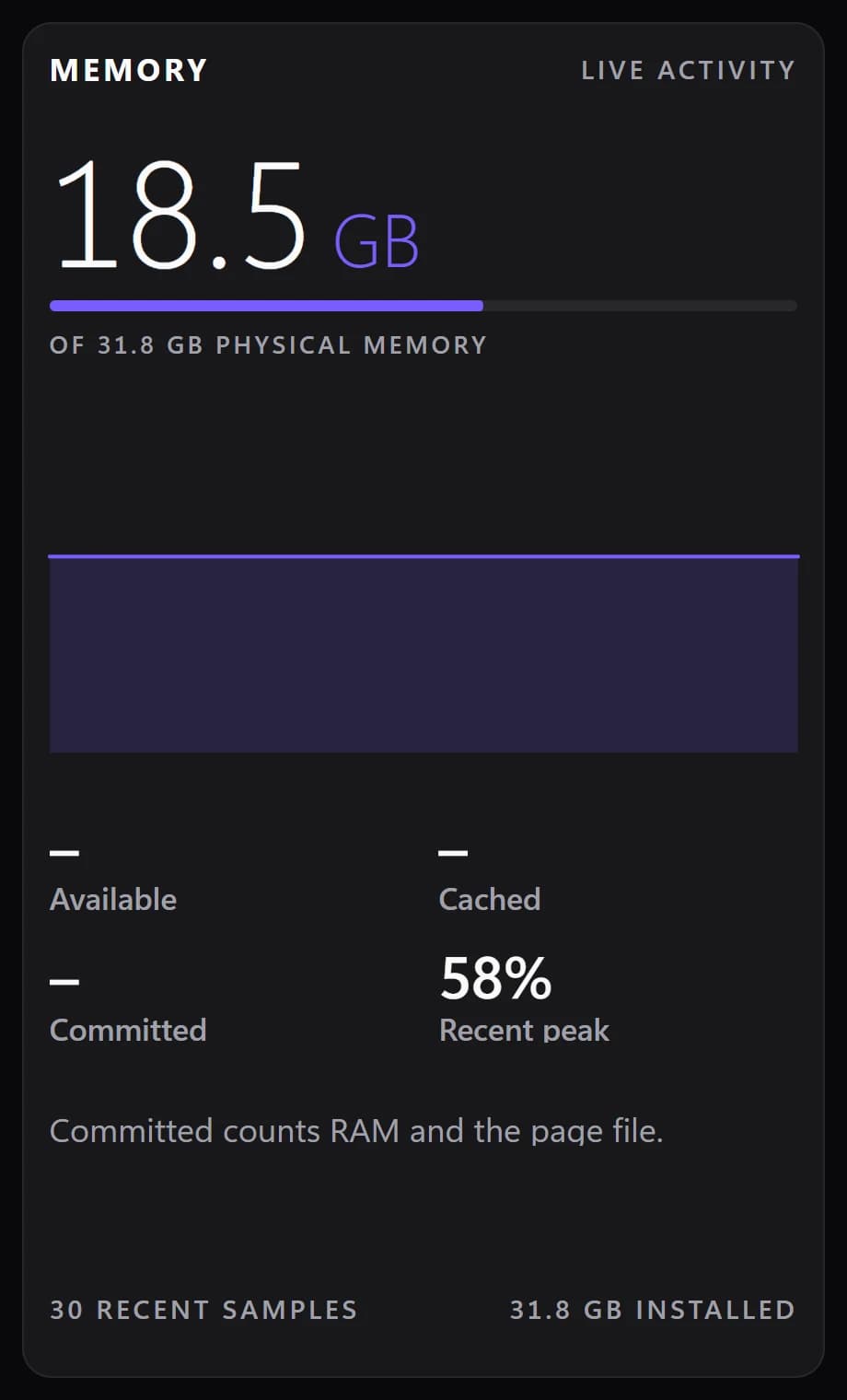
Memory
FreeMemory in use as a card: the figure, a live graph, what is available, cached and committed.
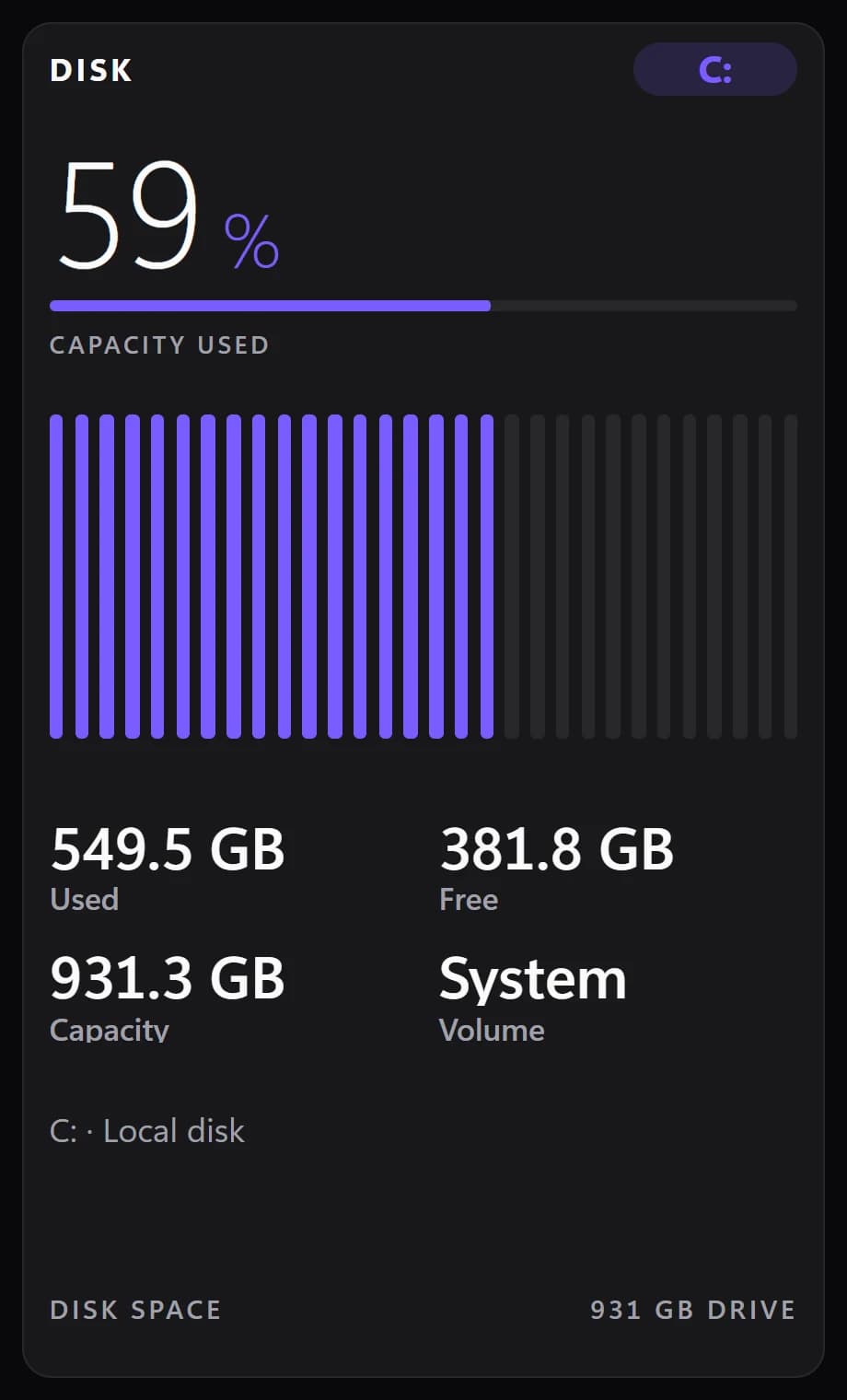
Disk
FreeOne drive as a card: how full it is, used, free and its size.
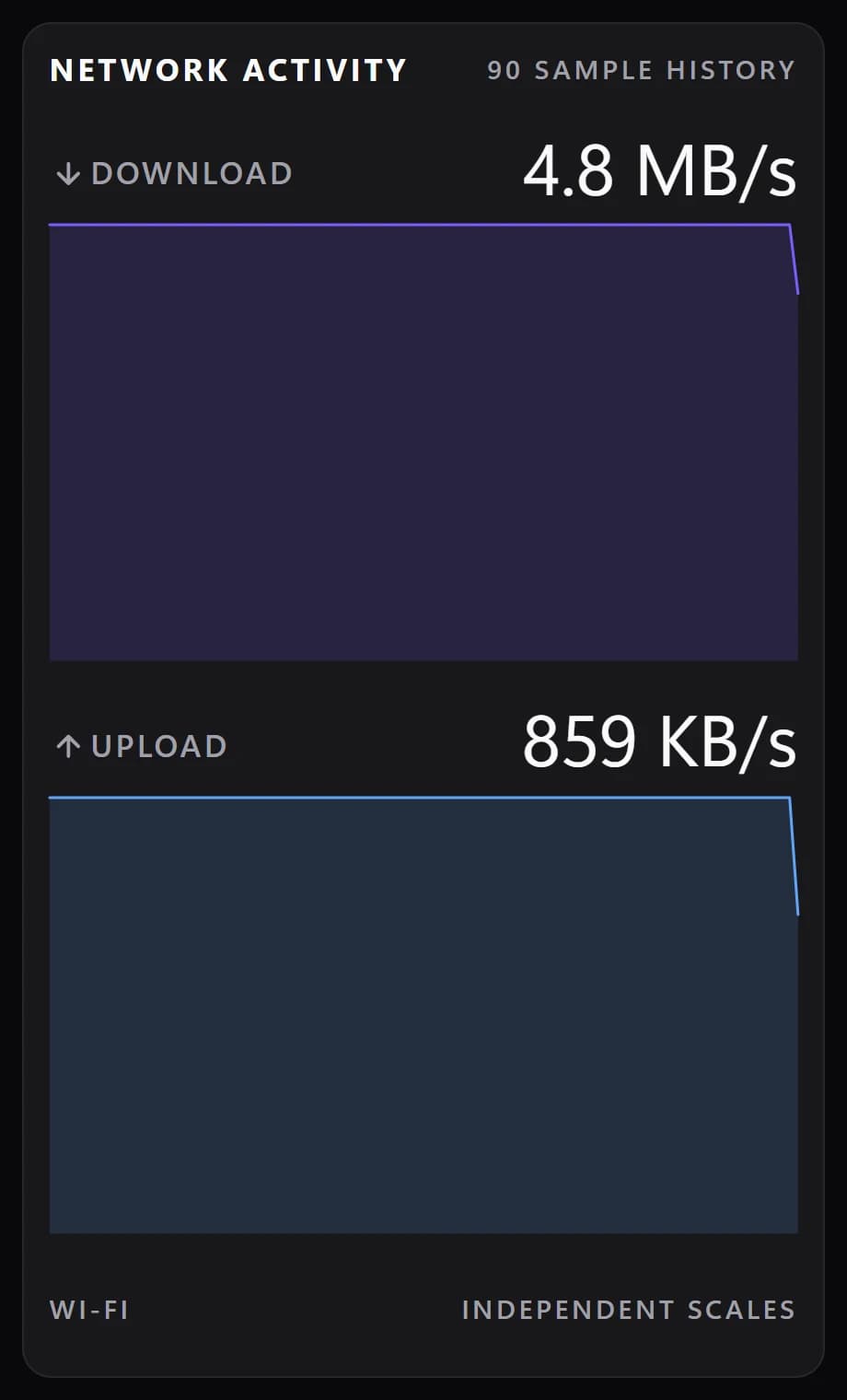
Network activity
FreeDownload and upload as two live graphs, each on its own scale.
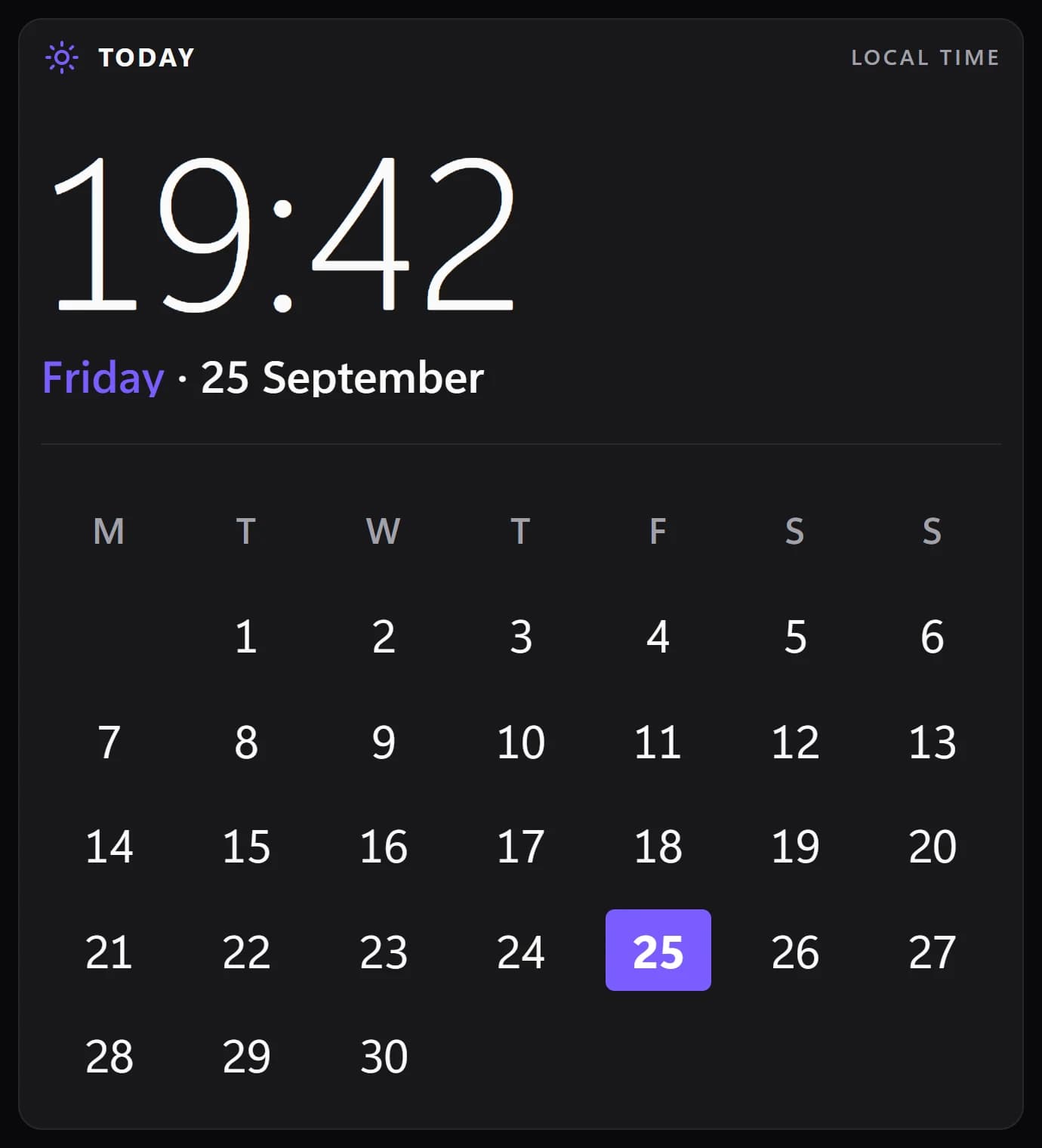
Today
FreeThe time, today's date and this month, with today marked.
- Upcoming
Upcoming
FreeYour next events and marked dates: your Google, Outlook or iCloud calendars, birthdays, trips, anything you add.
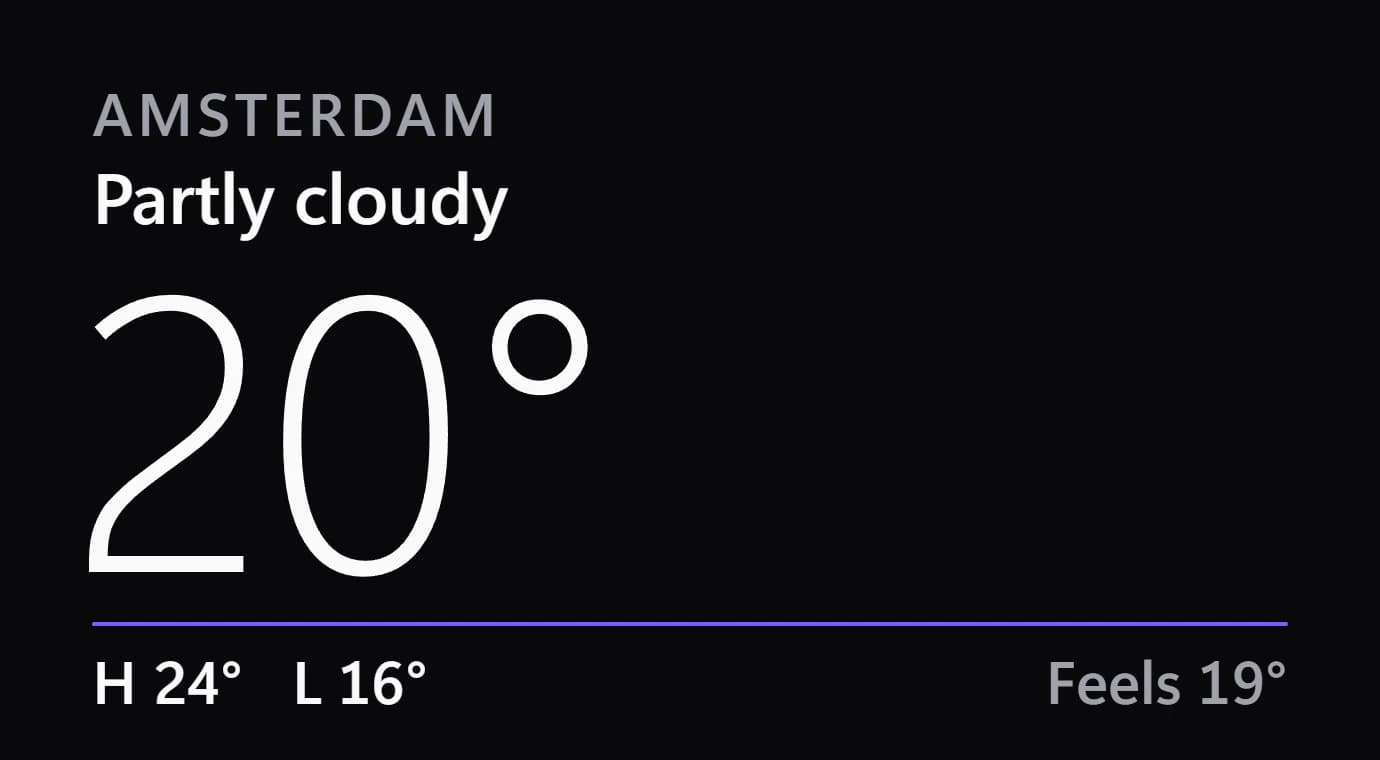
Weather glance
FreeThe weather as a big number, a picture or the next four days. Forecast from MET Norway.
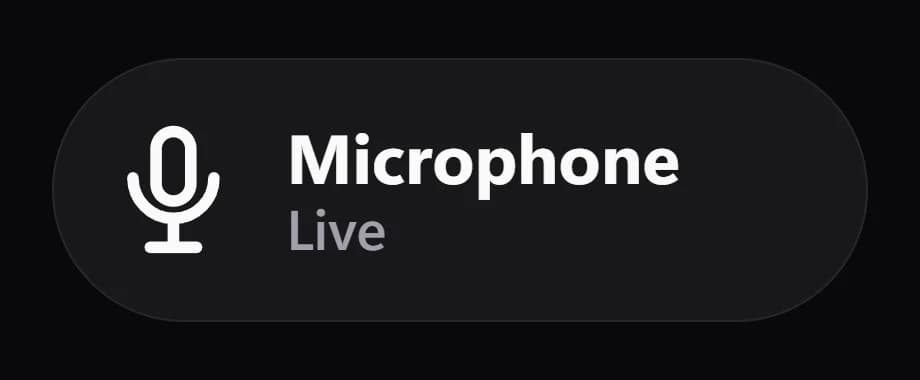
Mute
FreeMute or unmute your microphone or speakers with one tap, in a design you choose.
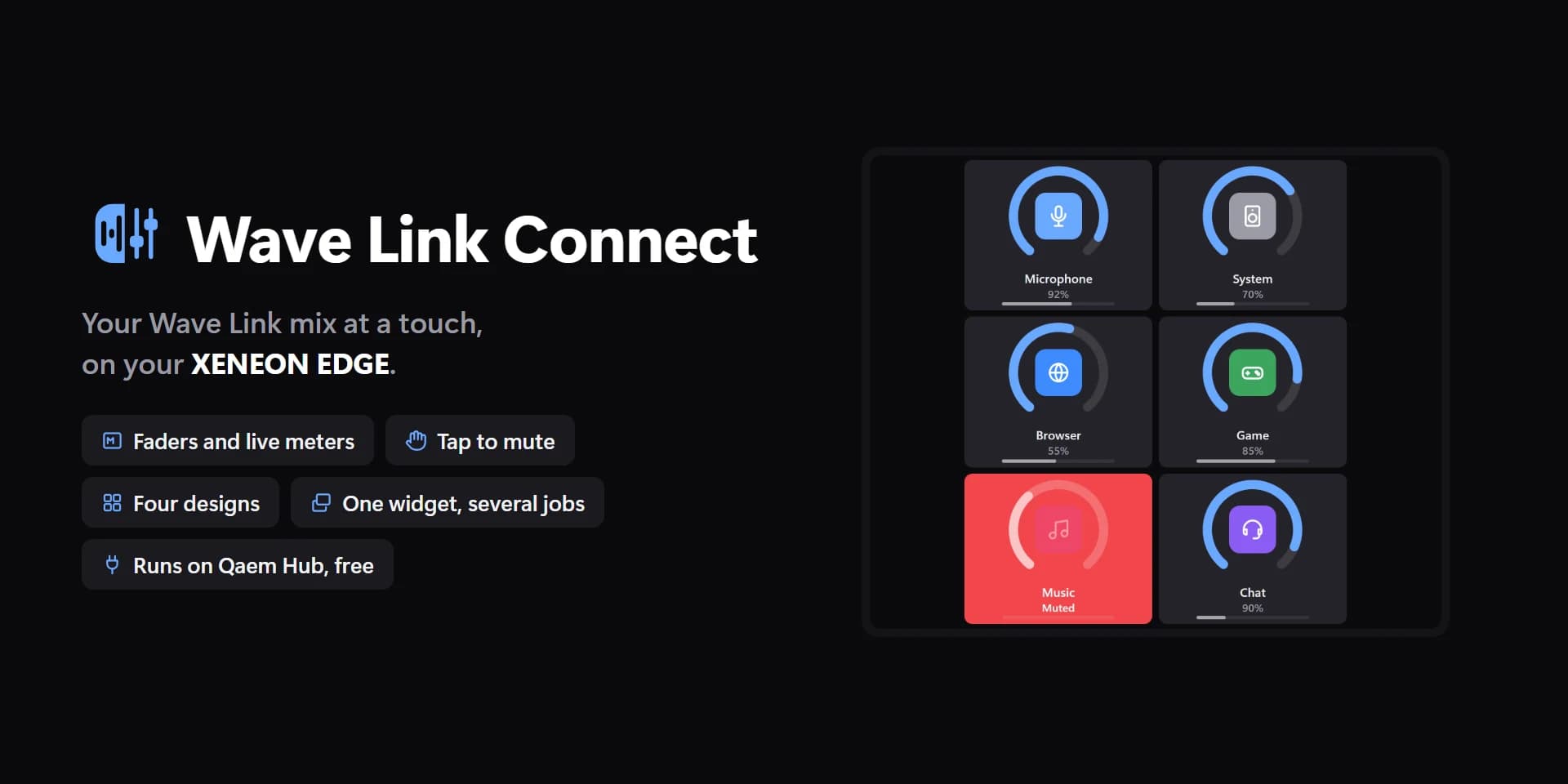
Wave Link Connect
PremiumElgato Wave Link's mixer: a fader, mute and live meter for each channel, the mixes, and the output you listen on.
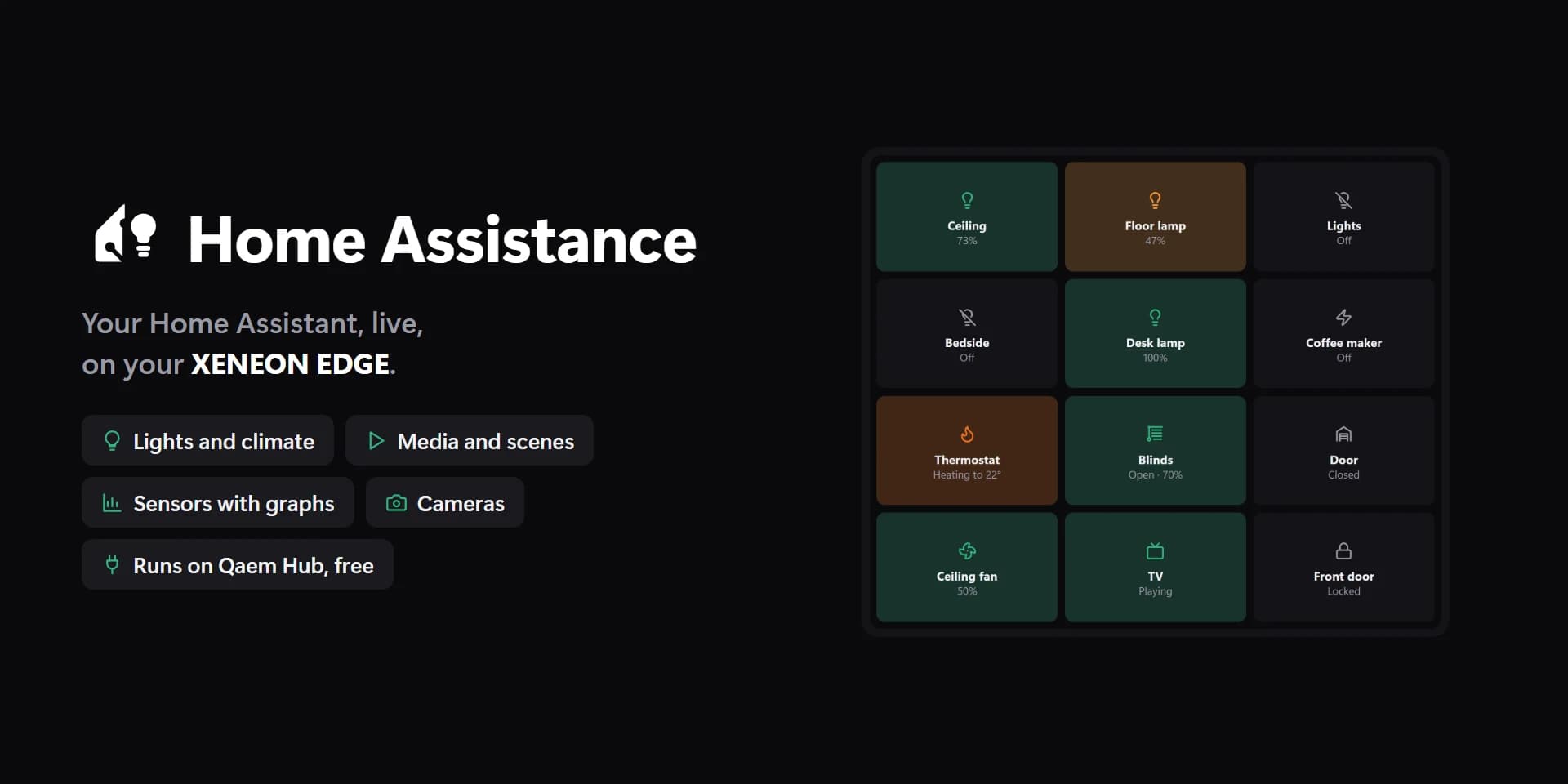
Home Assistant
PremiumYour Home Assistant, live: lights, climate, blinds, media, scenes, locks, sensors and cameras, with their own controls.
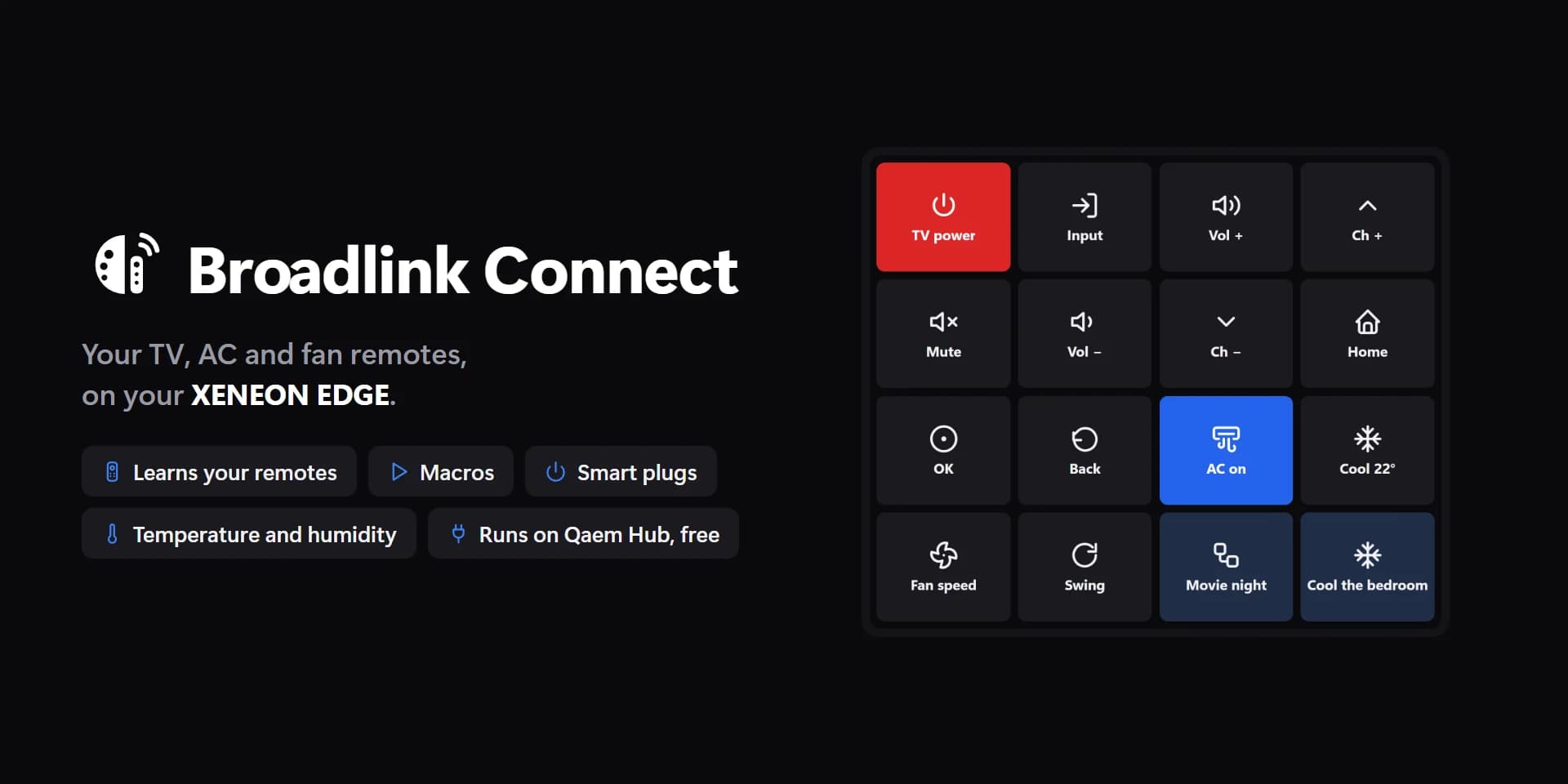
Broadlink Connect
PremiumYour Broadlink remotes and plugs: the buttons you learn from your own remotes, macros, plugs on and off, and the sensor's readings. All on your own network.
- Govee Connect
Govee Connect
PremiumYour Govee lights: on and off, brightness, any colour or white, Govee's scenes, your DIY scenes and snapshots, music modes, groups and presets.
- Nudge
Nudge
PremiumNudge on your Edge: sleep, restart, shut down or lock this PC, cancel what's waiting, wake your other PCs, NAS and TVs, and switch your automations on and off.
- Spacedash Controls
Spacedash Controls
FreeThe app's own controls on a tile, live: profiles, pages, screens, Edge mode, pause, the Island, timers, media, volume, PC toggles and more.
- Remote PC
Remote PC
PremiumAnother PC on your network: its load, temperatures and clocks, the game it plays with FPS and 1% low, OBS live and recording, and what it's playing.
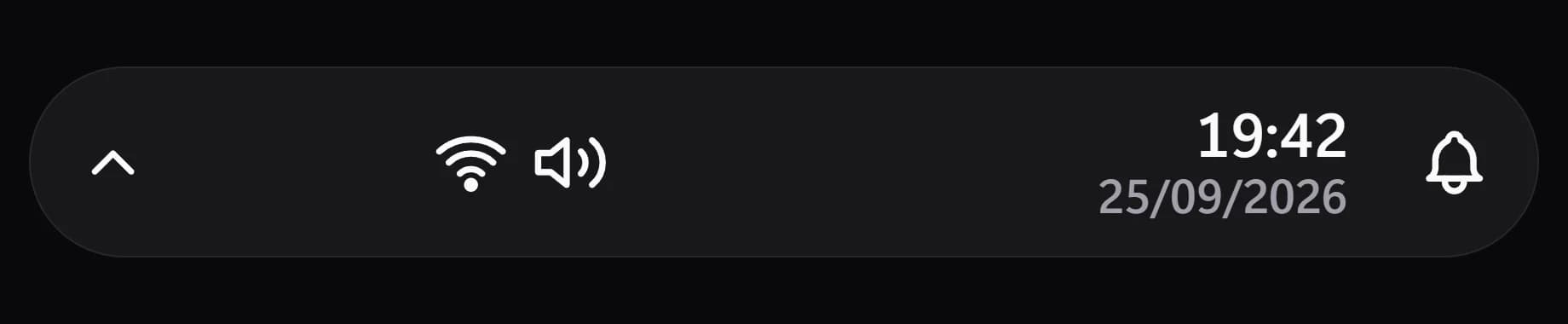
System tray
PremiumWindows' taskbar corner: hidden icons, language, network, volume, the clock and notifications. Each opens what it opens on the taskbar.

Notifications
PremiumHow many Windows notifications are waiting, and Do not disturb. Tap to open the notification centre.
- Language
Language
PremiumThe input language you are typing in. Tap for the next one, hold for the one before.

Connection
PremiumWi-Fi, Ethernet or offline, the network you are on and how fast it is going. Tap for quick settings.
- Tray icons
Tray icons
PremiumThe programs in Windows' notification area. Tap one to open it; the arrow shows the hidden ones, or put them all in the row.
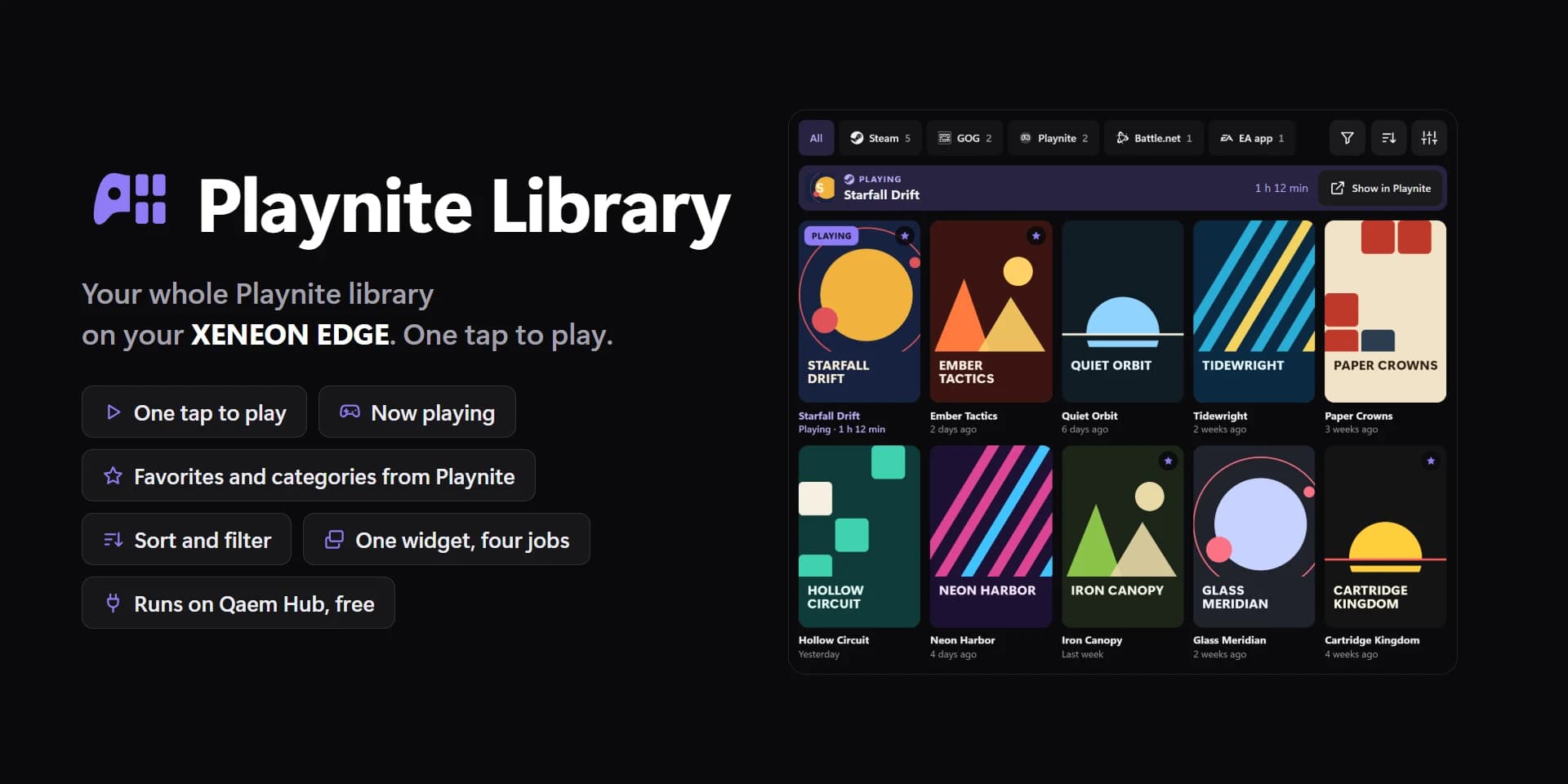
Playnite Library
PremiumYour Playnite library: covers, playtime, favorites and what's running. Tap a game to play it through Playnite.
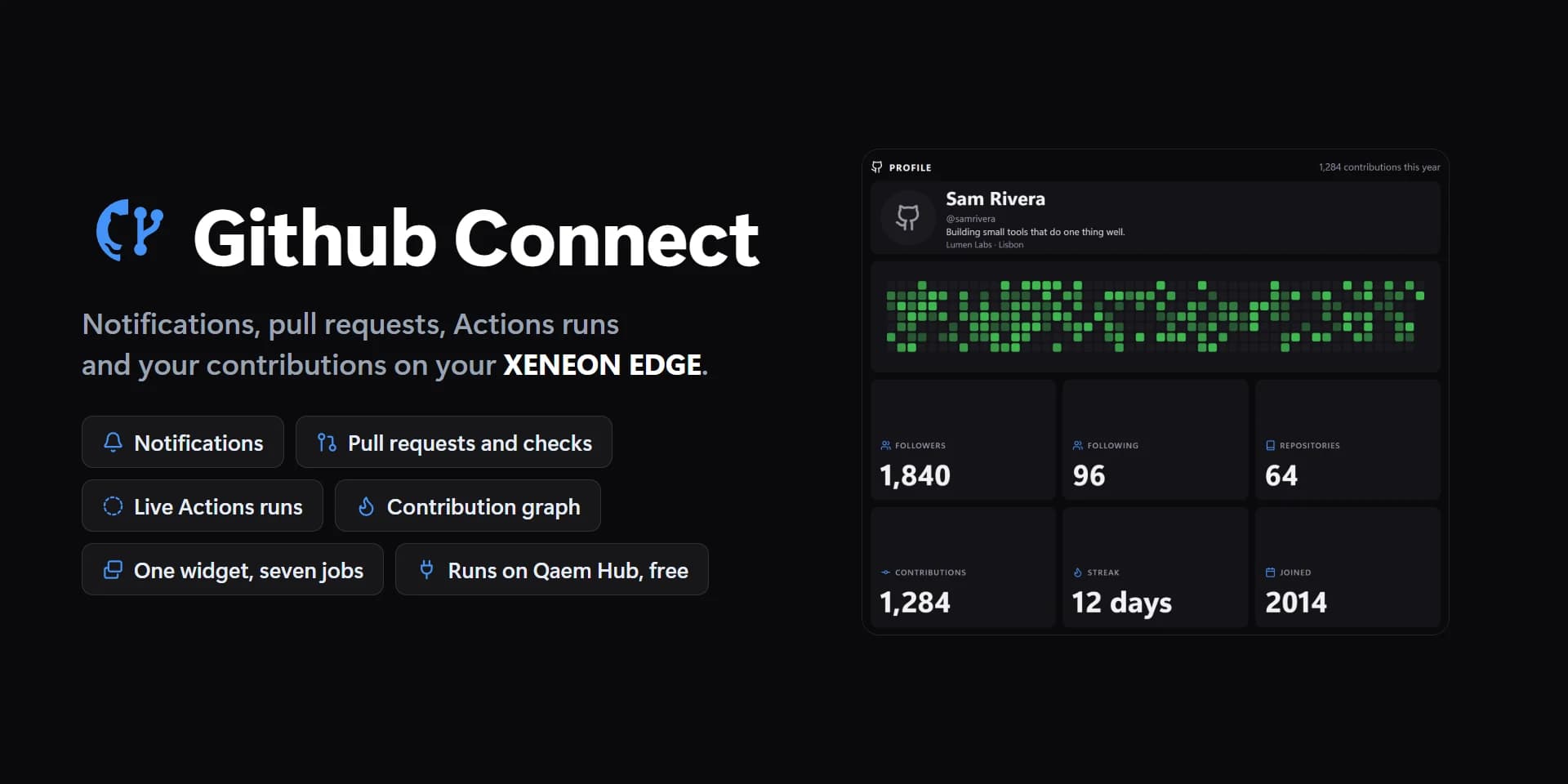
Github Connect
PremiumYour GitHub: notifications, pull requests with their checks, Actions runs, issues, a repository's stars and releases, your contribution graph and profile.
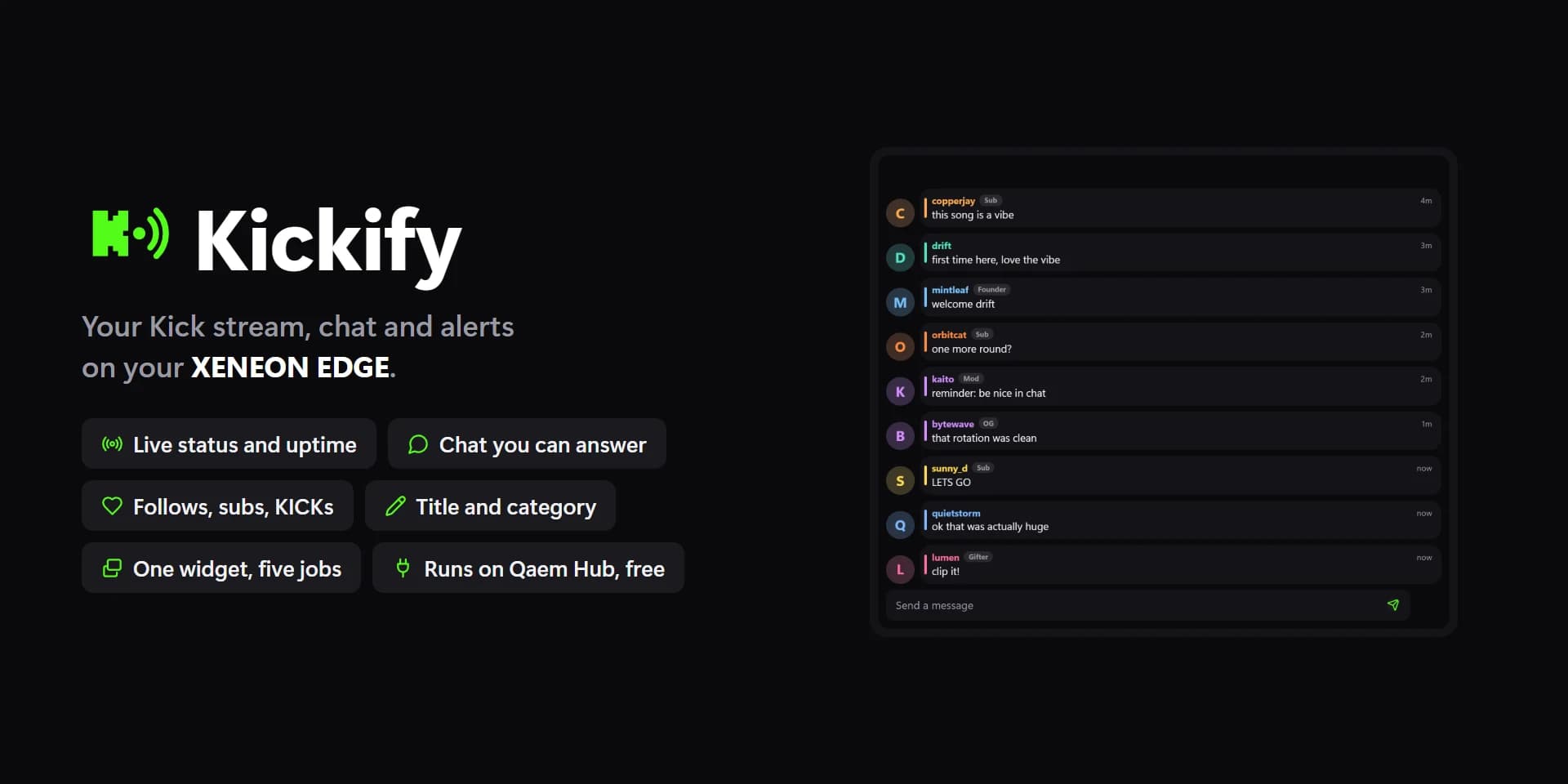
Kickify
PremiumYour Kick channel: live status, viewers and uptime, chat you can answer, follows, subs, gifts and KICKs, and your title and category to change.
- Kick Live
Kick Live
PremiumLive or not, uptime, viewers, subscribers, your title and category, and this stream's numbers.
- Kick Actions
Kick Actions
PremiumOne-tap stream info, title and category presets, chat messages, Go live and more.
- Kick Chat
Kick Chat
PremiumYour channel's chat: answer, reply, delete, time out and ban.
- Kick Activity
Kick Activity
PremiumFollows, subs, gifted subs, KICKs and rewards as they happen.
- KICKs Leaders
KICKs Leaders
PremiumYour top KICKs gifters this week, this month or of all time.
- Discord Server
Discord Server
PremiumA server's voice channels with who's in each, and its text channels. Tap a voice channel to join it, a text channel to read it.
- Discord Chat
Discord Chat
PremiumA server channel's messages, live, with pictures, images and mentions.
- Discord DM
Discord DM
PremiumA conversation with a friend or a group DM, live.
- Discord Voice
Discord Voice
PremiumYour voice call: who's in it and who's talking, their volume, the time, ping, camera and live marks, and Mute, Deafen, Camera, Share, Voice mode, Noise suppression and Leave. Out of a call, a server's voice channels to join.
- Discord Mentions
Discord Mentions
PremiumYour mentions and DMs as Discord notifies you of them. Tap one to read the conversation.
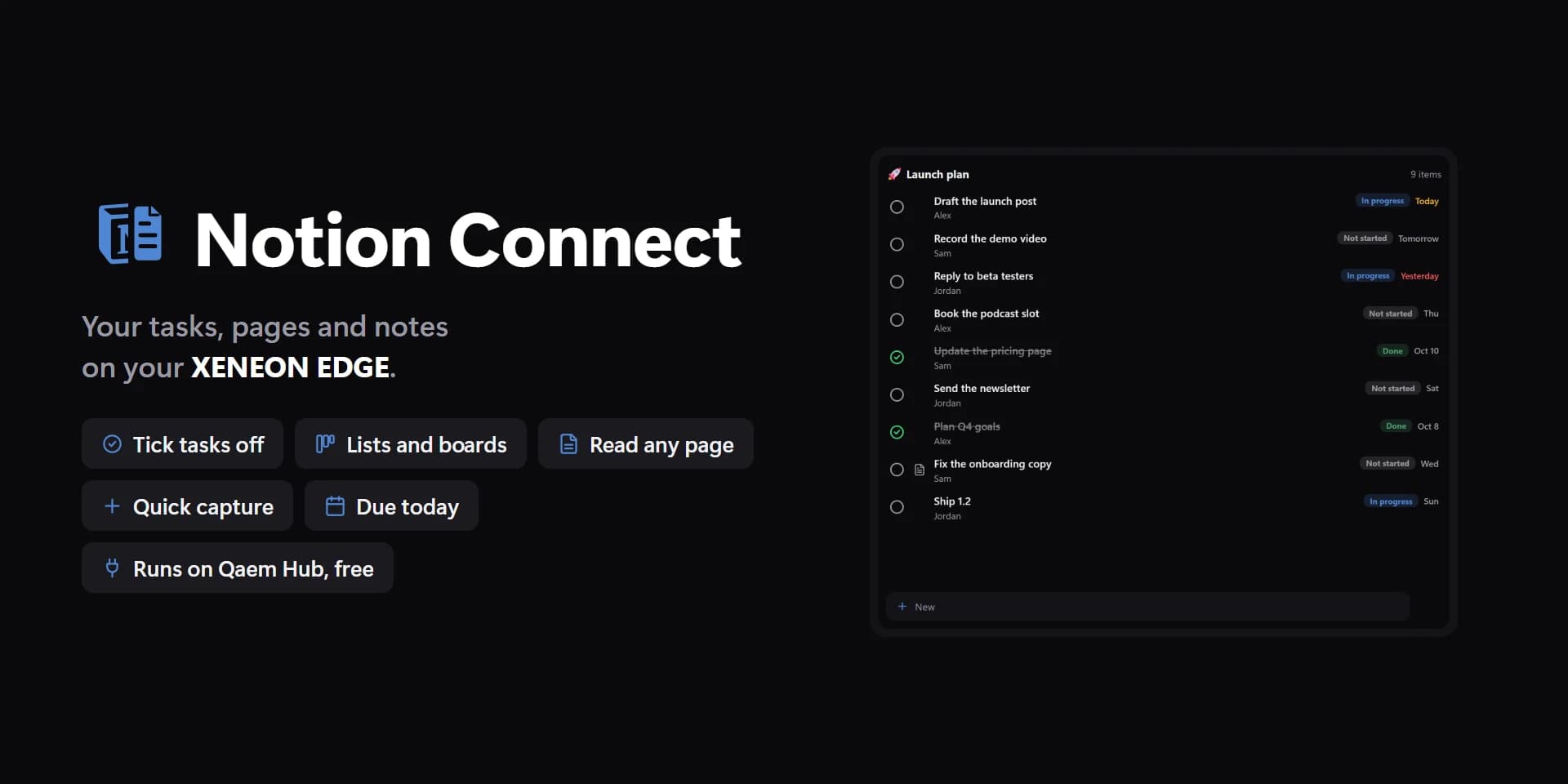
Notion Connect
PremiumYour Notion: a database as a list or a board with ticks and status changes, a page to read and tick, quick capture, what's due and your recent pages.
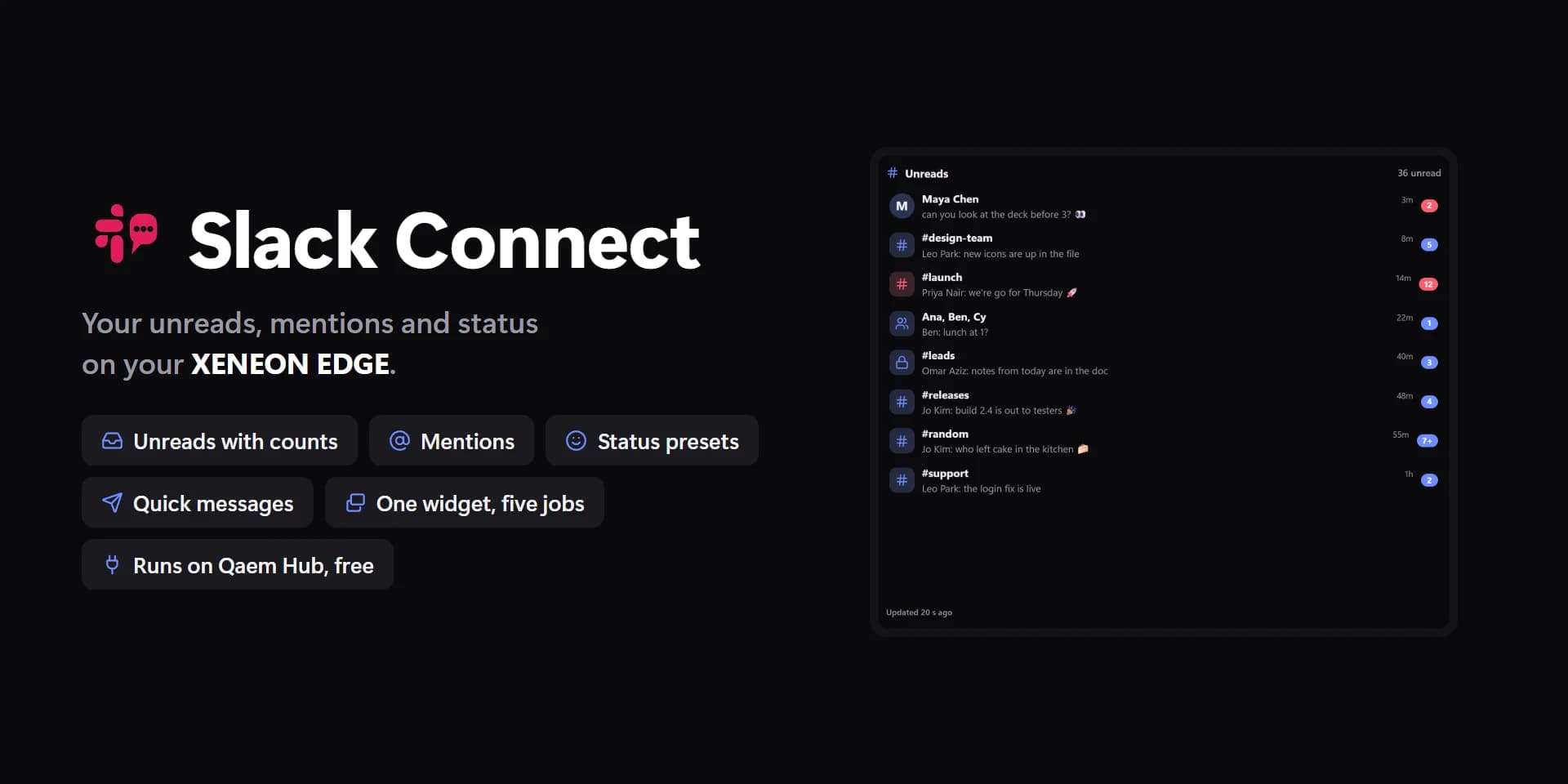
Slack Connect
PremiumYour Slack: unread channels and DMs, mentions, your status, away and paused notifications, quick messages and pinned channels.
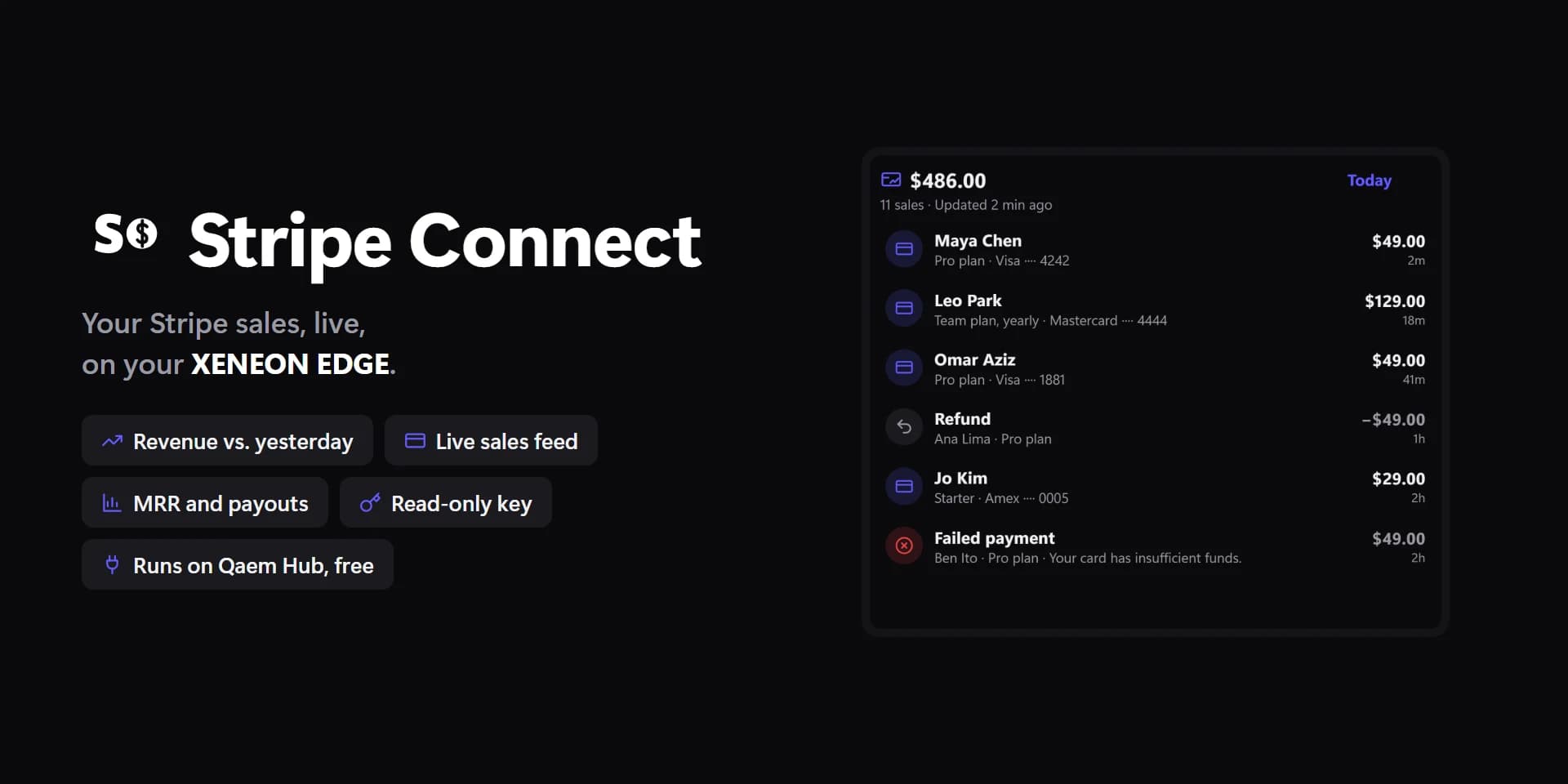
Stripe Connect
PremiumYour Stripe sales: revenue today, this week and this month, a live sales feed with alerts, MRR and subscriptions, new customers, your balance and next payout, and a chart of daily revenue.
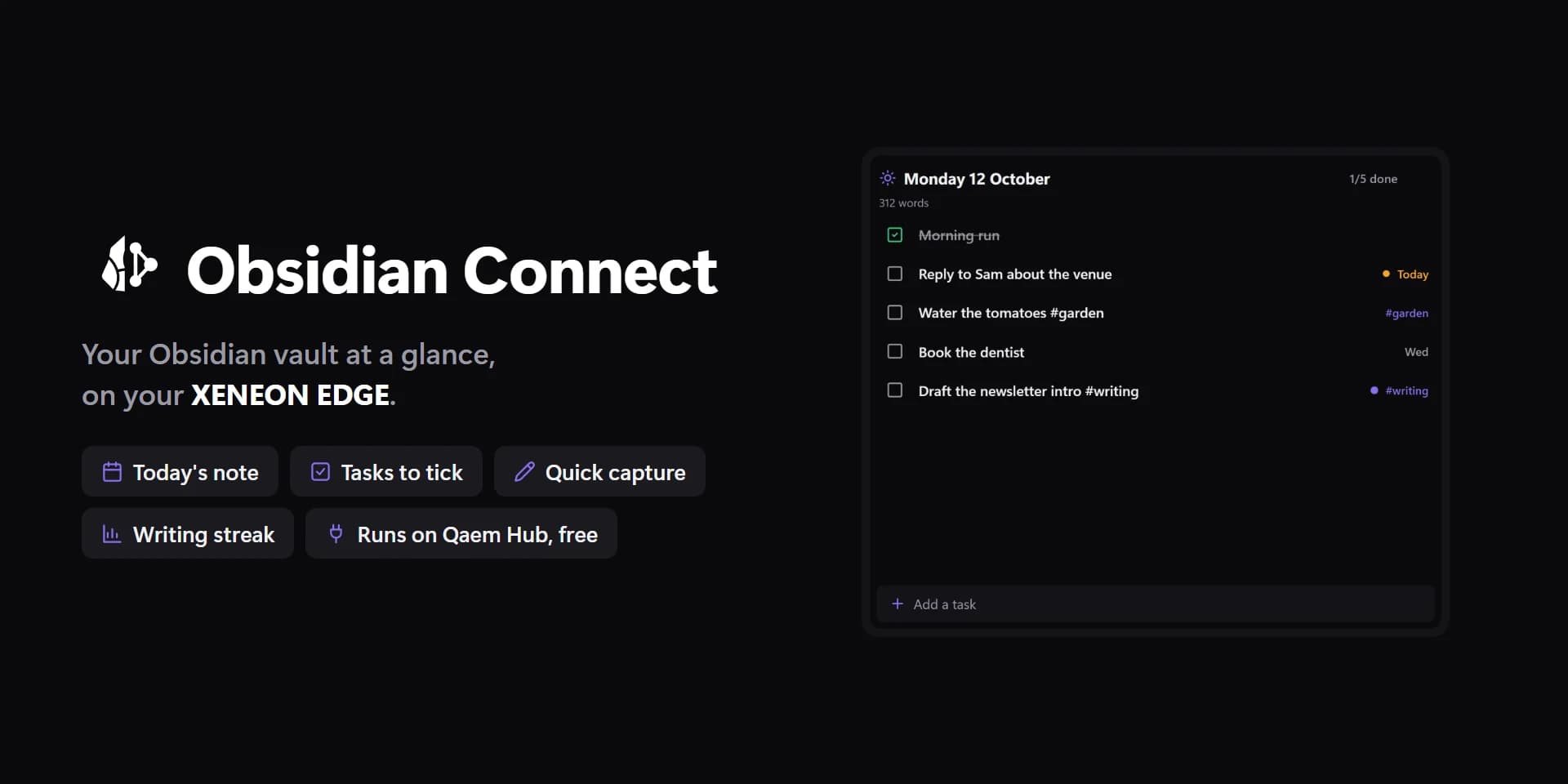
Obsidian Connect
PremiumYour Obsidian vault on your Edge: today's note, tasks to tick, quick capture, pinned and recent notes, a note's preview, tags, and your writing streak.
- GameShelf
GameShelf
PremiumEvery game from Steam, Epic, GOG, Battle.net, EA, Ubisoft, Xbox and Riot: art, playtime and what's running. Tap to play, hold for favorites, categories and more.
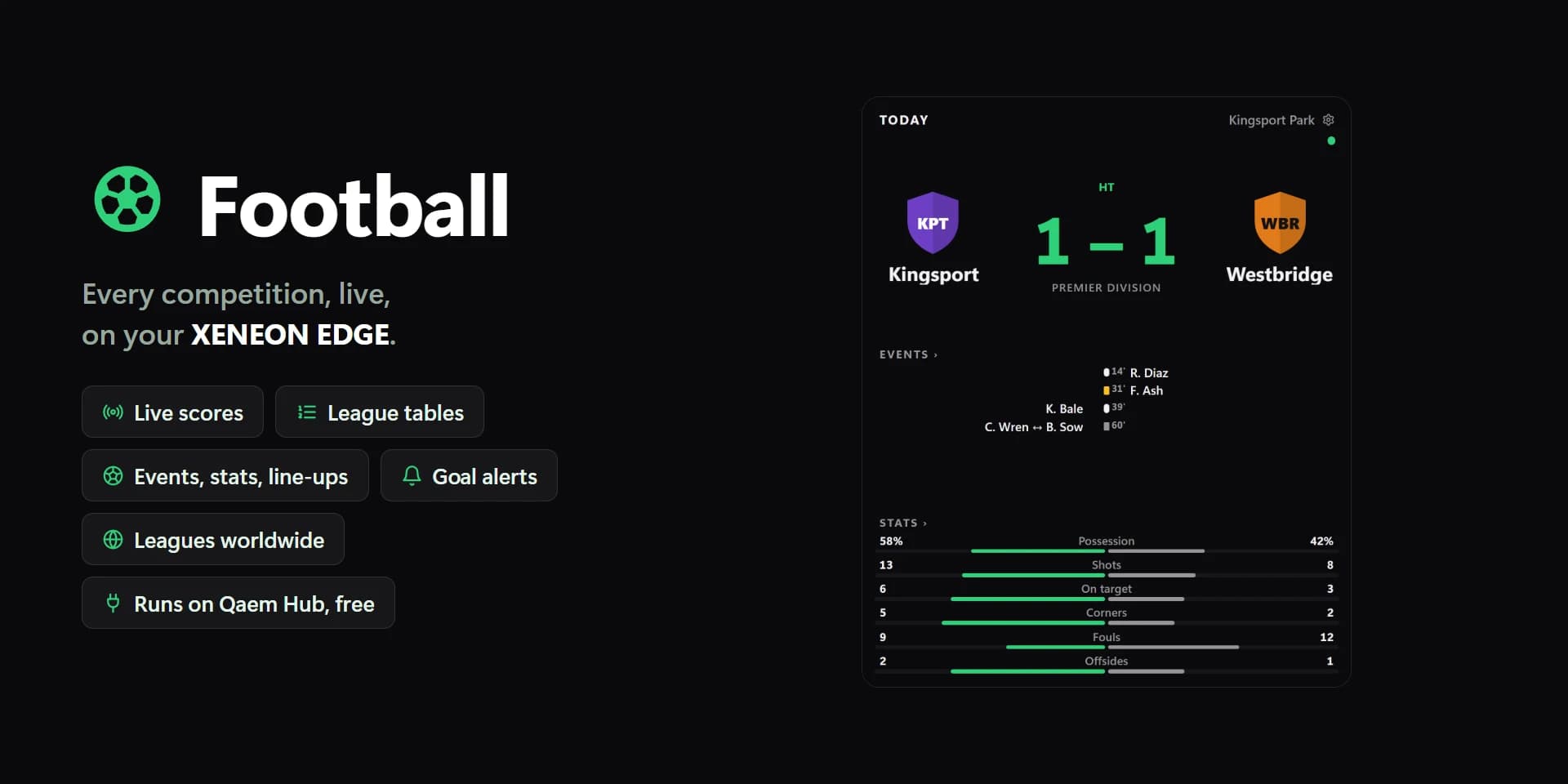
Football
PremiumLive scores, fixtures, results and tables from leagues around the world. Follow your teams, bookmark matches, get goal alerts.
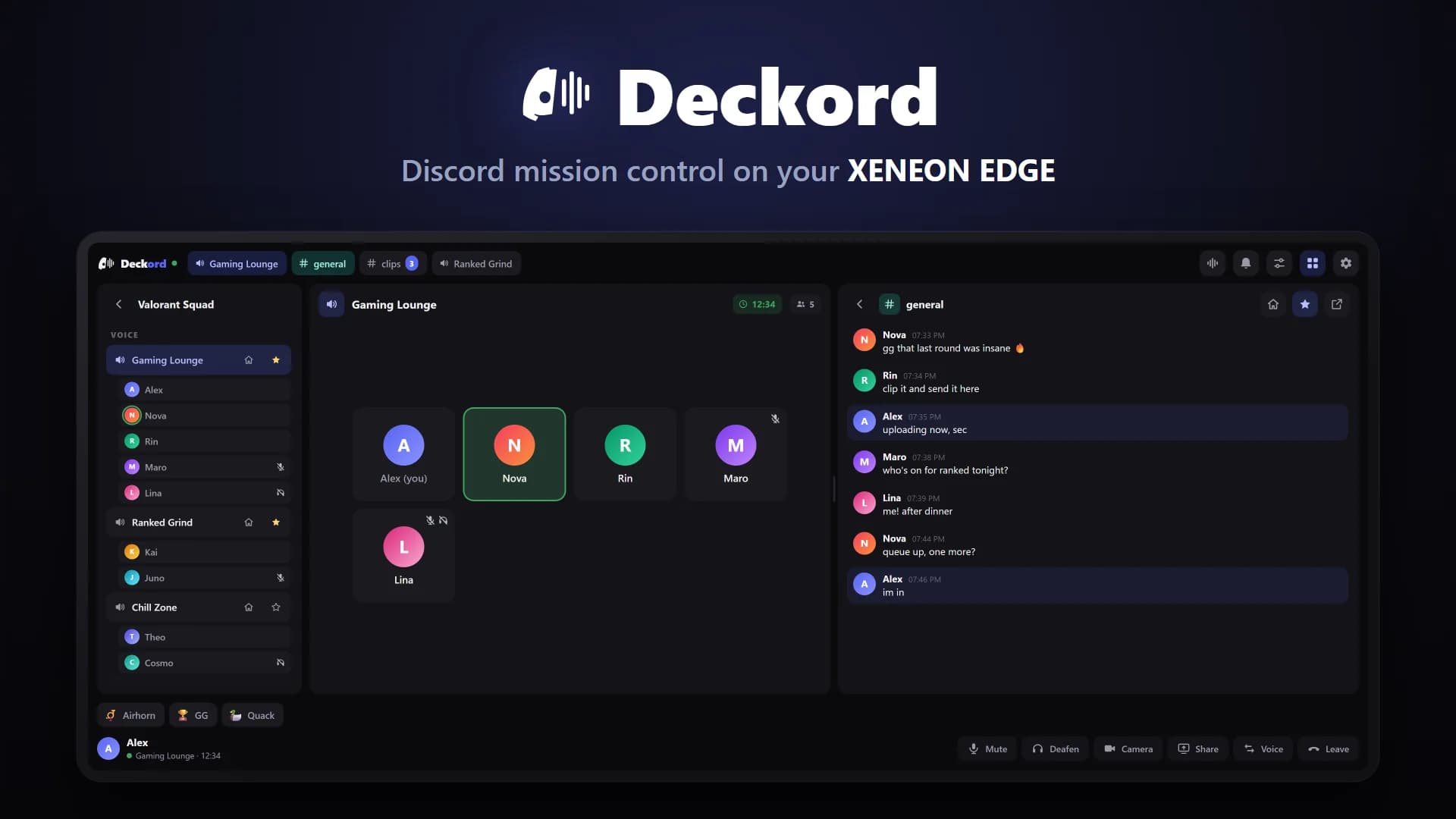
Deckord for Discord
PremiumYour Discord voice channel with who's talking, mute, deafen and your servers, by touch.
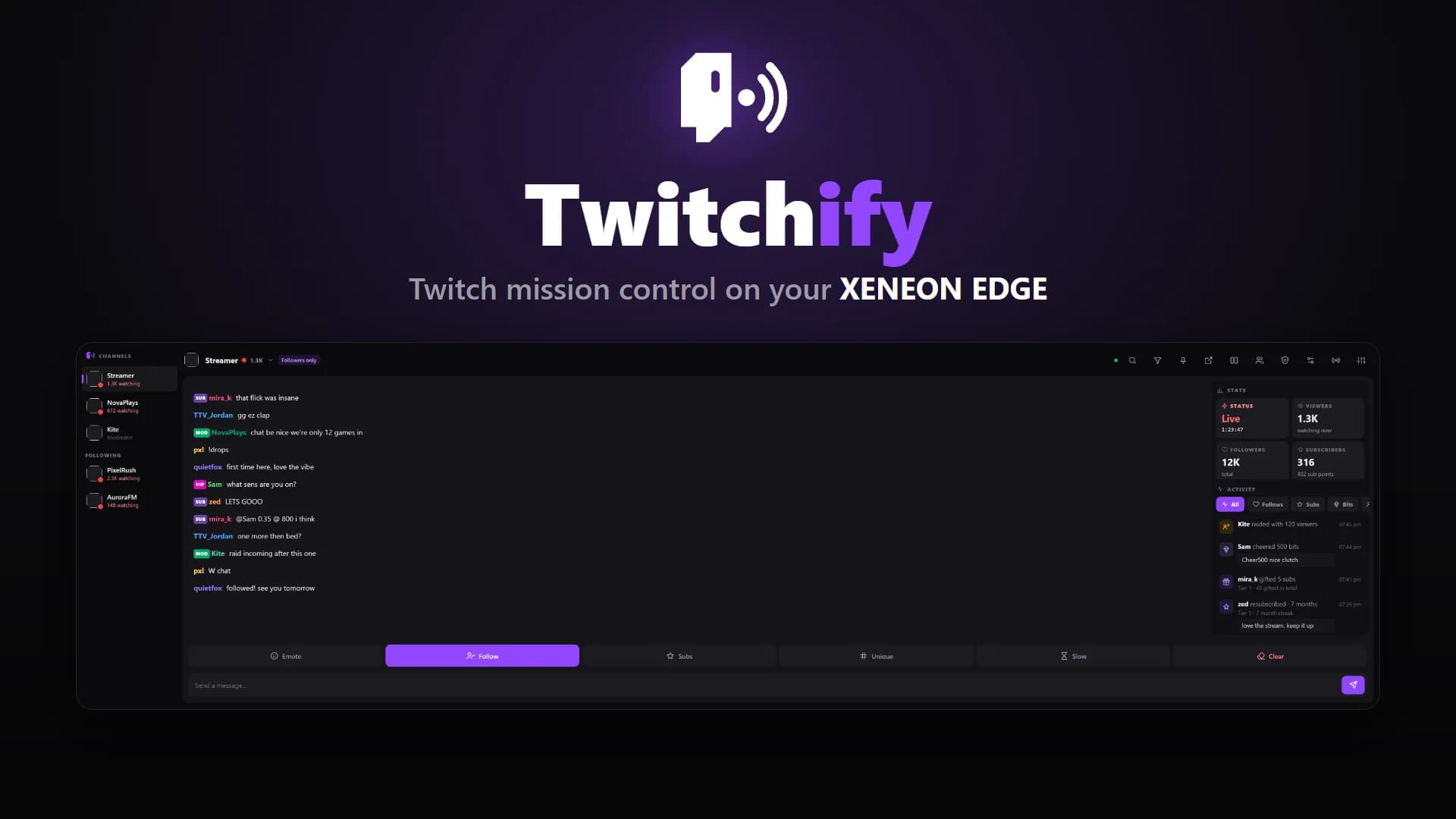
Twitchify for Twitch
PremiumLive chat with one-tap moderation, alerts and stream stats for your Twitch channel.
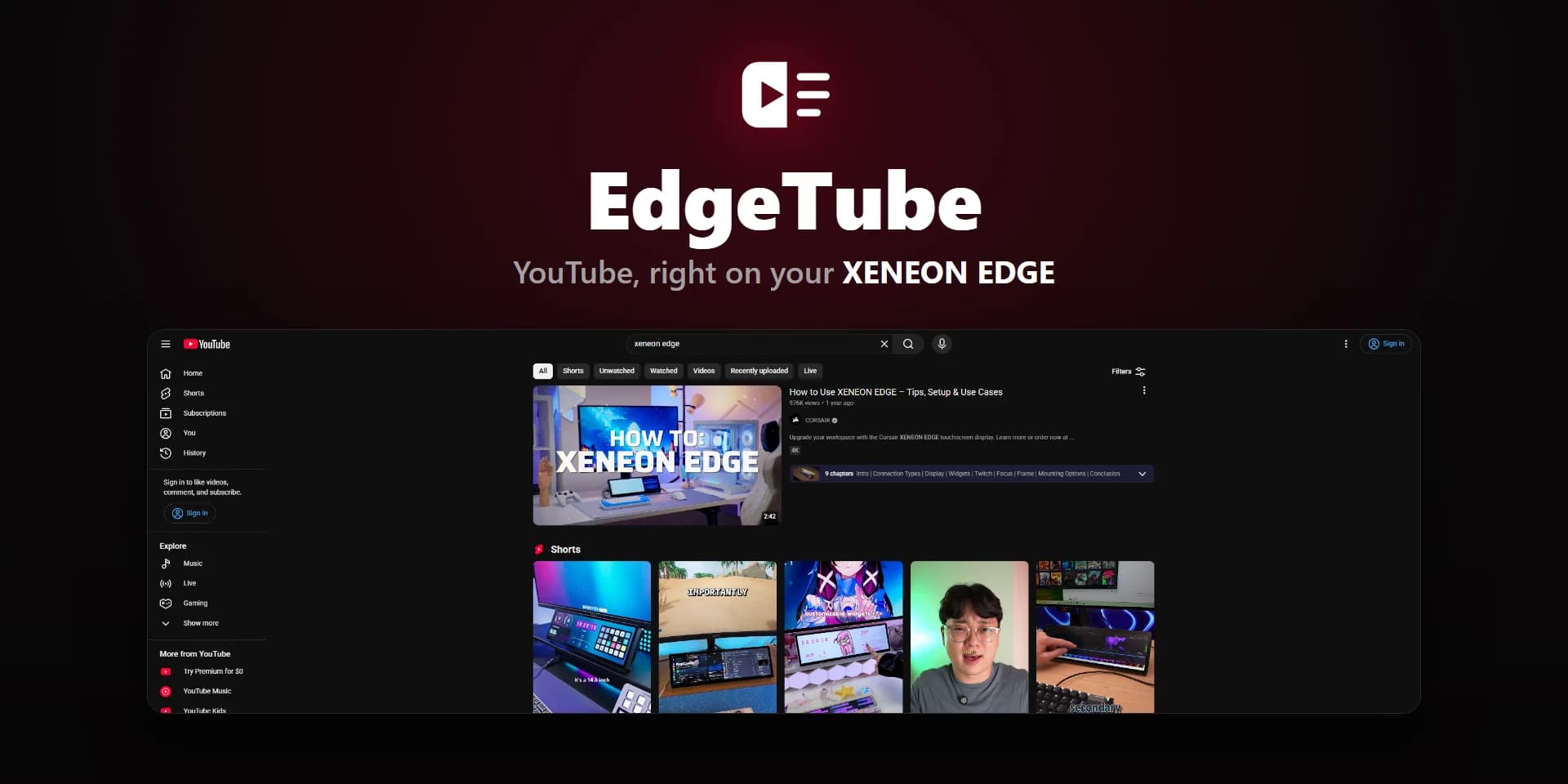
EdgeTube for YouTube
PremiumSearch, scroll your feed and Shorts, and watch YouTube, all by touch.
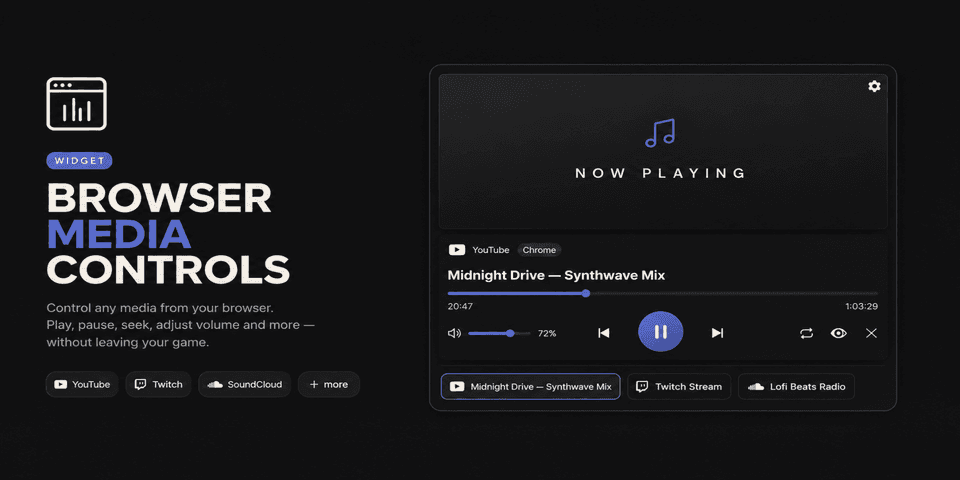
Browser Media Controls
PremiumWhat's playing in your browser, with live artwork, seek and controls.
- Gmail Connect
Gmail Connect
PremiumRead your inbox, open a thread, reply, archive and star.
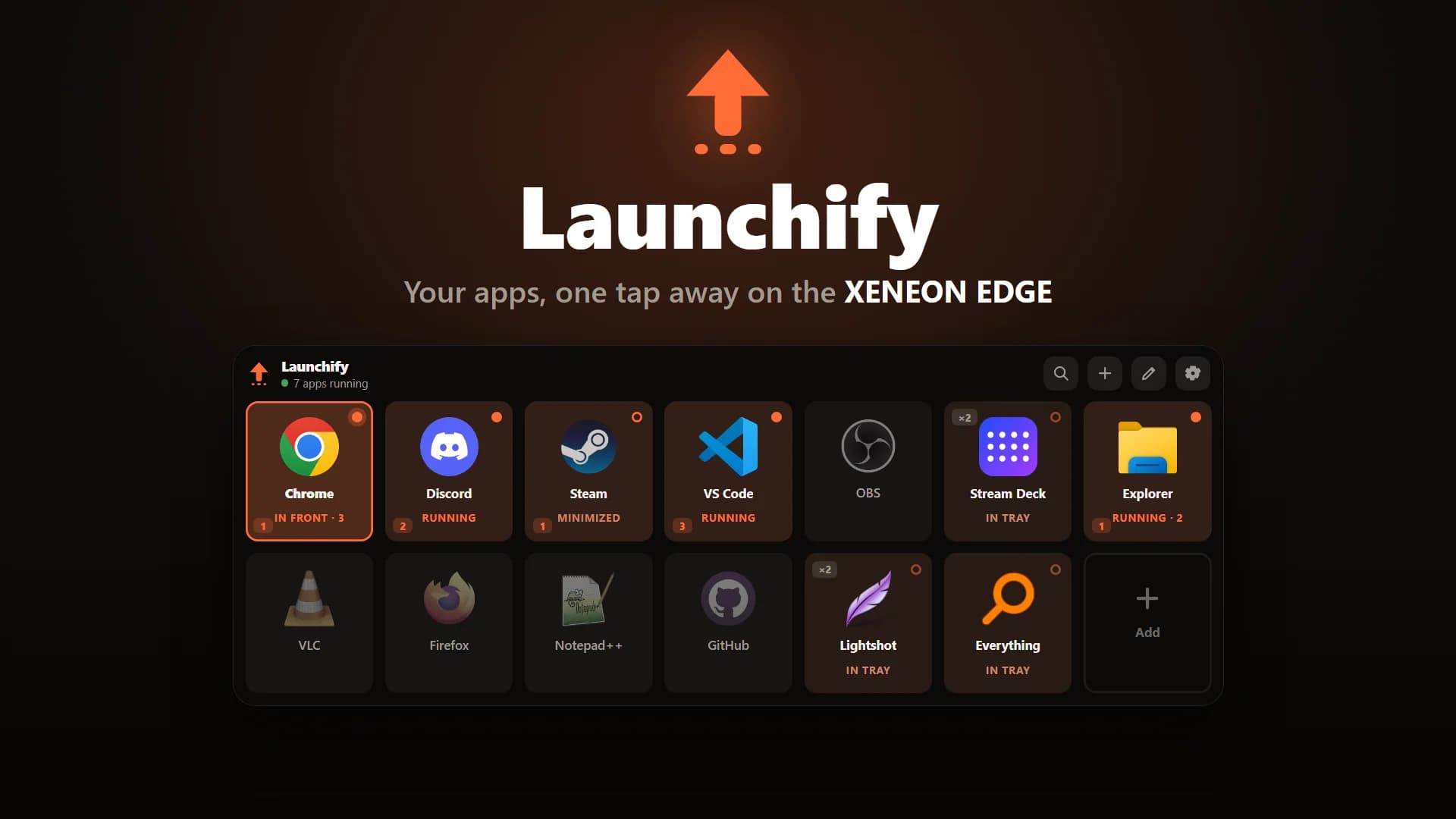
Launchify
PremiumYour apps as live tiles, one tap away.
What each group is for
- Essentials · 10
- The everyday set: the clock and the world clocks, a timer and a countdown, today's date, a PC overview and the volume mixer.
- Media · 7
- What's playing and what's on screen: media controls, album art, photos, a video, an audio visualizer and a mirror of another window.
- Productivity · 13
- Tasks, notes, the weather, your calendar and what's coming up, plus Connect widgets that bring GitHub, Notion, Slack, Stripe and Obsidian onto the desktop.
- Web · 5
- A web page in a tile: a browser, YouTube, Twitch and X, or any page you embed with an iFrame.
- Streaming · 15
- Controls, chat and activity for OBS Studio, Twitch and Kick.
- PC controls · 18
- Switches and levels for your PC: Wi-Fi, Bluetooth, hotspot, night light, brightness, the microphone and audio outputs, and power.
- Monitoring · 13
- How the PC is doing: CPU, GPU, memory, disk, network and temperatures, plus battery, storage, a speed test and a readout for any one number.
- Launch · 7
- Ways to start things: app shortcuts, folders, buttons you define, a Steam launcher, the taskbar and game libraries.
- Smart home · 4
- Home Assistant, Broadlink and Govee for your devices, and Nudge for waking and controlling PCs on your network.
- Built In · 7
- Widgets that come with the app and belong to a service of their own.
- Social · 5
- Discord on the desktop: servers, chat, direct messages, voice and mentions.
How a widget gets onto your screen
Widgets are placed on the Layout page. Pick your screen and tap an empty cell, choose a widget, then drag it into position and pull a corner to resize. Right-clicking an empty cell offers “Add a widget…” as well.
A free grid holds your widgets in cells. With Premium you can switch Placement to a free canvas and put them anywhere, even turned.
Every widget is set up the same way
In the app, open Customize from a widget's card on the Widgets page, or from Customize… in its right-click menu. The tabs, in order:
- Options: what this widget shows and does.
- Design: for the widgets that come in designs, such as the CPU card's Card and Wide.
- Layout: resize, recolour, change the font of, or hide each part of the widget.
- Appearance: the tile's look, including its font and text size.
- Elements and Placements: extra tabs that appear for widgets that have them.
Free and Premium
Spacedash is free to use. Each widget above is marked Free or Premium. Premium is a one-time purchase and unlocks the Premium widgets together with the other Premium features described on the pricing page.
Widgets you build yourself, from a folder with a widget.json and an index.html, are free to import.
Make your desktop yours.
Free for Windows 11 and 10. No account needed.