
Stripe Connect
Your Stripe sales: revenue today, this week and this month, a live sales feed with alerts, MRR and subscriptions, new customers, your balance and next payout, and a chart of daily revenue.
A built-in Spacedash widget for your Windows 11 or 10 desktop, at any size next to your other widgets. It works on the XENEON EDGE too. It's part of Premium, a one-time $19.99 upgrade.
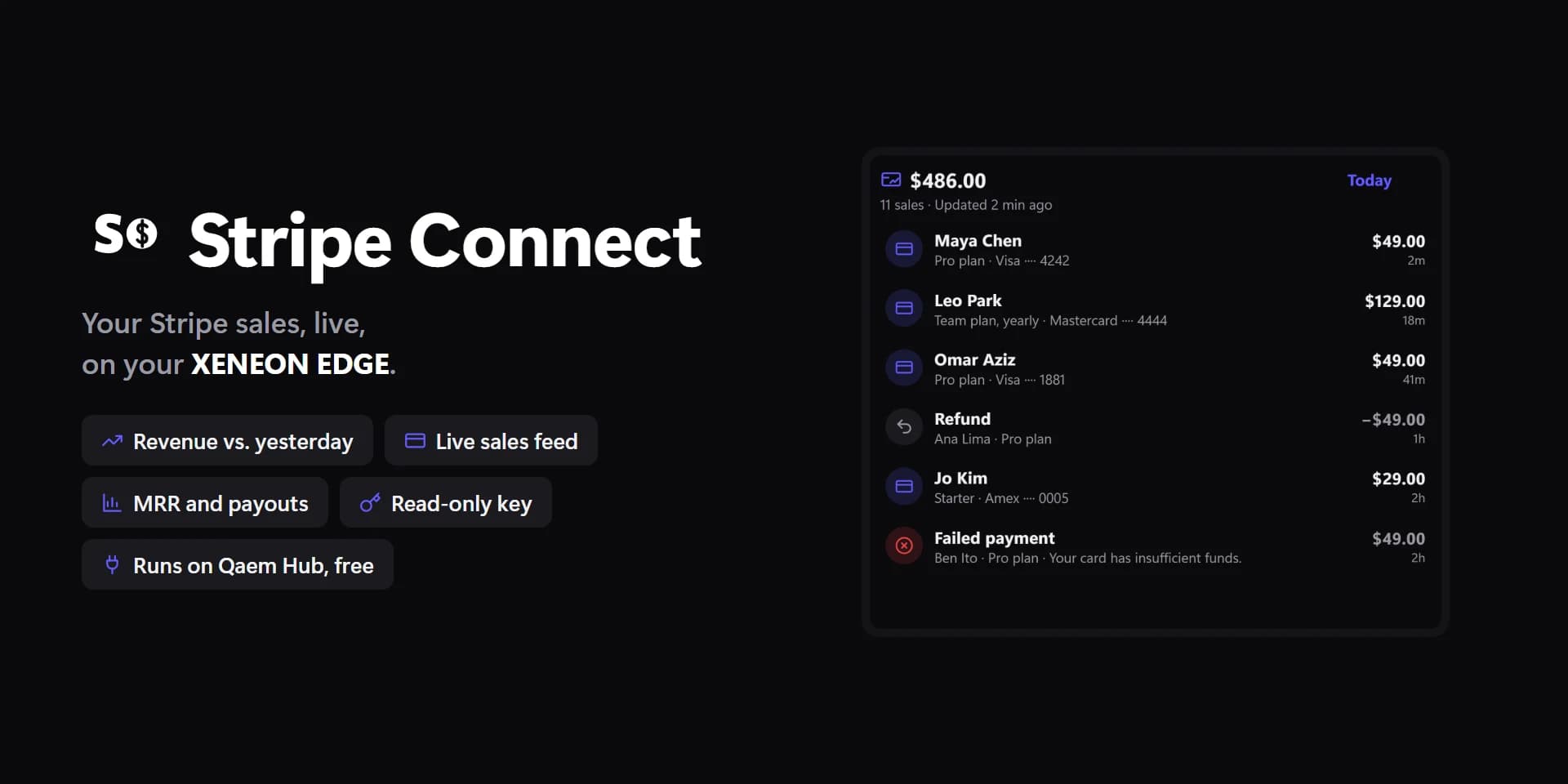
Shown at its default size, with sample data.
What you can set
- Period
- Auto · Today · This week · This month · 7 days · 30 days
- Auto: this month on Dashboard, today on the others. The tabs or a tap on the figure change it for a while; this is where it starts.
- Revenue as
- Gross · Net
- Net: after Stripe's fees, refunds and disputes.
- Weeks start on
- This PC's setting · Monday · Sunday · Saturday
- Figure
- Revenue · Sales · MRR · Subscriptions · Balance · Next payout · New customers · Refunds · Failed payments · Open disputes
- A tap on the tile shows the next one.
- Feed shows
- Sales only · Sales, refunds, disputes, failed payments, payouts · Everything, with customers and subscriptions
- Rows at most
- The rest scroll inside the tile.
- Chart days
- 0 = as many as suit the tile's width.
- Chart as
- Auto · Bars · Line
- Auto: a line on Dashboard, bars on the others.
- Privacy
- Show everything · Hide customers' names · Hide amounts · Hide names and amounts
- For streams and screenshots.
- Flash on a new sale
- The bell and the chime are in Settings → Integrations → Stripe.
- Spacing
- Tight · Normal · Roomy
- Currency as
- $ · USD
- Stripe's logo
- Off: the widget's own card icon, in the accent.
- Times as
- 5m · 3h · 5 min ago · The time
- Tap a row
- Details in the tile · Open in Stripe · Nothing
- Hold a row
- Open in Stripe · Details in the tile · Nothing
- Tap the figure
- Next figure (Figure) / next period · Next period · Open Stripe · Nothing
- Hold the figure
- Next period · Next figure · Open Stripe · Nothing
- Sales and today
- Unset, the accent.
- Chart
- Unset, the theme's muted colour.
- Text on the newest sale
- Auto · Light · Dark · Custom
- Auto picks light or dark text from the colour, so it always reads.
- Sale cards
- Unset, the theme's panel colour.
- Text on sale cards
- Auto · Light · Dark · Custom
- Auto picks light or dark text from the colour, so it always reads.
- Up
- Unset, the theme's green.
- Down
- Unset, the theme's red.
- Tile box
- Off, the design floats on the background. On, it sits in a tile like the other widgets.
- Design
- Edited design
- Account
- Compare with the period before
- MRR
- Subscriptions
- Balance
- Next payout
- New customers
- Refunds
- Failed payments
- Open disputes
- Row backgrounds
- Divider lines
- Corners
- Icons
- Account name
- Period tabs
- Change
- Sales count
- Chart
- Figures
- Feed (tall tiles)
- Card in rows
- Times
- Updated time
- Name on the tile
- Chart
- Chart's end dot
- Newest sale
- Text on the newest sale: custom
- Text on sale cards: custom
Parts you can restyle
Resize, recolour, change the font of, or hide each part under Customize → Layout.
- Icon
- Account name
- Test mode
- Period tabs
- Labels
- Big figure
- Change
- Sales count
- Chart
- Chart labels
- Figures
- Figure names
- Rows
- Row icons
- Names
- Amounts
- Details
- Times
- Sale details
- Updated
- Sale flash
- Buttons
- Edge fade
- Notes
Questions
Is the Spacedash Stripe Connect widget free?
No, Stripe Connect is a Premium widget. Spacedash itself is free; Premium is an optional one-time upgrade of $19.99, with no subscription, that adds Stripe Connect and the other Premium widgets.
Do I need a XENEON EDGE to use the Stripe Connect widget?
No. Spacedash runs on any monitor on Windows 10 or 11, and on the CORSAIR XENEON EDGE in Desktop Mode or, inside iCUE, in Widget Mode.
What can I change on the Stripe Connect widget?
58 options, such as design, edited design, account and period. They're grouped as account, show, figures, design, parts, words, behaviour and colours. Every widget also takes your own font, text size and look.
Can I move or hide parts of the Stripe Connect widget?
Yes. Its parts (icon, account name, test mode, period tabs, labels, big figure, change, sales count, chart, chart labels, figures, figure names, rows, row icons, names, amounts, details, times, sale details, updated, sale flash, buttons, edge fade and notes) can each be resized, restyled or hidden under Customize → Layout.