
A volume mixer widget for your Windows desktop
Spacedash's Volume Mixer puts a slider for the master volume and one for each app on your Windows desktop, with live levels and a mute button each. It's free.
Turn a game down and a call up without opening Windows' own mixer.
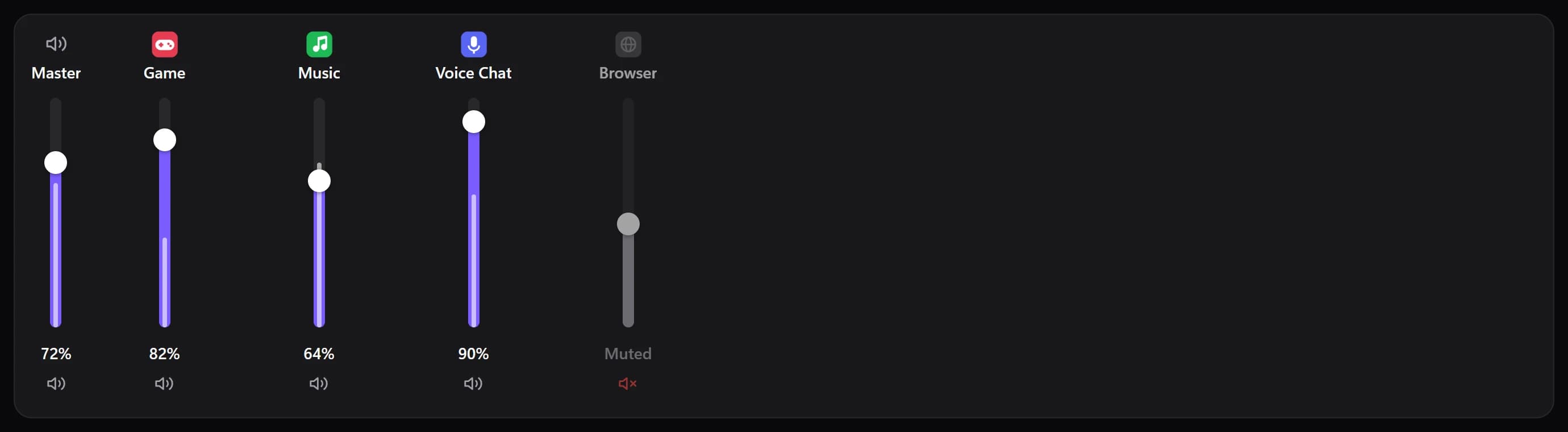
Shown at its default size, with sample data.
What it shows
A channel per app
Each app with its icon, name, volume, a slider with a live level and a mute button.
Master and system sounds
The master volume and Windows' system sounds, with the microphone as an optional channel.
Faders or rows
Horizontal with upright faders like a mixing desk, Vertical with a row per app, or Auto by the tile's shape.
Only what matters
Show only the apps playing right now, order them by playing first, by name or as opened, and choose how many to show, from 1 to 16.
How it works
The mixer uses Windows' own audio sessions, the same ones behind Windows' volume mixer, so every app that plays sound appears by itself. It needs no administrator rights.
A browser that opens several audio sessions is shown as one channel, so Chrome is one slider and not five.
Setups that use it
Music corner
The mixer beside Now Playing: change the track and its volume in the same place.
Game and voice chat
A wide mixer with faders for the game, the chat app and the browser, with a mute tile for the microphone.
Switching headphones and speakers
The mixer sets levels; the Audio Output widget switches the device the sound goes to.
What you can set
- Layout
- Auto · Horizontal · Vertical
- Order
- Playing first · By name · As opened
- Value as
- 42% · 42
- Text on cards
- Auto · Light · Dark · Custom
- Auto picks light or dark text from the colour, so it always reads.
- Name case
- As is · UPPER · lower
- Name weight
- Auto · Regular · Semibold · Bold
- Space between channels
- A card behind each channel
- Master volume
- Microphone
- System sounds
- Only apps playing right now
- One channel per app
- Apps shown at most
- App icons
- Names
- Values
- Live level inside the slider
- Mute buttons
- Tap the icon to mute
- Slider thickness
- Knob
- Slider corners
- Slider colour
- Track colour
- Level colour
- Muted slider colour
- Card colour
- Text on cards: custom
- Name text size (%)
- Value text size (%)
- Icon size (%)
Parts you can restyle
Resize, recolour, change the font of, or hide each part under Customize → Layout.
- Master
- Microphone
- Apps
Good to know
- Press or drag a slider to set a volume. The mute button, or a tap on the app's icon, mutes it.
- It doesn't switch output devices. That's the separate Audio Output widget.
- When no app is using audio, the tile says so instead of showing empty channels.
- Auto uses faders on a wide tile and rows on a narrow or low one.
Questions
Can I change the volume of one app from the desktop?
Yes. The Volume Mixer has a slider for each app that's playing sound, and a mute button for each.
Is the Volume Mixer widget free?
Yes. Volume Mixer is part of Spacedash Free.
Can it switch between my headphones and speakers?
Not this widget. Add Audio Output, which lists your output devices and switches between them.
Does it work on a touchscreen?
Yes. Press or drag a slider with a finger, as on the XENEON EDGE.