
A Home Assistant widget for your Windows desktop
Spacedash's Home Assistant widget puts your smart home on your Windows desktop: lights, climate, blinds, media players, scenes, locks, sensors and cameras, updating live. It's part of Spacedash Premium and connects to your own Home Assistant server.
Tap to toggle a light or run a scene, drag to dim, and see sensor values with their history, without opening a browser tab.
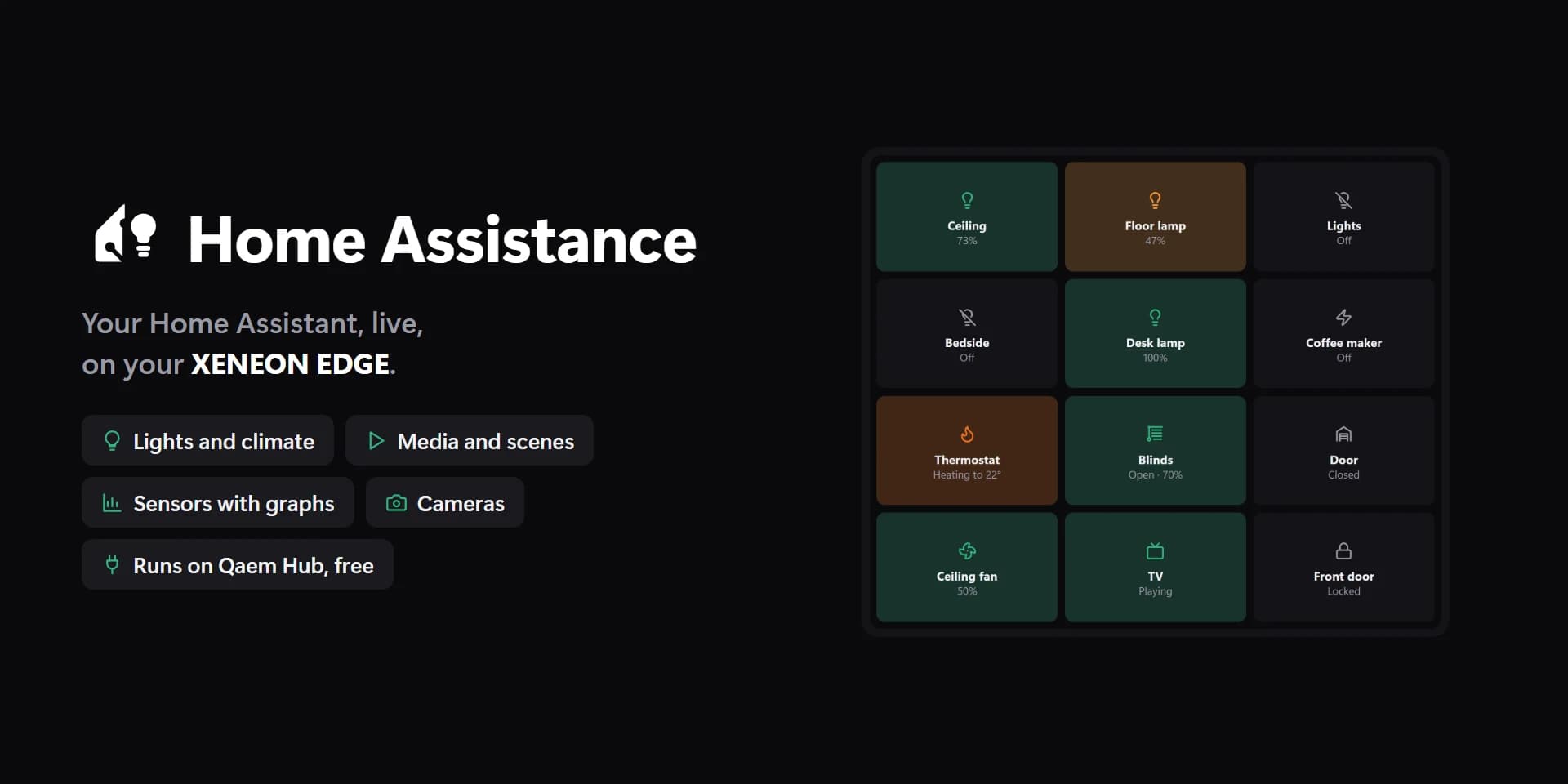
Shown at its default size, with sample data.
What it shows
Six designs
Tiles for a grid of entities, Control for one entity large with its own controls, Room, Sensors, Scenes and Camera.
A room at a glance
Room shows the room's name, its temperature and humidity, how many lights are on, and an All off button.
Sensors with history
The Sensors design shows each value with its recent history.
Cameras
A camera still that refreshes every ten seconds; tap for a fresh one.
How it connects
Under Integrations, enter your Home Assistant address, for example http://homeassistant.local:8123, and sign in with Home Assistant's own login or a long-lived access token. Spacedash also looks for the server on your network by itself.
It then talks to your server directly over Home Assistant's WebSocket API, so a light switched at the wall changes on your desktop at once. It stays connected only while a Home Assistant tile is on screen.
It can control lights, switches, fans, humidifiers, climate and water heaters, covers, media players, scenes, scripts, automations, locks, alarm panels, vacuums, buttons, numbers, selects, sirens, valves and lawn mowers. Sensors, binary sensors, weather, people and cameras are shown.
Setups that use it
Smart home panel
Home Assistant in the Room design with the weather and the clock beside it.
Desk controls
A Scenes strip under your monitor's widgets: one tap for Focus, Movie or Lights off.
Other smart home widgets
Govee Connect and Broadlink Connect control those devices directly, without a Home Assistant server.
What you can set
- Home Assistant
- One sign-in for every widget that uses it, on every screen. The Integrations page lists them all.
- Entities at most
- A small tile shows fewer anyway: the ones that fit, first ones first.
- Drop the room from names
- "Living Room Ceiling" shows as "Ceiling".
- Camera stills
- Fetched every 10 seconds while a camera is on screen.
- On tiles
- Tinted · Filled · Plain
- Tile size
- Small · Medium · Large
- Gaps
- Tight · Normal
- Buttons
- Pills · Squares
- Names
- As named · Capitals
- Pictures
- Fill · Whole
- Density
- Auto · Compact · Roomy
- Drag a blind's level on its tile
- Lights' levels always drag.
- Arm the alarm as
- Home · Away · Night
- Alarm code
- Only if your alarm asks for one. Kept in Spacedash's settings on this PC.
- On
- Unset, the widget's accent. A coloured light always shows its own colour.
- Text on tiles
- Auto · Light · Dark · Custom
- Auto picks light or dark text and icons from the tile colour, so they always read. Names and States below still win.
- Icons on buttons
- Auto · Light · Dark · Custom
- Auto picks light or dark text from the colour, so it always reads.
- Tile box
- Off, the design floats on the background. On, it sits in a tile like the other widgets.
- Design
- Edited design
- Entities
- Allowed to open
- Room name
- Icons
- Names
- States
- Values on tiles
- Levels (brightness, position, volume)
- Colour buttons
- Mode button
- Pictures
- History graph
- Units
- Room name and summary
- Switches
- All off button
- Row backgrounds
- Card backgrounds
- Fill under the graph
- Corners
- All off turns switches off too
- Off icons
- Tiles
- Text on tiles: custom
- Buttons
- Icons on buttons: custom
- Names
- States
- Graphs
Parts you can restyle
Resize, recolour, change the font of, or hide each part under Customize → Layout.
- Tiles
- Icons
- Names
- States
- Values
- Sliders and levels
- Switches
- Buttons
- Colours
- History
- Pictures
- Picture labels
- Room name
- Room summary
- Edge fade
- Status
Good to know
- You need your own Home Assistant server; Spacedash isn't a smart home hub.
- A tile shows up to 12 entities. Add more Home Assistant tiles for more.
- Unlocking a lock, disarming an alarm or opening a garage door or gate is off until you allow that entity under Customize, and then needs a second tap within four seconds.
- Sliders set brightness, cover position, volume or target temperature.
- Each design fits itself to the tile; a small tile shows fewer entities.
Questions
Is the Home Assistant widget free?
No. Home Assistant is a Premium widget. Spacedash itself is free, and Premium is a one-time upgrade with no subscription.
Do I need Home Assistant Cloud?
The widget connects to the address you give it and signs in with Home Assistant's login or a long-lived token. On your home network, the local address is enough.
Is it live, or does it refresh on a timer?
Live. It subscribes to state changes over Home Assistant's WebSocket API. Only camera stills are on a timer, every ten seconds.
Can I unlock my door from the desktop by accident?
No. Locks, alarms, garage doors and gates must first be allowed one by one, and each such action then needs a confirming second tap.
Which devices can it control?
Whatever your Home Assistant exposes in the supported types, including lights, switches, climate, covers, media players, scenes, scripts, locks and vacuums.