
A clock widget for your Windows desktop
Spacedash's Clock puts the time and date on your Windows desktop in one of five styles: Classic, Dot matrix, Seven-segment, Flip cards or Analog. It's free, works offline and can show any time zone.
Windows 11 keeps its clock in the taskbar and has no clock you can place on the desktop. This one sits wherever you put it, at any size, on any monitor.
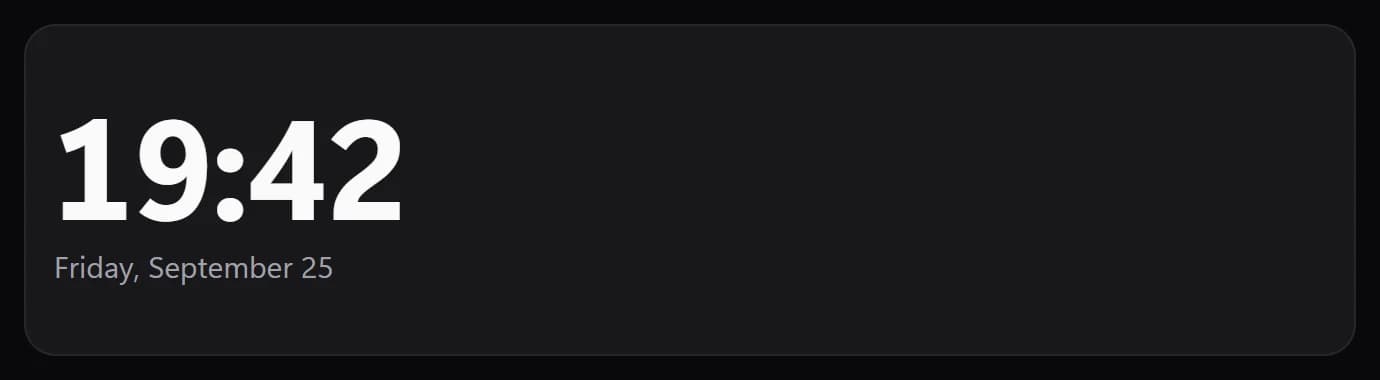
Shown at its default size, with sample data.
What it shows
Five styles
Classic digits, a dot-matrix display, seven-segment digits, flip cards or an analog face with a Minimal, Ticks or Numbers dial.
The date, your way
Eight date formats, from “Monday, September 21” to 2026-09-21, placed left, centre or right, in its own font and colour.
Seconds and 12 or 24 hours
Seconds are optional, small or full size. 24-hour time is on by default and switches to 12-hour with one option.
A caption and the zone
Add a caption such as “Home” or “Office”, and the time zone's name shows on the tile when it isn't this PC's.
Where the time comes from
The Clock reads your PC's own clock and updates every second, so it needs no internet connection and no account.
For another time zone, pick “This PC”, UTC or one of 21 cities from the list, or choose “Other…” and type any IANA zone name such as Asia/Baghdad.
Setups that use it
Clock over the calendar
A wide clock on top, the month underneath, with tasks and the weather beside them. One of the layouts Spacedash starts you with.
Two offices
One Clock on “This PC” and a second on a colleague's city, each with a caption. For more than two, World Clocks shows up to six zones in one tile.
Bedside monitor
A flip-card clock filling a spare screen, with a countdown to the next day off and what's playing underneath.
What you can set
- Style
- Classic · Dot matrix · Seven-segment · Flip cards · Analog
- Typeface
- Widget font · Display · Thin · DIN · Condensed · Monospace · Serif · Heavy · Handwritten
- The clock's own typeface. Widget font follows Appearance → Font.
- Layout
- Auto · One line · Stacked
- Auto stacks the hours over the minutes on a tall tile.
- Dot shape
- Round · Square · Diamond
- Dial
- Minimal · Ticks · Numbers
- Show unlit dots and segments
- Dot matrix and Seven-segment: the unused dots and segments glow faintly, like a real display.
- Seconds
- Auto · Small · Full size
- Time zone
- This PC · UTC · Los Angeles · Denver · Chicago · New York · São Paulo · London · Paris · Berlin · Istanbul · Moscow
- Time zone name
- An IANA time zone name, as in Region/City.
- Date format
- Monday, September 21 · Monday, September 21, 2026 · Mon, Sep 21 · Monday, 21 September · 2026-09-21 · 21/09/2026 · 09/21/2026 · 21.09.2026
- Date position
- Auto · Left · Center · Right
- Date font
- Same as the clock · Widget font · Display · Thin · DIN · Condensed · Monospace · Serif · Heavy · Handwritten
- Caption position
- Left · Center · Right
- Caption font
- Same as the clock · Widget font · Display · Thin · DIN · Condensed · Monospace · Serif · Heavy · Handwritten
- Accent colour
- The colon, small seconds and second hand. Unset, they take the widget's accent.
- Shadow
- A drop shadow under the time, date, caption and time zone. Layout → part → Shadow gives one part its own.
- When the time changes
- Nothing · Fade · Slide · Flip
- Dot spacing
- Slanted digits
- Show seconds
- 24-hour
- Date size
- Date colour
- Caption
- Dot before the caption
- Caption size
- Caption colour
- Digit colour
- Blink the colon
- Glow
- Glow colour
- Glow strength
- Shadow colour
- Shadow strength
- Animate seconds
Parts you can restyle
Resize, recolour, change the font of, or hide each part under Customize → Layout.
- Time
- Date
- Caption
- Time zone
Good to know
- On a tall tile, the Auto layout stacks the hours over the minutes; One line and Stacked force either.
- The digits resize to fill the tile, so the same clock works as a small corner tile or across a whole monitor.
- Dot matrix and Seven-segment can show their unlit dots and segments faintly, like a real display.
- When the time changes the digits can fade, slide or flip, and the colon can blink. All of it can be switched off.
- The Clock doesn't do anything when you tap it. For alarms, a stopwatch or Pomodoro, add the Timer widget.
Questions
Does Windows 11 have a desktop clock widget?
Not on the desktop. Windows 11 shows the time in the taskbar, and its Widgets board opens as a panel. Spacedash adds a clock you can place on the desktop itself, on any monitor, at any size.
Is the Spacedash Clock widget free?
Yes. The Clock and all five of its styles are part of Spacedash Free, with no account and no time limit.
Can I show a second time zone?
Yes. Add another Clock and set its time zone to a city from the list, or type an IANA name such as Europe/Lisbon. The World Clocks widget shows up to six zones side by side in one tile.
Does the clock need an internet connection?
No. It reads your PC's clock, so it keeps working offline.
Can I change the clock's font and colours?
Yes. The Clock has its own choice of typefaces, plus colour, glow and shadow options, and each part (time, seconds, date, caption) can be resized, recoloured or hidden.