
Slack Connect
Your Slack: unread channels and DMs, mentions, your status, away and paused notifications, quick messages and pinned channels.
A built-in Spacedash widget for your Windows 11 or 10 desktop, at any size next to your other widgets. It works on the XENEON EDGE too. It's part of Premium, a one-time $19.99 upgrade.
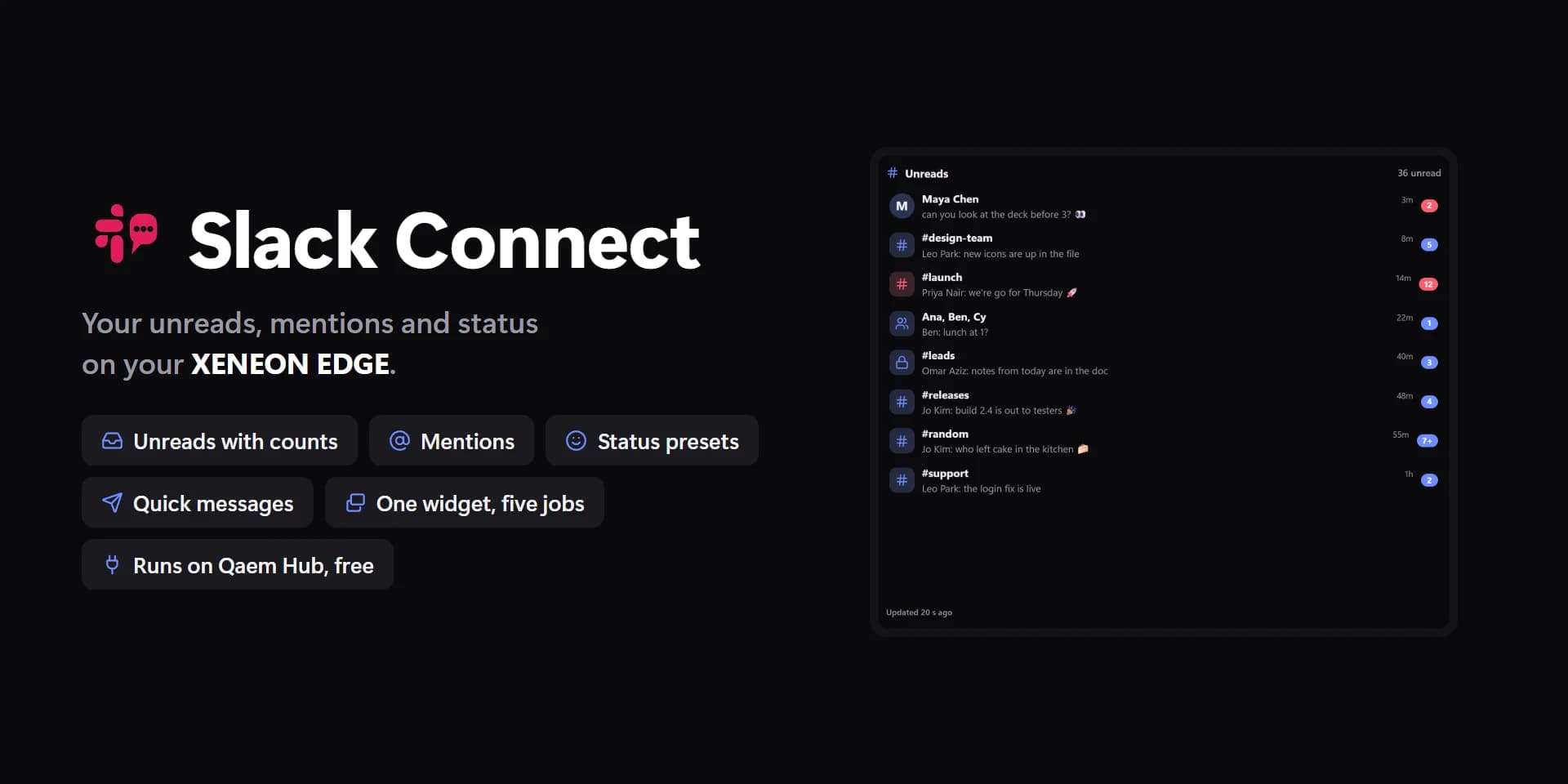
Shown at its default size, with sample data.
What you can set
- Slack workspace
- One sign-in for every widget that uses it, on every screen. The Integrations page lists them all.
- Show
- Unreads · Mentions · Status · Quick send · Pinned channels
- Include
- Channels and DMs · DMs only · Channels only · DMs and mentions only
- Order
- Newest first · Most unread first · DMs first
- Status presets
- One per line: a Slack emoji code, the words, then | and how many minutes it lasts (0 = until you clear it).
- Quick messages
- A tap sends one. The Write bar takes anything else.
- Pinned
- Up to eight. Their newest messages come from Slack about once a minute.
- Rows at most
- The rest scroll inside the tile.
- Hidden
- Slack doesn't tell apps which channels you muted: hide them here instead.
- Row picture
- Photos · Icons · None
- Row backgrounds
- Inbox and Counter.
- Spacing
- Tight · Normal · Roomy
- Updated time
- Slack is checked about once a minute; this says when it last was.
- Times as
- 5m · 3h · 5 min ago · The time
- Tap a row
- Open in Slack (Status: set it) · Write a message · Nothing
- Hold a row
- Open, write or hide · Open in Slack · Write a message · Nothing
- Tap the title
- Open Slack · Write (Quick send) · Refresh · Nothing
- Hold the title
- Refresh · Open Slack · Nothing
- Counts
- Unset, the accent.
- Mentions and DMs
- Unset, the theme's red.
- Active dot
- Unset, the theme's green.
- Message bar writes to
- Empty: the newest unread DM.
- Keep read ones listed
- Conversations read in the last few hours stay under the unread ones, dimmed.
- Text on counts
- Auto · Light · Dark · Custom
- Auto picks light or dark text from the colour, so it always reads.
- Text on Send
- Auto · Light · Dark · Custom
- Auto picks light or dark text from the colour, so it always reads.
- Row cards
- Unset, the theme's panel colour.
- Tile box
- Off, the design floats on the background. On, it sits in a tile like the other widgets.
- Design
- Edited design
- Away button
- Pause notifications for
- Write to
- Ask before sending
- Divider lines
- Corners
- Icons and photo
- Title
- Count
- Summary
- Message previews
- Counts
- Times
- Title
- Message bar
- Who wrote it, in previews
- Unread counts
- Text on counts: custom
- Send button
- Text on Send: custom
Parts you can restyle
Resize, recolour, change the font of, or hide each part under Customize → Layout.
- Icon
- Title
- Count
- Summary
- Updated
- Big number
- Your status
- Rows and cards
- Photos
- Icons and emoji
- Names
- Messages
- Counts
- Times
- Write bar
- Buttons
- Edge fade
- Notes
Questions
Is the Spacedash Slack Connect widget free?
No, Slack Connect is a Premium widget. Spacedash itself is free; Premium is an optional one-time upgrade of $19.99, with no subscription, that adds Slack Connect and the other Premium widgets.
Do I need a XENEON EDGE to use the Slack Connect widget?
No. Spacedash runs on any monitor on Windows 10 or 11, and on the CORSAIR XENEON EDGE in Desktop Mode or, inside iCUE, in Widget Mode.
What can I change on the Slack Connect widget?
49 options, such as design, edited design, slack workspace and show. They're grouped as account, show, design, parts, words, behaviour and colours. Every widget also takes your own font, text size and look.
Can I move or hide parts of the Slack Connect widget?
Yes. Its parts (icon, title, count, summary, updated, big number, your status, rows and cards, photos, icons and emoji, names, messages, counts, times, write bar, buttons, edge fade and notes) can each be resized, restyled or hidden under Customize → Layout.