
Broadlink Connect
Your Broadlink remotes and plugs: the buttons you learn from your own remotes, macros, plugs on and off, and the sensor's readings. All on your own network.
A built-in Spacedash widget for your Windows 11 or 10 desktop, at any size next to your other widgets. It works on the XENEON EDGE too. It's part of Premium, a one-time $19.99 upgrade.
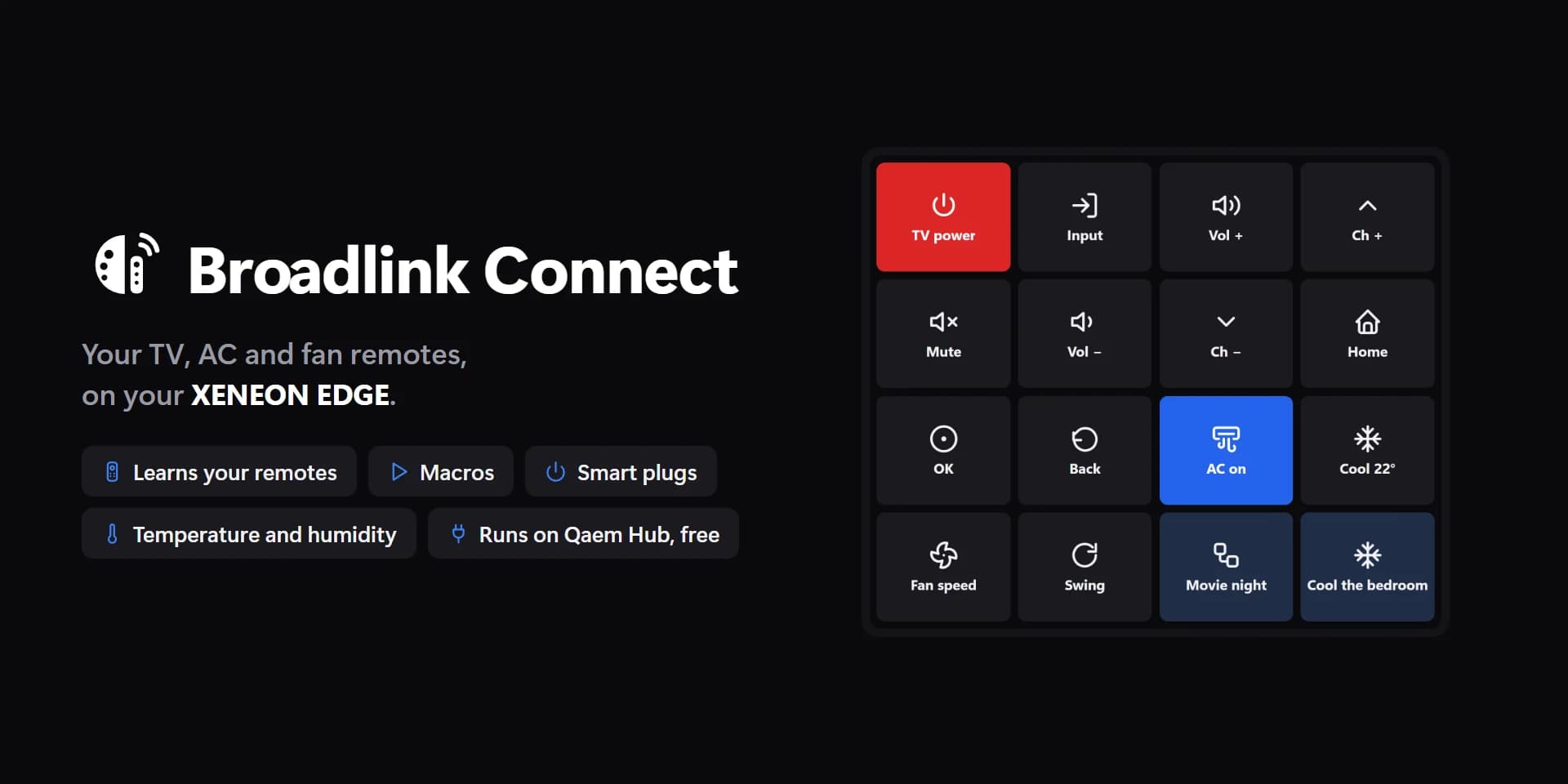
Shown at its default size, with sample data.
What you can set
- Room
- With nothing picked, only this room's buttons and macros.
- Air conditioner buttons
- IR only sends, so the panel shows what these buttons last set: Cool 22° sets 22°, AC + and AC − step it, AC off turns it off. None picked: the buttons whose name says AC, a temperature or a mode.
- Learning notice
- A strip across the tile while a code is being learned, so nobody presses the remote by mistake.
- Columns
- 0 = Auto, from the tile's shape.
- Keys
- Rounded · Round · Pills
- Key size
- Small · Medium · Large
- Gaps
- Tight · Normal · Wide
- Button
- Circle · Square · Pill · Whole tile
- Card size
- Small · Medium · Large
- Plugs that are on
- Tinted · Filled · Plain
- Temperature
- °C · °F
- Density
- Auto · Compact · Roomy
- Keys
- A button's own colour (Customize → Buttons → Edit) wins.
- Text on keys
- Auto · Light · Dark · Custom
- Auto picks light or dark names and icons from the key colour, so they always read. Key names below still win.
- Text on macros
- Auto · Light · Dark · Custom
- Auto picks light or dark text from the colour, so it always reads.
- Pressed and on
- Unset, the widget's accent.
- Keys
- Unset, a faint tint of the text colour. A button's own colour (Customize → Buttons → Edit) wins.
- Pressed keys and badge
- Cleared, the widget's accent.
- Panel
- Unset, a faint tint of the text colour.
- Text on the panel
- Auto · Light · Dark · Custom
- Auto picks light or dark text from the colour, so it always reads.
- Text on cards
- Auto · Light · Dark · Custom
- Auto picks light or dark text and icons from the card colour, so they always read. Icons above still win.
- Tile box
- Off, the design floats on the background. On, it sits in a tile like the other widgets.
- Design
- Edited design
- Buttons
- Title
- Panel title
- Icons
- Key names
- Names
- States
- Switches on plugs
- Title
- Air conditioner and room panel
- Humidity
- Air, light and noise (e-Sensor)
- Corners
- Text on keys: custom
- Macros
- Text on macros: custom
- Key names
- Text on the panel: custom
- Icons
- Cards
- Text on cards: custom
- Readings
Parts you can restyle
Resize, recolour, change the font of, or hide each part under Customize → Layout.
- Keys
- Icons
- Key names
- Cards
- Names
- States
- Readings
- Humidity
- Air, light and noise
- Switches
- Room name
- Buttons
- Edge fade
- Status
- Room label
- Panel
- Panel labels
- Set temperature
- AC mode
- Room readings
Questions
Is the Spacedash Broadlink Connect widget free?
No, Broadlink Connect is a Premium widget. Spacedash itself is free; Premium is an optional one-time upgrade of $19.99, with no subscription, that adds Broadlink Connect and the other Premium widgets.
Do I need a XENEON EDGE to use the Broadlink Connect widget?
No. Spacedash runs on any monitor on Windows 10 or 11, and on the CORSAIR XENEON EDGE in Desktop Mode or, inside iCUE, in Widget Mode.
What can I change on the Broadlink Connect widget?
46 options, such as design, edited design, buttons and room. They're grouped as design, buttons, show, style and colours. Every widget also takes your own font, text size and look.
Can I move or hide parts of the Broadlink Connect widget?
Yes. Its parts (keys, icons, key names, cards, names, states, readings, humidity, air, light and noise, switches, room name, buttons, edge fade, status, room label, panel, panel labels, set temperature, ac mode and room readings) can each be resized, restyled or hidden under Customize → Layout.