
Power
Lock, sleep, restart or shut down.
A built-in Spacedash widget for your Windows 11 or 10 desktop, at any size next to your other widgets. It works on the XENEON EDGE too. It's free, like Spacedash itself.
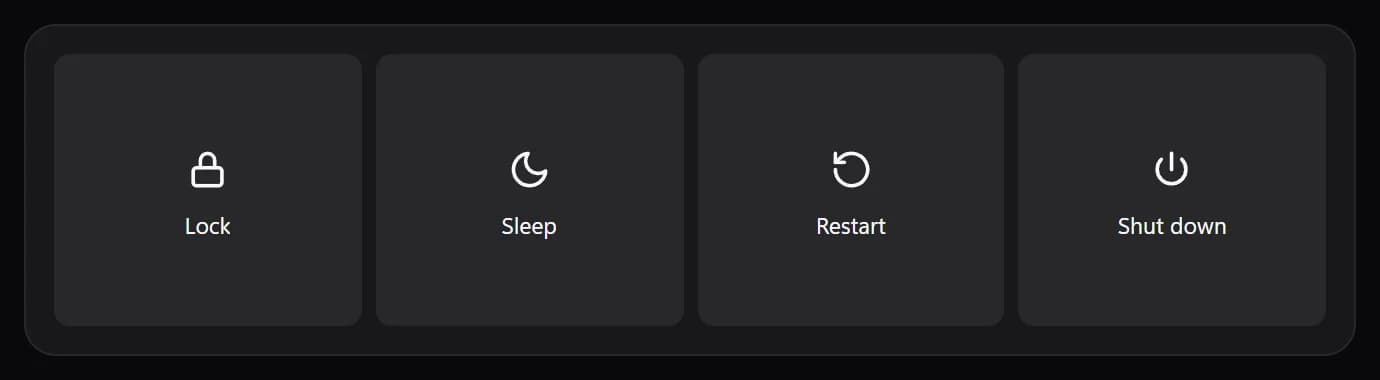
Shown at its default size, with sample data.
What you can set
- Style
- Buttons · Circles · List · Power orb
- Power orb: one big button that opens the choices.
- Before restart or shut down
- Tap twice · Press and hold · Just do it
- Colour each button
- Lock blue, sleep purple, restart amber, shut down red.
- Text on buttons
- Auto · Light · Dark · Custom
- Auto picks light or dark text from the colour, so it always reads.
- Lock
- Sleep
- Restart
- Shut down
- Sign out
- Hibernate
- Displays off
- Show names
- Button colour
- Text on buttons: custom
- Icon colour
- Warning colour
Parts you can restyle
Resize, recolour, change the font of, or hide each part under Customize → Layout.
- Buttons
Questions
Is the Spacedash Power widget free?
Yes. Power is one of the widgets in Spacedash Free, with no account and no time limit.
Do I need a XENEON EDGE to use the Power widget?
No. Spacedash runs on any monitor on Windows 10 or 11, and on the CORSAIR XENEON EDGE in Desktop Mode or, inside iCUE, in Widget Mode.
What can I change on the Power widget?
16 options, such as style, lock, sleep and restart. They're grouped as design, buttons, colours and behaviour. Every widget also takes your own font, text size and look.
Can I move or hide parts of the Power widget?
Yes. Its parts (buttons) can each be resized, restyled or hidden under Customize → Layout.