
System tray
Windows' taskbar corner: hidden icons, language, network, volume, the clock and notifications. Each opens what it opens on the taskbar.
A built-in Spacedash widget for your Windows 11 or 10 desktop, at any size next to your other widgets. It works on the XENEON EDGE too. It's part of Premium, a one-time $19.99 upgrade.
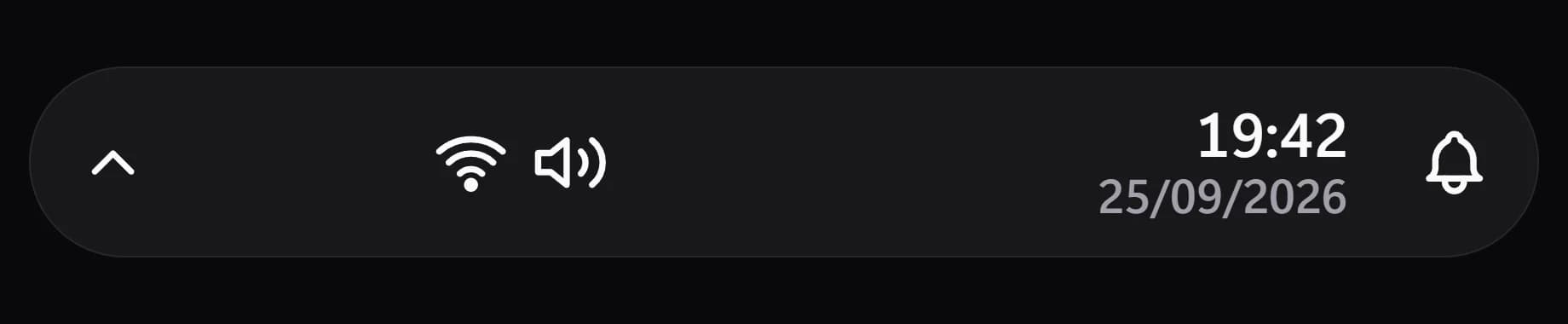
Shown at its default size, with sample data.
What you can set
- Clock
- As Windows · 24-hour · 12-hour
- Icons across
- Auto · 3 · 4 · 5 · 6 · 8
- Closes by itself
- After a few seconds · As the mouse leaves · Never
- A click anywhere else always closes it. After a few seconds: 8 s after your last touch, never while the mouse is over it.
- Tile box
- Off, the design floats on the background. On, it sits in a tile like the other widgets.
- Design
- Edited design
- Icon size
- Names beside the icons
Parts you can restyle
Resize, recolour, change the font of, or hide each part under Customize → Layout.
- Background
- Hidden icons
- Language
- Status icons
- Time
- Date
- Notifications
Questions
Is the Spacedash System tray widget free?
No, System tray is a Premium widget. Spacedash itself is free; Premium is an optional one-time upgrade of $19.99, with no subscription, that adds System tray and the other Premium widgets.
Do I need a XENEON EDGE to use the System tray widget?
No. Spacedash runs on any monitor on Windows 10 or 11, and on the CORSAIR XENEON EDGE in Desktop Mode or, inside iCUE, in Widget Mode.
What can I change on the System tray widget?
8 options, such as design, edited design, clock and icons across. They're grouped as design, settings and hidden icons. Every widget also takes your own font, text size and look.
Can I move or hide parts of the System tray widget?
Yes. Its parts (background, hidden icons, language, status icons, time, date and notifications) can each be resized, restyled or hidden under Customize → Layout.