
Wave Link Connect
Elgato Wave Link's mixer: a fader, mute and live meter for each channel, the mixes, and the output you listen on.
A built-in Spacedash widget for your Windows 11 or 10 desktop, at any size next to your other widgets. It works on the XENEON EDGE too. It's part of Premium, a one-time $19.99 upgrade.
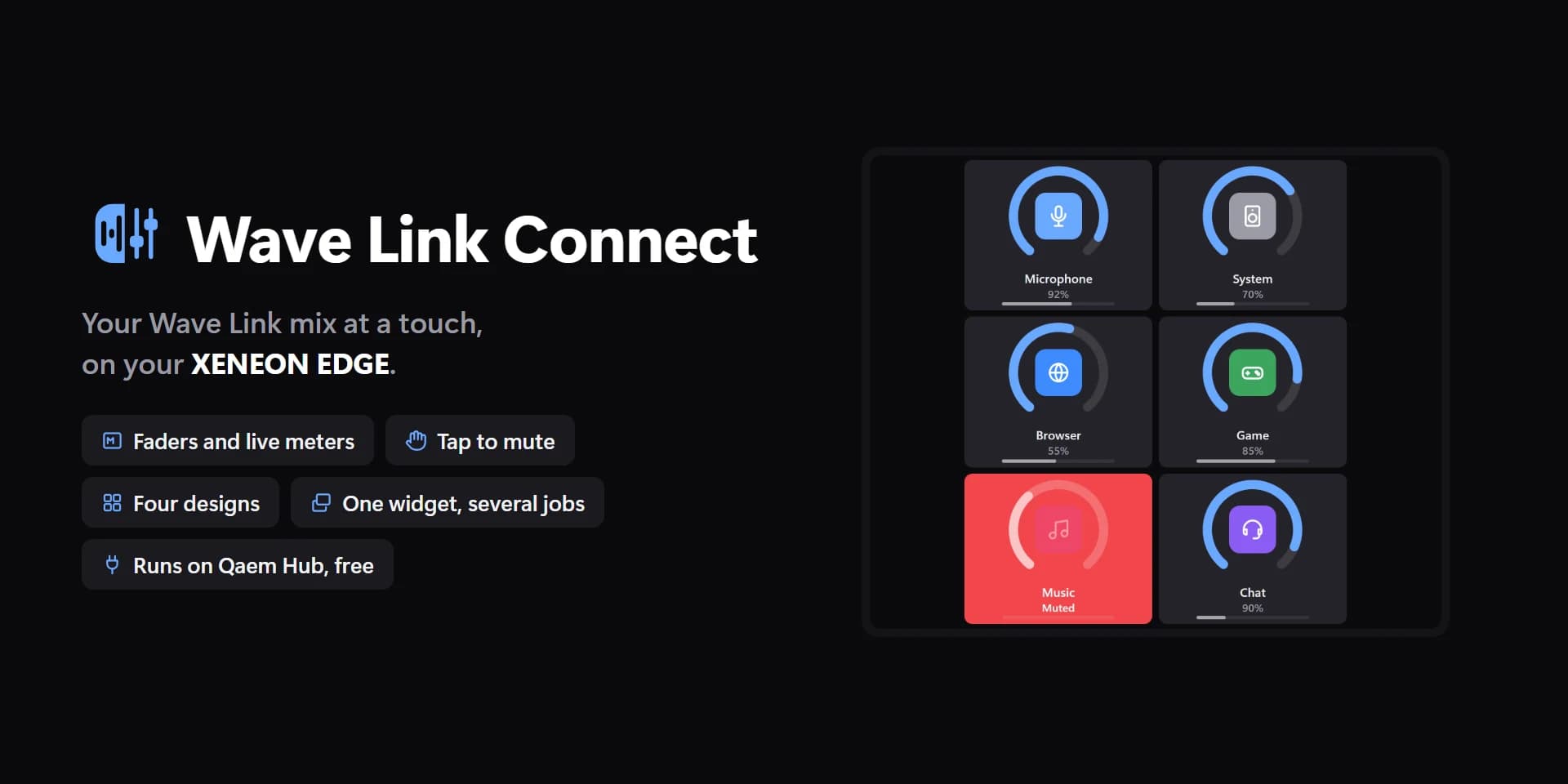
Shown at its default size, with sample data.
What you can set
- Faders set
- Personal Mix · Stream Mix
- Which of Wave Link's mixes the channel faders and mutes change. Monitor shows both mixes. On Studio, tapping a mix on top switches that tile until this is changed.
- Channels at most
- A small tile shows fewer anyway: the ones that fit, first ones first.
- The mix's own fader
- None · First · Last
- Mix name, output and mic on top
- Only when the tile has room for it.
- Title and mixes on top
- Only when the tile has room for it. Tap a mix to make the faders set it.
- Output switcher
- Monitor: the outputs as buttons. The top line: where you listen, tap for the next.
- Fader under each pad
- Dragging on a pad's ring sets its level too.
- Faders
- Filled · Thin · Segments
- Meters
- Beside the fader · In the fader
- Density
- Auto · Compact · Roomy
- Compact fits more channels on a small tile; Roomy gives each more space.
- Faders
- Drag to set · Show only
- Show only: the levels can't be changed from the Edge by a stray touch.
- Tap a picture or name
- Mutes it · Nothing
- When there is no room for mute buttons, and a pad on Pads (dragging its ring sets the level).
- Faders
- Unset, the widget's accent (on Studio, a faint white).
- Fader handles
- Unset, white (dark on Light).
- Meters
- Studio's meters take each channel's own colour (Channel colours).
- Text when muted
- Auto · Light · Dark · Custom
- Auto picks light or dark text from the colour, so it always reads.
- Text on buttons
- Auto · Light · Dark · Custom
- Auto picks light or dark text and icons from the button colour, so they always read. Names below still win.
- Cards
- Unset, a shade lighter than the tile.
- Text on cards
- Auto · Light · Dark · Custom
- Auto picks light or dark text from the colour, so it always reads.
- Mix in use
- The filled pill on top. Unset, white (dark on Light).
- Text on it
- Auto · Light · Dark · Custom
- Auto picks light or dark text from the colour, so it always reads.
- Tile box
- Off, the design floats on the background. On, it sits in a tile like the other widgets.
- Design
- Edited design
- Channels
- Pictures
- Names
- Levels in %
- Live meters
- Mute buttons
- Microphone mute
- Corners
- Muted
- Text when muted: custom
- Buttons and pads
- Text on buttons: custom
- Names
- Text on cards: custom
- Text on it: custom
- Channel 1
- Channel 2
- Channel 3
- Channel 4
- Channel 5
- Channel 6
- Channel 7
- Channel 8
Parts you can restyle
Resize, recolour, change the font of, or hide each part under Customize → Layout.
- Pictures
- Names
- Faders
- Meters
- Levels
- Buttons
- Mix name
- Outputs
- Edge fade
- Status
- Title
- Cards
Questions
Is the Spacedash Wave Link Connect widget free?
No, Wave Link Connect is a Premium widget. Spacedash itself is free; Premium is an optional one-time upgrade of $19.99, with no subscription, that adds Wave Link Connect and the other Premium widgets.
Do I need a XENEON EDGE to use the Wave Link Connect widget?
No. Spacedash runs on any monitor on Windows 10 or 11, and on the CORSAIR XENEON EDGE in Desktop Mode or, inside iCUE, in Widget Mode.
What can I change on the Wave Link Connect widget?
47 options, such as design, edited design, faders set and channels. They're grouped as design, mixer, show, style, behaviour, colours and channel colours. Every widget also takes your own font, text size and look.
Can I move or hide parts of the Wave Link Connect widget?
Yes. Its parts (pictures, names, faders, meters, levels, buttons, mix name, outputs, edge fade, status, title and cards) can each be resized, restyled or hidden under Customize → Layout.