
Kickify
Your Kick channel: live status, viewers and uptime, chat you can answer, follows, subs, gifts and KICKs, and your title and category to change.
A built-in Spacedash widget for your Windows 11 or 10 desktop, at any size next to your other widgets. It works on the XENEON EDGE too. It's part of Premium, a one-time $19.99 upgrade.
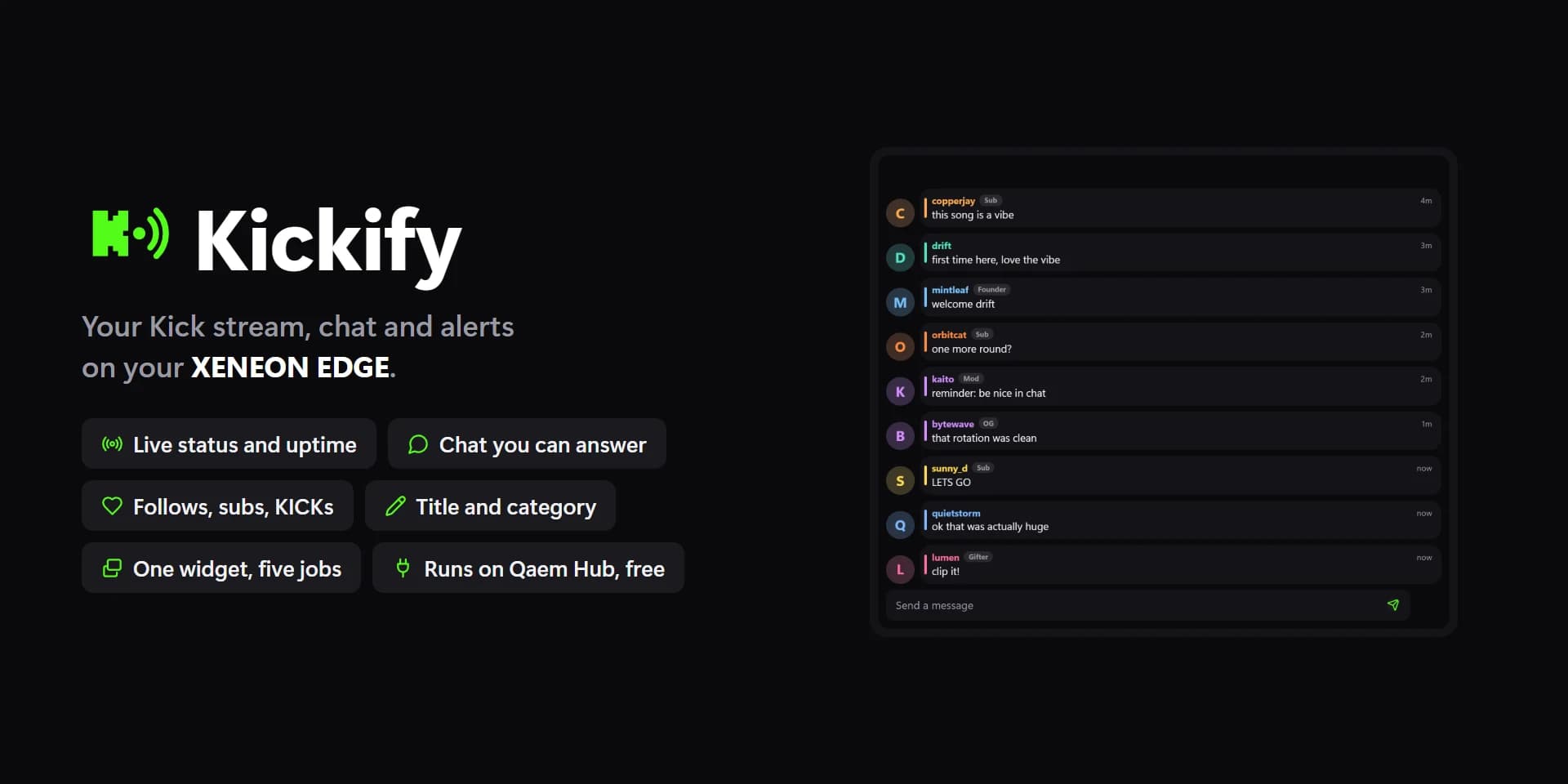
Shown at its default size, with sample data.
What you can set
- Kick account
- One sign-in for every widget that uses it, on every screen. The Integrations page lists them all.
- Show
- Live status · Chat · Activity · Go live card · KICKs leaderboard
- First card
- Viewers · Uptime · New followers · Subscribers · New subs · Gifted subs · KICKs · Peak viewers · Chatters · Messages · None
- Second card
- Viewers · Uptime · New followers · Subscribers · New subs · Gifted subs · KICKs · Peak viewers · Chatters · Messages · None
- Third card
- Viewers · Uptime · New followers · Subscribers · New subs · Gifted subs · KICKs · Peak viewers · Chatters · Messages · None
- Alert banner
- New follows, subs, gifts and KICKs pop over the chat for a few seconds.
- Send bar
- Tap it to write as your channel. Studio and Bubbles.
- Quick replies
- Shown as buttons when you write.
- Period
- This week · This month · All time
- Rows at most
- The rest scroll inside the tile.
- Newest
- At the bottom · At the top
- Row picture
- Avatars · Icons · None
- Row backgrounds
- Studio and Pulse.
- Spacing
- Tight · Normal · Roomy
- Icons
- Kick's mark, Pulse's icon, the stats' icons, Bubbles' avatars.
- Summary
- Pulse: what goes under the big number.
- Badges
- Mod, VIP, Sub in chat; Follow, Sub, Gift in Activity; the rank.
- Stats
- Viewers, uptime, new followers, subscribers, gifted subs, KICKs.
- Times as
- 5m · 3h · 5 min ago · The time
- Tap a row
- Chat: reply · others: open on Kick · Open on Kick · Nothing
- Hold a row
- Chat: reply, delete, time out, ban · Open on Kick · Nothing
- Go live button
- Open Kick's stream dashboard · Start streaming in OBS · Nothing
- Kick's API can't start a stream itself: the button opens the dashboard or starts OBS (the OBS widget's connection). While live it opens your channel.
- Tap the title
- Open the channel · Change title and category · Refresh · Nothing
- Hold the title
- Refresh · Change title and category · Zero this stream's counters · Nothing
- LIVE
- Unset, the theme's red.
- Text on LIVE
- Auto · Light · Dark · Custom
- Auto picks light or dark text from the colour, so it always reads.
- Kick green
- Command: the LIVE pill, the viewers and the alert banner.
- Text on Kick green
- Auto · Light · Dark · Custom
- Auto picks light or dark text from the colour, so it always reads.
- Cards
- Command's stat cards and chat panel. Unset, the theme's panel.
- Text on cards
- Auto · Light · Dark · Custom
- Auto picks light or dark text from the colour, so it always reads.
- Tile box
- Off, the design floats on the background. On, it sits in a tile like the other widgets.
- Design
- Edited design
- Send box
- Alert stays
- Hide !commands
- Chatters' colours
- Follows
- Subs and resubs
- Gifted subs
- KICKs
- Channel rewards
- Bans and timeouts
- Going live and ending
- Divider lines
- Corners
- Title
- Count
- LIVE pill
- Times
- Category art
- Tags
- Title
- Tap twice to ban
- Text on LIVE: custom
- Follows
- Subs
- Gifts
- KICKs
- Text on Kick green: custom
- Text on cards: custom
Parts you can restyle
Resize, recolour, change the font of, or hide each part under Customize → Layout.
- Kick mark
- Title
- Count
- Summary
- LIVE pill
- Viewers
- Stream title
- Category
- Tags
- Category art
- Big number
- Rows and cards
- Avatars
- Icons
- Names
- Messages
- Badges
- Times
- Stat values
- Stat labels
- Send bar
- Buttons
- Edge fade
- Scroll position
- New messages
- Notes
- Alert banner
Questions
Is the Spacedash Kickify widget free?
No, Kickify is a Premium widget. Spacedash itself is free; Premium is an optional one-time upgrade of $19.99, with no subscription, that adds Kickify and the other Premium widgets.
Do I need a XENEON EDGE to use the Kickify widget?
No. Spacedash runs on any monitor on Windows 10 or 11, and on the CORSAIR XENEON EDGE in Desktop Mode or, inside iCUE, in Widget Mode.
What can I change on the Kickify widget?
61 options, such as design, edited design, kick account and show. They're grouped as account, show, design, parts, words, behaviour and colours. Every widget also takes your own font, text size and look.
Can I move or hide parts of the Kickify widget?
Yes. Its parts (kick mark, title, count, summary, live pill, viewers, stream title, category, tags, category art, big number, rows and cards, avatars, icons, names, messages, badges, times, stat values, stat labels, send bar, buttons, edge fade, scroll position, new messages, notes and alert banner) can each be resized, restyled or hidden under Customize → Layout.