
A Now Playing widget for your Windows desktop
Spacedash's Now Playing widget shows the song or video playing on your PC, with its artwork, title and artist, a progress bar and playback buttons. It's free and works with Spotify, browsers, Apple Music, VLC and any player that reports to Windows.
There is nothing to connect: no Spotify sign-in and no browser extension.
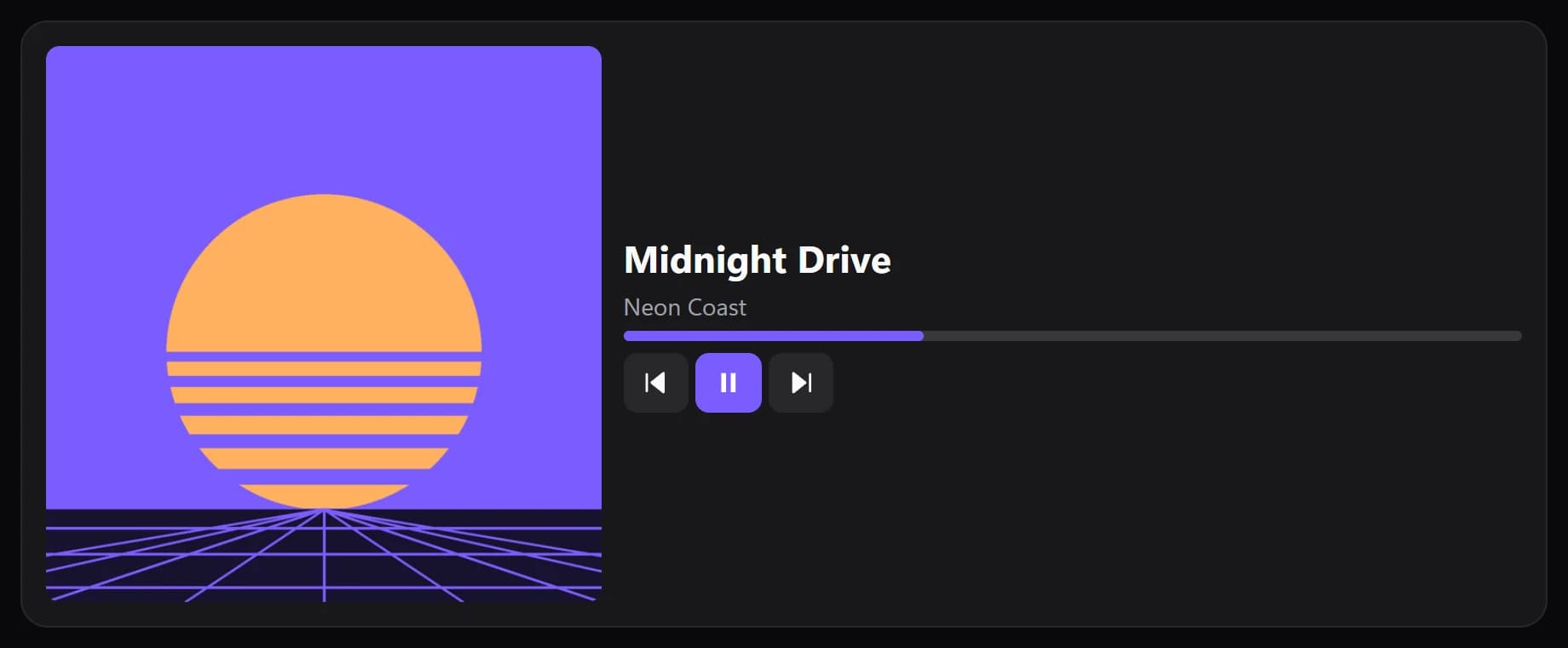
Shown at its default size, with sample data.
What it shows
Artwork, title and artist
With the player's name and the album if you switch them on. Long titles can be cut off, wrap to two lines or scroll.
Seven layouts
Artwork on the left, on the right, on top, behind everything, as an edge-to-edge poster, no artwork at all, or Auto.
Artwork your way
Square, rounded, a circle or a spinning record, with an optional blurred backdrop and colours taken from the artwork.
Progress and buttons
A progress bar with times, and Previous, Play/pause and Next. Shuffle, Repeat and skip back or forward by 5 to 30 seconds can be added.
Which players it works with
Now Playing reads Windows' own media session, the same source as the media card in Windows' volume flyout. Any app that reports there shows up: Spotify, Chrome, Edge and Firefox, Apple Music, VLC and others.
It follows whichever player Windows treats as the current one, and checks once a second. If you use foobar2000 with beefweb installed, position, seek, shuffle and repeat come from there.
Setups that use it
Music corner
Now Playing with the artwork on top, the Volume Mixer beside it to set each app's level.
A record on the desk
Album Art as a spinning record, a slim row of Media Controls under it and the Audio Visualizer moving with the sound.
Second-screen strip
A short, wide Now Playing across the bottom of a second monitor, under the clock and the weather.
What you can set
- Layout
- Auto (follows the tile's shape) · Artwork on the left · Artwork on the right · Artwork on top · Artwork behind everything · Poster: moving artwork, edge to edge · No artwork
- Auto puts the artwork beside the text, or above it on a tall tile.
- Artwork moves
- Still · Subtle · More
- A slow pan and zoom over the cover while it plays. Off when Windows is set to reduce motion.
- Dark fade under the text
- Light · Medium · Strong
- Artwork
- Square · Rounded · Circle · Spinning record
- Text alignment
- Auto · Left · Centre · Right
- Long titles
- Cut off · Two lines · Scroll
- Show the player's name
- Spotify, Chrome, Media Player… above the title.
- Seconds to skip
- 5 · 10 · 15 · 30
- Buttons go
- Under the text · Along the bottom of the tile · Beside the text · Over the artwork
- Put them in another order, or anywhere on the tile, under Layout: each button is its own part.
- Button row
- Start · Centre · End · Spread out
- Button style
- Soft · Round · Outline · Icons only
- Times
- None · 0:42 / 3:15 · 0:42 / −2:33
- Times
- None · 0:42 / 3:15 · 0:42 / −2:33
- Progress bar
- Bar · Thin line · With a knob · None
- Progress bar sits
- With the text · On the tile's bottom edge
- Colours from the artwork
- The play button, progress bar and backdrop take the colour of what is playing.
- Accent colour
- The play button and the progress bar. Unset, they take the widget's accent.
- Icon on the play button
- Auto · Light · Dark · Custom
- Auto picks light or dark text from the colour, so it always reads.
- Tapping the artwork
- Does nothing · Plays / pauses
- Artwork width, at most
- Blurred artwork behind the tile
- Show the album
- Shuffle
- Previous
- Back a few seconds
- Play / pause
- Forward a few seconds
- Next
- Repeat
- Button size
- Play button in the accent colour
- Tap the bar to jump
- Icon on the play button: custom
- Progress bar background
- Hide if nothing playing
- When nothing is playing
Parts you can restyle
Resize, recolour, change the font of, or hide each part under Customize → Layout.
- Artwork
- Player
- Title
- Artist
- Album
- Progress bar
- Times
- Button row
- Shuffle button
- Previous button
- Back button
- Play / pause button
- Forward button
- Next button
- Repeat button
Good to know
- Tap the progress bar to jump to that point. Tapping the artwork can play or pause, if you switch that on.
- A button the current player doesn't support is shown dimmed. Seeking needs a player that reports its position and length.
- The tile can hide by itself when nothing is playing.
- There is no picker for which app to follow: it shows the one Windows calls current.
- On a tile taller than it is wide, Auto puts the artwork on top; otherwise beside the text.
Questions
Does it work with Spotify?
Yes. The Spotify desktop app reports what it plays to Windows, and Now Playing shows it with artwork and controls. You don't sign in to Spotify in Spacedash.
Does it show YouTube or other music playing in my browser?
Yes, when the browser reports the tab to Windows, as Chrome, Edge and Firefox do. No extension is needed for this widget.
Is the Now Playing widget free?
Yes. Now Playing and Media Controls are part of Spacedash Free.
Can I control playback from the widget?
Yes: play, pause, next and previous by default, with shuffle, repeat, skip back and forward, and seeking on the progress bar where the player supports them.
Can I put it on a second monitor?
Yes. Spacedash shows on any monitor, behind your apps or over every window, and Now Playing can be any size there.