
An .edgeskin file changes how your whole dashboard looks in one go. Inside it are layouts, any imported widgets those layouts need, the styling of each widget, and the dashboard's theme, accent colour and background. If you know Rainmeter, it plays the part an .rmskin plays there. This guide covers installing one, making one, and the format for people who want to edit a skin by hand.
Start from a working example
The quickest way to understand skins is to install one. Ours is made for Widget Mode: a handwritten clock, Now Playing under it, and dark palm leaves as the background. After installing it, open the layout editor and take it apart to see how each piece was done.
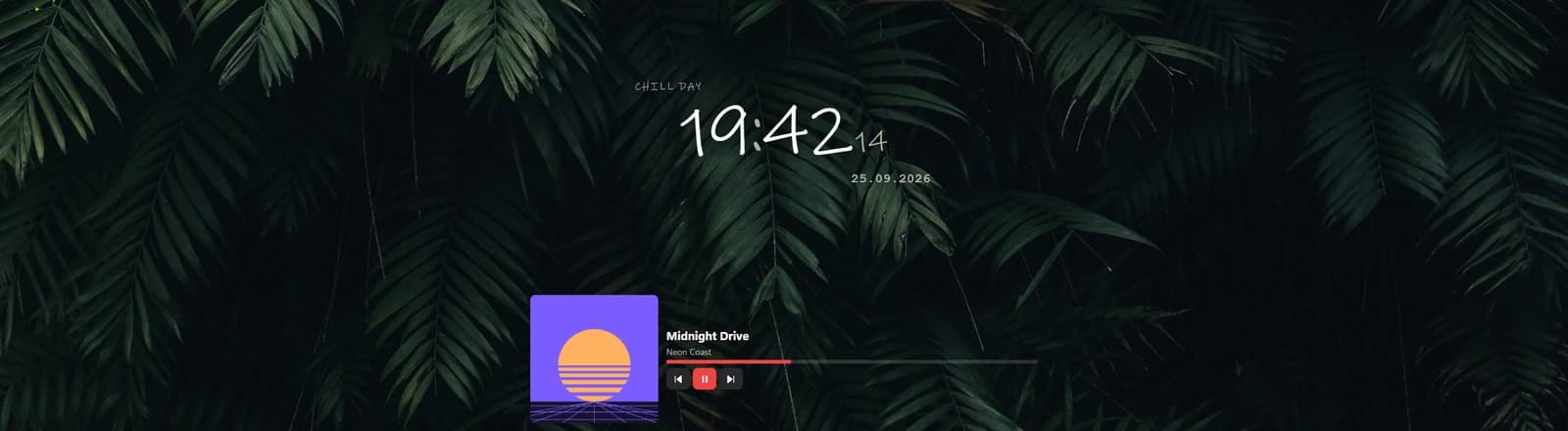
The free plan applies the example's layout, widgets and background. Its accent colour, and some colours and fonts of its clock, are Premium features and only appear with Spacedash Premium.
Install and apply a skin
Skins are handled on one page of the app, Skins.
Open the file
Press Open skin… and select an .edgeskin. Before Spacedash keeps anything, it lists the contents of the file for you to review. Then choose Install to add it to your skins, or Install and apply to use it straight away.
Apply
With Apply, you first see the skin on your actual dashboard. Confirming puts it on a profile. The layouts always go on; the colours, background and widget styling go on too unless you turn their switch off.
Go back if you don't like it
Undo, on the same page, restores whatever the most recent Apply replaced.
Create your own
On the Skins page, press Create skin…. Spacedash bundles the screens of one of your profiles into a file you can pass on. The preview shown in that sheet is saved as the skin's picture.
If you plan to hand-edit skins, begin this way as well. Let the app write a correct file, unzip it, and change the skin.json you find inside.
Inside an .edgeskin
The file is an ordinary zip archive. Its contents:
skin.json          what the skin is (below)
preview.png        its picture (or .jpg / .webp), optional
assets/<file>      pictures and clips the JSON points at as /backgrounds/<file>
widgets/<id>/…     each imported widget the layouts use (widget.json or manifest.json + its files)
skin.json describes the skin:
{
  "edgeos": "skin", "v": 1,
  "id": "you-neon-city",            // letters, digits, - _ . ; the same id installs over an older version
  "name": "Neon City", "author": "You", "version": "1.0.0",
  "description": "One or two lines.",
  "preview": "preview.png",
  "layouts": {                      // any of: desktop, widget, desktopPortrait, widgetPortrait
    "desktop": { "cols": 12, "rows": 4, "items": [ { "id": "c1", "widget": "clock", "x": 0, "y": 0, "w": 4, "h": 2, "options": {} } ] }
  },
  "widgetStyle": { "clock": { "radius": 20 } },   // per widget, as Widgets → Customize saves it
  "appearance": { "theme": "slate", "accent": "#22d3ee", "dashboard": { "image": "/backgrounds/city.jpg" } },
  "widgets": [ "my-widget" ]        // folders under widgets/
}
| Field | What to put there |
|---|---|
id | Letters, digits, -, _ and . only. Reusing an id makes the skin replace the earlier version when installed. |
layouts | One or more of desktop, widget, desktopPortrait, widgetPortrait. |
widgetStyle | Styling for each widget, written exactly as Widgets → Customize stores it. |
widgets | Names of the folders in widgets/. Every folder is a normal widget of the kind described in Build your own Spacedash widget. |
How Spacedash protects you from a bad skin
A skin is a file from a stranger, and Spacedash treats it that way.
Only expected files are unpacked. Anything not in the list above is ignored, a path that points outside the package is refused, and sizes are limited: 200 MB for the skin, 60 MB for any single file in it, 320 MB once unpacked.
No programs, no SVG. Executable files such as .exe, .dll, .bat and .ps1 are never unpacked, and neither are SVG pictures.
Layouts are validated. They go through the checks a shared layout gets: the screens must be known ones, sizes must fit the grid, and references to the author's own profiles or saved layouts aren't allowed.
Buttons that launch things are your decision. A button that opens a program, a file or a link is shown in the review and dropped unless you choose to keep it.
Wallpaper Engine wallpapers stay behind. They are files on the author's PC, so a skin never carries one.
Widgets stay sandboxed. Widgets inside a skin run in the sandbox every imported widget runs in, and one is installed only when you don't have it yet or yours is older.